


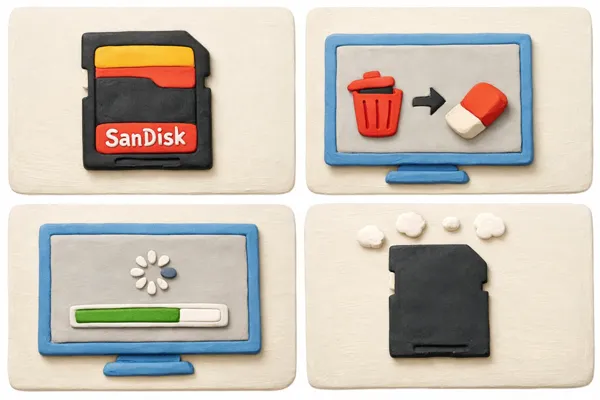
SanDisk SD cards are widely used in cameras, smartphones, drones, and other digital devices for reliable storage. However, there are times when you need to erase a SanDisk SD card - whether to free up space, remove sensitive data, fix file system errors, or prepare it for a new device. In these cases, you can follow this guide to erase or format your memory card without effort.
- Part 1: Erase SanDisk SD Card via iReaShare Data Wipe
- Part 2: Format SanDisk SD Card via Built-in Formatting Feature on Windows
- Part 3: Erase a SanDisk SD Card via Command Prompt
- Part 4: Formart SandDisk SD Card via Disk Management
- Part 5: Erase SanDisk SD Card via Disk Utility on Mac
- Part 6: Q&A About Erasing SanDisk SD Card
Take a quick look at these 5 methods:
| Method | Pros | Cons |
|---|---|---|
| iReaShare Data Wipe | 1. Permanently erases data on SanDisk so it cannot be recovered. 2. Multiple secure wipe levels。 3. Good for selling or disposing of the card. 4. Erase SSDs, HDDs, USB flash drives, Windows PCs, etc. |
1. Requires installing third-party software. |
| Windows Built-in Format (File Explorer) | 1. Very easy and quick. 2. No extra software needed. 3. Suitable for routine cleanup. |
1. Data can still be recovered with tools. 2. Does not fix deeper corruption. 3. Limited control over partitions. |
| Command Prompt (DiskPart) | 1. Completely cleans the card and removes partitions. 2. Can fix many disk errors. 3. Powerful and flexible. |
1. Risky if you select the wrong disk. 2. Command-line interface may confuse beginners. 3. Still not a secure wipe by default. |
| Disk Management (Windows) | 1. Visual interface, easier than command line. 2. Can create/delete partitions. 3. Useful when card shows as RAW. |
1. Not a secure erase. 2. Slightly more complex than File Explorer. 3. Limited advanced repair capabilities. |
| Disk Utility (Mac) | 1. Simple and built into macOS. 2. Supports multiple formats (exFAT, FAT). 3. Works well for cross-platform use. |
1. Not a secure wipe. 2. Fewer repair options than specialized tools. 3. Mac only. |
Part 1: Erase SanDisk SD Card via iReaShare Data Wipe
If privacy is your top priority, standard formatting might not be enough. iReaShare Data Wipe is designed for permanent data erasure, making recovery impossible even with professional software. It can overwrite existing and deleted data entirely, so all the data will be unrecoverable. Besides, it can erase USB flash drives, external hard drive, and other storage devices.
Main features of iReaShare Data Wipe:
* Erase an SanDisk SD card completely to prevent data recovery.
* Support the multiple secure wipe standards (US DoD 5220.22-M(E) standard).
* Erase all data from a hard drive on a PC.
* Allow you to selectively shred files and folders.
* Support Windows 11/10/8/7.
Download iReaShare Data Wipe.
Here's how to erase a SanDisk SD card with iReaShare Data Wipe:
-
Insert the SanDisk SD card into your computer via a card reader. Then install and launch the data wipe software on your PC.
-
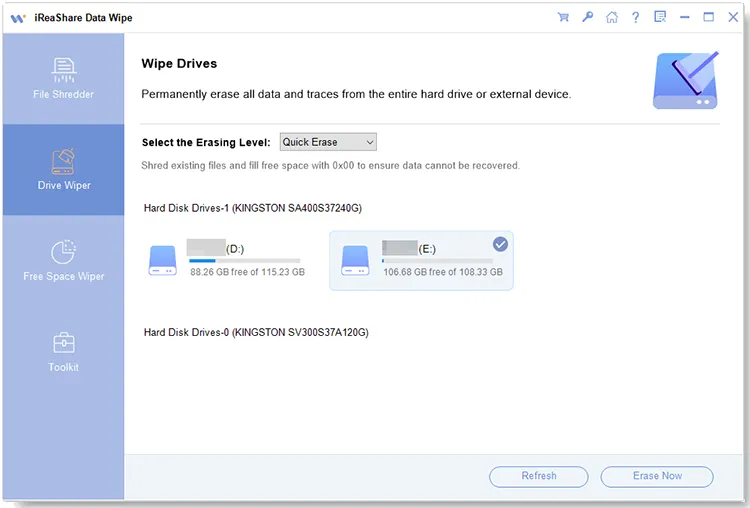
Choose "Drive Wiper", select an erasing level: "Quick Erase" or "Deep Erase". Then choose your SanDisk memory.
-
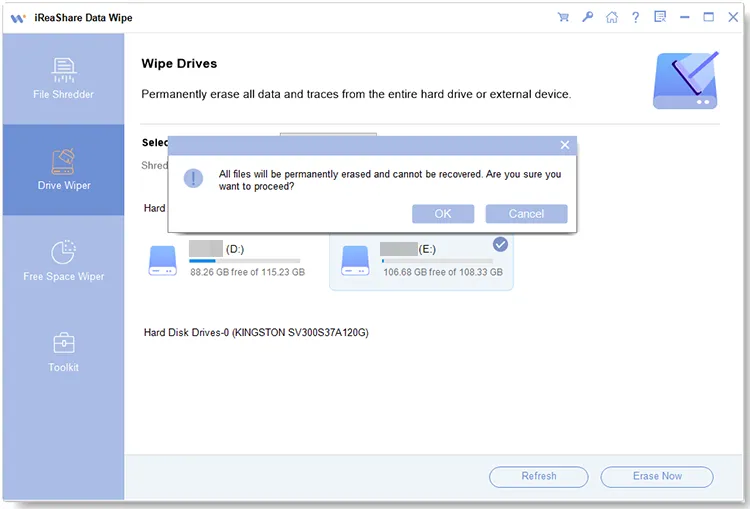
Click "Erase Now", and choose "OK" to start erasing your SD card. All the data will be wiped.
Part 2: Format SanDisk SD Card via Built-in Formatting Feature on Windows
Windows provides a quick and simple formatting option. You can use the Quick Formart or Deep Formart feature to remove all your files from your SanDisk SD card. However, this way doesn't support data overwriting.
Here's how to format a SanDisk SD card on a Windows PC::
-
Insert the SD card and open File Explorer by clicking "Win + E".
-
Right-click on the SD card drive under "This PC", and then select "Format..." from the menu.
-
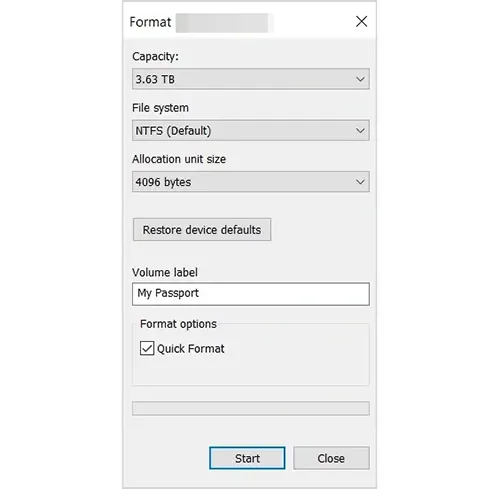
Choose the File System (FAT32 for cards 32GB or smaller, exFAT for 64GB and above). If you want to choose "Deep Format", don't check "Quick Format", and then click "Start".
Part 3: Erase a SanDisk SD Card via Command Prompt
For those who prefer a more hardcore approach or are dealing with a card that won't format via the GUI, Diskpart is the way to go. It can remove partitions and file system errors, and it's very useful when the card becomes unreadable.
To erase a SanDisk memory card with Command Prompt on a PC:
-
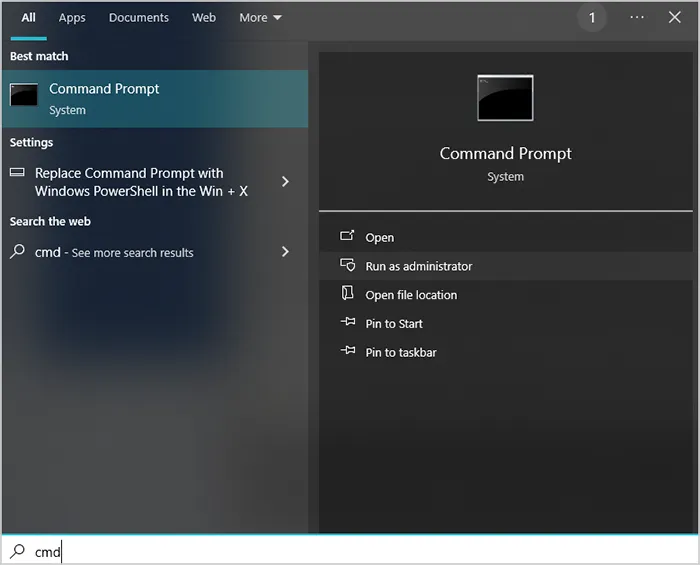
Type "cmd" in the Windows Search bar, right-click, and choose "Run as Administrator".
-
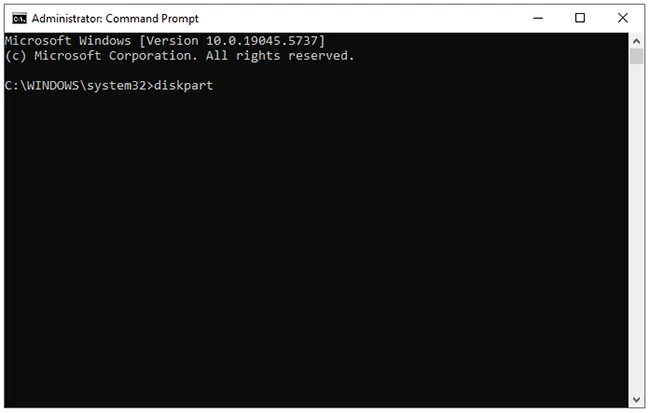
Type "diskpart" and press "Enter". Then type "list disk" to identify your SD card's disk number.
-
Input "select disk X" (replace X with your SD card's number, be careful). Finally, type "clean all". This will write zeros to every sector of the card, erasing everything permanently.
Part 4: Formart SandDisk SD Card via Disk Management
If your SD card doesn't show up in File Explorer, Disk Management can help you initialize and format it. Then all the files will be deleted.
Here's how to format a SanDisk SD card with Disk Management:
-
Right-click the "Start" button and select "Disk Management".
-
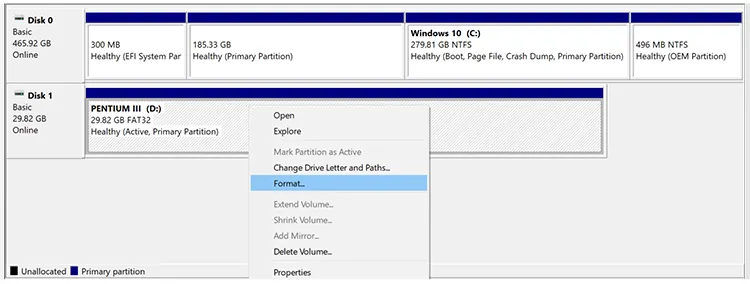
Locate your SanDisk SD card in the visual list. Then right-click the card and choose "Format" from the menu.
-
Follow the wizard to assign a drive letter and file system.
Part 5: Erase SanDisk SD Card via Disk Utility on Mac
Mac users can format SD cards using the built-in Disk Utility tool, which can erase your memory card easily.
Here's how:
-
Insert the SD card into your Mac computer, and click "Applications" > "Utilities" > "Disk Utility".
-
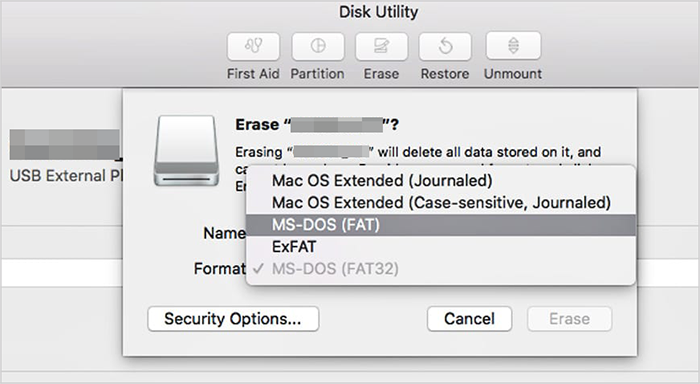
Select the SD card in the sidebar, tap on the "Erase" button.
-
Choose a name and format (typically ExFAT for cross-platform compatibility), and click "Erase" to confirm.
Part 6: Q&A About Erasing SanDisk SD Card
Q1: How to make sure a SanDisk SD card is wiped?
To ensure data is unrecoverable:
- Use secure wipe software (e.g., multi-pass overwrite).
- Avoid quick format if data sensitivity is high.
- Verify by attempting data recovery tools afterward.
Q2: Will erasing a SanDisk SD card affect the lifespan of the card?
Yes, but minimally. SD cards use flash memory with limited write/erase cycles. Occasional formatting is normal, but frequent full wipes can contribute to wear. Modern SanDisk cards include wear leveling to extend lifespan.
Q3: Can I remove all the files on my SanDisk SD card when factory resetting my phone?
It depends on the phone:
- Some Android devices offer an option to erase external SD cards during factory reset.
- On most phones, the SD card remains untouched unless you manually format it.
By the way, always back up important data before resetting.
Conclusion
Erasing a SanDisk SD card is a straightforward process, whether you use built-in system tools on Windows and Mac or secure data-wiping software for permanent deletion. If you want to overwrite deleted data permanently with simple clicks, iReaShare Data Wipe can help you. This program can erase your SD card or other storage devices thoroughly.
Related Articles
Completely Overwrite Hard Drive on Windows 11/10 PC (Proven)
Disk Cleanup Not Deleting Files: Find Out Reasons and Fix It
7 Best DBAN Alternatives Available to Wipe Hard Drive Completely
How to Clear a Pen Drive Securely: 4 Effective Approaches in 2026

