TL;DR:
To perform call log backup and restore on Android, you have three primary methods based on your needs:
- For Printable/Selective Desktop Backups: Use iReaShare Android Manager to backup call logs to PC in XML format and restore them anytime with 1 click.
- For Automatic Cloud Backups: Enable Google Drive backup under Settings > System > Backup (Requires full factory reset or initial setup to restore).
- For Local XML Backups: Use free mobile apps like SMS Backup & Restore directly on your phone.
Call history contains critical information, including unsaved phone numbers, time-sensitive client contacts, call durations, and incoming/outgoing communication timestamps. However, Android devices inherently cap call logs—usually between 500 to 2,000 entries depending on OEM overlays like Samsung One UI or Xiaomi HyperOS—after which older call records are automatically overwritten and purged.
Whether you are switching to a new device or safeguarding business records, knowing how to perform a reliable call log backup and restore on Android ensures you never lose important contact data. This guide covers four proven methods, complete with troubleshooting tips for missing logs and permission errors.
- Method 1: 1-Click Backup and Restore Android Call Logs on PC (Recommended)
- Method 2: Back Up and Restore Call History via Google Drive
- Method 3: Back Up Call Logs to Mobile App (SMS Backup & Restore)
- Method 4: Brand-Specific Cloud and Transfer Tools (Samsung & Xiaomi)
- Comparison Table: Which Method Should You Choose?
- Troubleshooting Common Android Call Log Restore Issues
- Frequently Asked Questions (FAQs)
Method 1: 1-Click Backup and Restore Android Call Logs on PC (Recommended)
If you need readable files (like Excel sheets or printable web pages), offline security, and selective restoration, using a dedicated desktop tool is the most effective approach. iReaShare Android Manager provides an enterprise-grade Android data management software solution that lets you manage, backup, and restore call logs on PC without cloud privacy risks.
Key Advantages of iReaShare Android Manager:
- Multiple Export Formats: Export call logs as XML files for easy viewing, editing, or printing on your computer.
- Selective Backup & Restore: Preview detailed call records (name, number, date, duration, call type) before backing up or restoring.
- 1-Click Android Backup & Restore: Create a full snapshot of your entire call history and restore it to any supported Android phone instantly.
- No Cloud Privacy Leak: Processes all data locally via a secure USB/Wi-Fi connection.
- Broad OS Compatibility: Fully supports Android 6.0 up to the latest Android 17 (including Samsung, Google Pixel, Motorola, OnePlus, Xiaomi, Vivo, etc.).
Download for Win Download for Mac
How to Back Up Android Call History to PC
- Download, install, and open iReaShare Android Manager on your Windows PC or Mac.
- Connect your Android phone via USB cable and follow the onscreen prompt to enable USB Debugging.
- Click on the Call Logs tab in the left sidebar to preview all your incoming, outgoing, and missed call records.
- Select specific call logs (or check Select All) and click Export to save them to your PC as XML format.
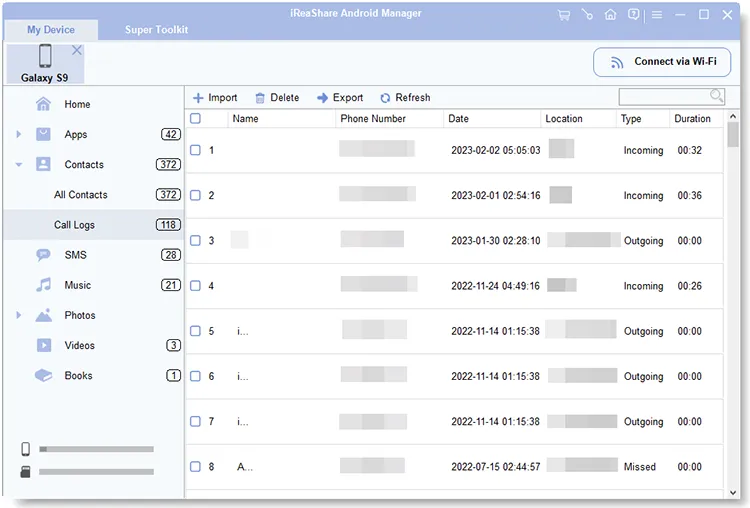
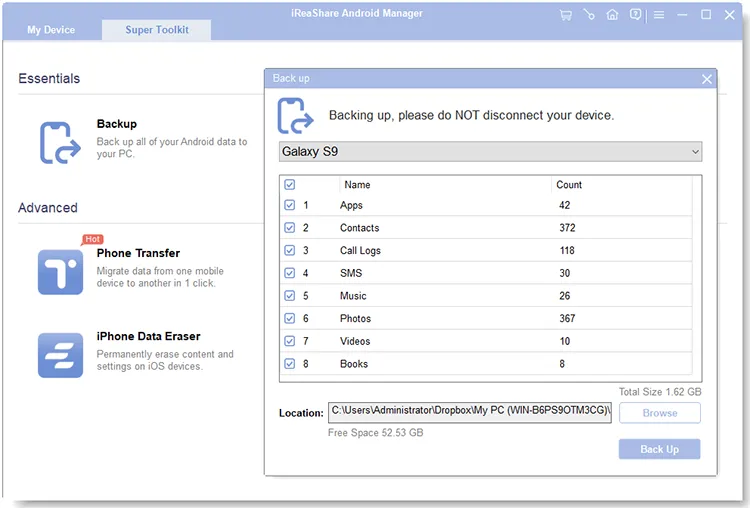
Note: You can also go to Super Toolkit > Backup, tick "Call Logs", choose a destination folder, and click "Back Up" for a 1-click full backup.
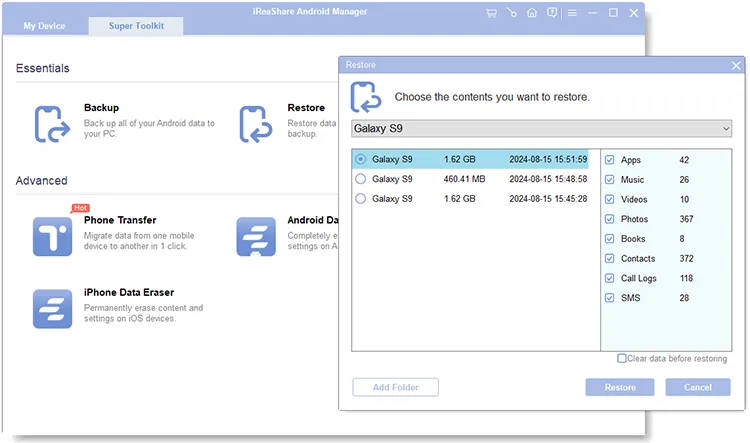
How to Restore Call Logs from PC to Android
- Connect your target Android phone to the PC and launch the software.
- Go to Super Toolkit and select Restore.
- Select your saved call log backup file from the list.
- Click Restore to merge or replace the call history on your Android device within seconds.
Video Guide: How to Use iReaShare Android Manager to Transfer Data?
Method 2: Back Up and Restore Call History via Google Drive
Google provides a native cloud backup feature integrated into all Android devices equipped with Google Mobile Services (GMS).
Limitations: You cannot view individual call details inside Google Drive, and cloud backups automatically expire if the device remains inactive for 57 days.
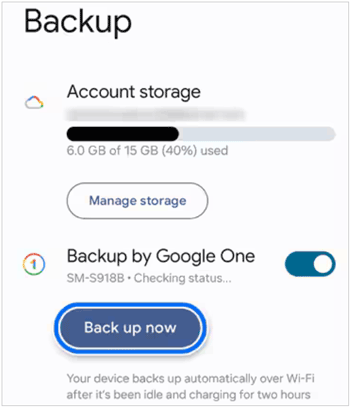
How to Back Up Call Logs to Google Drive:
- Open your phone's Settings app.
- Navigate to Google > Backup (or System > Backup on stock Android).
- Ensure Backup by Google One is toggled ON.
- Tap Back up now. Call history is automatically included in this cloud bundle.
How to Restore Call Logs from Google Drive:
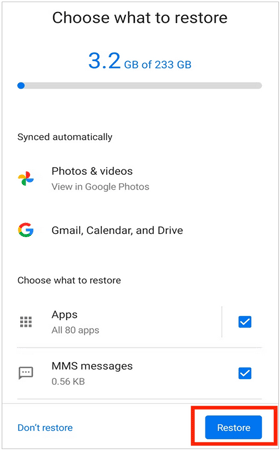
Unlike desktop tools, Google Cloud backups cannot be restored independently on an active phone. You can only restore them during the initial device setup process:
- Power on a new or factory-reset Android phone.
- Connect to Wi-Fi and sign in with the exact same Google Account.
- When prompted to "Copy apps & data", choose Can't use old phone? or restore from a cloud backup.
- Select the recent Google Drive backup and make sure Call History is checked.
Method 3: Back Up Call Logs to Mobile App (SMS Backup & Restore)
For users who prefer managing backups on their mobile phones without a PC or full device reset, third-party Android utility apps like SMS Backup & Restore offer a localized XML-based alternative.
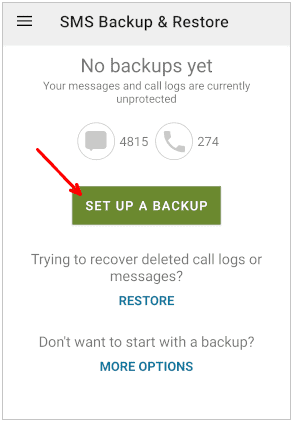
Steps to Backup Call Logs:
- Download SMS Backup & Restore from the Google Play Store.
- Open the app and tap Set Up a Backup.
- Toggle Phone Calls ON (you can disable SMS if you only need call history).
- Select a storage location: Google Drive, OneDrive, Dropbox, or local device storage.
- Tap Back Up Now.
Steps to Restore Call Logs:
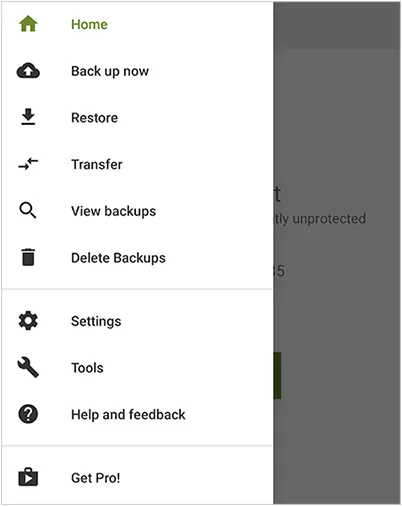
- Open the app on your target Android device.
- Tap the menu icon (top left) and select Restore.
- Choose the location where your XML backup file is saved.
- Check Call Logs and tap Restore.
- Temporarily set the app as your Default Phone/Call Screen Handler if prompted by Android permissions (you can revert this back immediately after restoration).
Method 4: Brand-Specific Cloud and Transfer Tools (Samsung & Xiaomi)
Major Android phone manufacturers offer proprietary sync tools designed for device-to-device migration.
Xiaomi / Redmi Cloud:
Go to Settings > Xiaomi Account > Cloud > Sync items and enable Call logs to keep call history synced across Xiaomi devices.
Samsung Smart Switch:
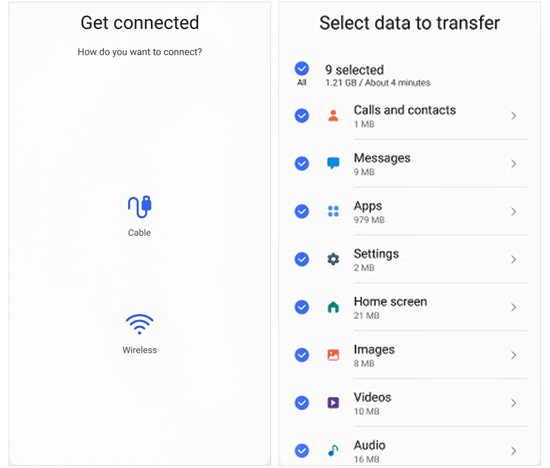
Connect two devices via cable or Wi-Fi, select Calls and Contacts, and transfer call logs directly from old Samsung/Android phones to a new Galaxy device.
Comparison Table: Which Method Should You Choose?
| Feature | iReaShare Android Manager | Google Drive | SMS Backup & Restore |
|---|---|---|---|
| Selective Preview & Export | Yes (Full detail preview) | No (Hidden binary payload) | Partial (Basic XML preview) |
| Export File Formats | XML | Cloud System Data | XML |
| Restore Without Factory Reset | Yes (Instant direct sync) | No (Setup wizard required) | Yes |
| Offline Storage & Security | Yes (Local PC Storage) | No (Cloud Storage) | Yes (Local / Cloud option) |
| Printable Reports | Yes | No | No |
Troubleshooting Common Android Call Log Restore Issues
1. Restored Call History Not Displaying in Default Phone App
Due to Google's strict privacy policies introduced in Android 9 and enforced through Android 15, call logs are stored in a protected system database directory: /data/data/com.android.providers.contacts/databases/calllog.db. If restored logs do not appear:
- Go to Settings > Apps > Phone > Permissions and verify that Call Logs permission is set to Allow.
- Open Settings > Apps > Phone > Storage and tap Clear Cache, then restart your device.
2. Call History Getting Truncated or Missing Old Records
Android automatically enforces an entry cap on call records. If you restore 1,000 entries on a device with a 500-entry limit, older records will be automatically truncated. To avoid losing records, regularly export your call logs to PC in XML format using iReaShare Android Manager.
3. USB Debugging Authorization Failure
When connecting your phone to a PC tool, ensure you select MTP / File Transfer mode under USB preferences and tap Always allow from this computer when the RSA fingerprint prompt appears on your phone screen.
Frequently Asked Questions (FAQs)
Q1. Where are call logs stored on Android internally?
Android stores call log entries in an SQLite database file located at /data/data/com.android.providers.contacts/databases/calllog.db. Accessing or editing this file directly requires root privileges. Non-rooted users must use official Android APIs or third-party backup tools like iReaShare Android Manager.
Q2. How far back does Android call history go?
Android does not limit call history by date, but by total number of entries (typically 500 entries on stock Android, up to 2,000 on customized skins). Once the limit is reached, new calls push out the oldest calls.
Q3. Can I open and print my Android call log backup on a computer?
Yes. If you backup call logs using iReaShare Android Manager, you can save them directly as XML files, which can be opened in Microsoft Excel, Google Sheets, or web browsers and printed out immediately.
Q4. Can I restore call logs from Android to iPhone?
Directly restoring Android call log backups to an iPhone native phone app is restricted due to iOS sandboxing architecture. However, you can export your call history to CSV/HTML on your PC for cross-platform viewing and record-keeping.
Conclusion
Performing regular call log backup and restore on Android is essential for protecting valuable communication history and business contacts. While Google Drive offers seamless cloud synchronization during phone setup, it lacks flexible selective restoration and printable export features.
For users seeking full control, flexible file formats, offline privacy, and instant selective restoration, iReaShare Android Manager stands out as the most powerful and reliable solution. Download the free trial today to safeguard your Android data.
Download for Win Download for Mac
Related Articles:
How to Transfer Call Logs from Android to Android
Transfer Files from Mac to Android Without Hurdle
Fix Google Photos Backup Stuck Effectively: 14 Fixes and 1 Alternative
How to Export Outlook Contacts to Excel Without Effort (5 Solutions)