

TL;DR:
There are several ways to perform Samsung backup and restore, depending on where you want to save your data and how you plan to restore it. Samsung Cloud and Google account let you back up selected data to the cloud, while Smart Switch transfers data between Samsung devices or saves backups to a computer. If you prefer more flexible data management, iReaShare Android Manager allows you to back up Android data to a computer in one click and restore it when needed.

Android Manager Manage Android data


Your Samsung Galaxy phone may contain important contacts, messages, photos, videos, and other personal files. Losing this information due to accidental deletion, a factory reset, device damage, or an unexpected system problem can be frustrating. Therefore, creating a backup in advance is an effective way to protect your data and make future recovery easier.
Fortunately, you have several options for Samsung backup and restore, including Samsung Cloud, Google account, Smart Switch, and third-party desktop software. Whether you want to back up your Samsung phone automatically, save a local copy on your computer, or restore previously backed-up data, the following methods can help you manage your information more conveniently.
- Part 1. How to Perform Samsung Backup and Restore with Samsung Cloud
- Part 2. How to Back Up and Restore Samsung Galaxy Through Google Account
- Part 3. How to Achieve Samsung Backup and Restore Using Smart Switch
- Part 4. How to Back Up and Restore Samsung by iReaShare Android Manager
- Part 5. Which Samsung Backup and Restore Method Is Best?
Part 1. How to Perform Samsung Backup and Restore with Samsung Cloud
Samsung Cloud is a built-in cloud service that allows you to back up selected data from your Galaxy phone and restore it when necessary. You can manually back up your important information whenever needed or enable automatic backup to save supported data periodically without starting the process yourself.
However, the available backup categories may vary depending on your Samsung model, carrier, and region.
Steps to manually back up Samsung data with Samsung Cloud:
Step 1. Open the Settings app on your Samsung phone and tap your Samsung account name at the top.
Step 2. Select "Samsung Cloud" and tap "Back up data".
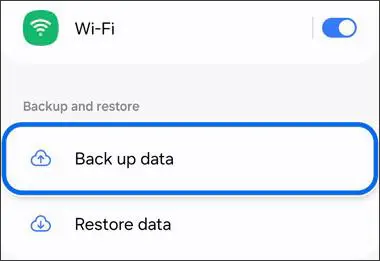
Step 3. Choose the data categories you want to save, such as Contacts, Call logs, Messages, Settings, and Voice Recorder.
Step 4. Tap "Back up now" to start backing up your selected data to Samsung Cloud.
Step 5. Wait for the process to finish and tap "Done".
How to restore Samsung data from Samsung Cloud:
Step 1. Open Settings, tap your Samsung account name, and select "Samsung Cloud".
Step 2. Tap "Restore data" and select the device backup you want to use.
Step 3. Choose the data categories you want to restore.
Step 4. Tap "Restore" and then "Install" if prompted.
Step 5. Wait for the restoration to finish and tap "Done".

If you don't want to back up your Samsung phone manually every time, you can also enable automatic backup. Go to "Settings" > your Samsung account > "Samsung Cloud" > three-dot menu > "Settings" > "Sync and auto backup settings" > "Auto back up". Then turn on the switches for the data categories you want to back up automatically. Samsung Cloud generally performs automatic backups once every 24 hours when the required conditions are met, such as a Wi-Fi connection, charging, and the screen being off.
Part 2. How to Back Up and Restore Samsung Galaxy Through Google Account
Google account is another convenient option for Samsung backup and restore. It allows you to save certain device data and settings to your Google account, making it easier to transfer information when switching to another Android phone or setting up a reset device.
Depending on your settings and the apps you use, Google backup can include contacts, call history, SMS and MMS messages, device settings, and app data.
Steps to manually back up Samsung data with a Google account:
Step 1. Open Settings on your Samsung Galaxy phone.
Step 2. Scroll down and tap "Google", then select "All services".
Step 3. Under Backup and restore, tap "Backup".
Step 4. Check that you are using the correct Google account and review the available backup categories.
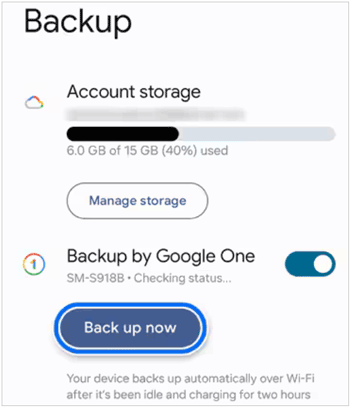
Step 5. Tap "Back up now" to save your selected device data to your Google account.
How to restore Samsung data from a Google account:
Step 1. Turn on your new or factory-reset Samsung phone and follow the initial setup instructions.
Step 2. Connect to a Wi-Fi network and sign in with the same Google account used to create the backup.
Step 3. When prompted, choose the option to restore data from an existing backup.
Step 4. Select the appropriate backup and choose the data you want to transfer.
Step 5. Follow the on-screen instructions to complete the setup and restore your data.
Google also allows you to automatically back up supported Samsung data. To enable this feature, open "Settings" > "Google" > "All services" > "Backup and restore" > "Backup". Make sure the correct Google account is selected, then turn on "Backup by Google One". Your phone will periodically back up supported data when the required conditions are met. You can also tap "Back up now" to create an updated backup manually.
Part 3. How to Achieve Samsung Backup and Restore Using Smart Switch
Samsung Smart Switch is an official Samsung tool designed to transfer and back up data between compatible devices. Unlike cloud-based methods, it allows you to save a local backup of your Samsung phone to a Windows PC or Mac. You can then use that backup to restore your information when needed.
This method is particularly useful if you want to keep a copy of your phone data on your computer without relying entirely on cloud storage.
Steps to back up Samsung data using Smart Switch:
Step 1. Download and install Samsung Smart Switch on your Windows PC or Mac.
Step 2. Connect your Samsung Galaxy phone to the computer using a USB cable. Unlock your phone and tap "Allow" if a permission request appears.
Step 3. Open Smart Switch on your computer and wait for it to recognize your device.
Step 4. Click "Backup" on the main interface.
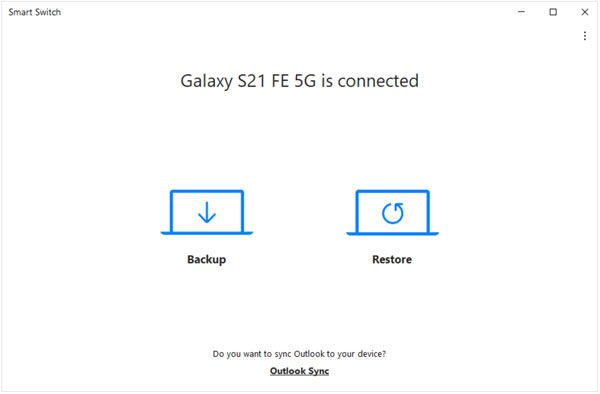
Step 5. Review the available data categories. You can keep the default selection or deselect the items you don't want to back up.
Step 6. Click "Backup" again to start saving your Samsung data to the computer.
Step 7. Wait until the backup is complete and click OK.
Steps to restore Samsung data using Smart Switch:
Step 1. Connect your Samsung phone to the computer where your Smart Switch backup is stored.
Step 2. Launch Smart Switch and click "Restore".
Step 3. Select the backup you want to restore. If necessary, click "Select your backup data" to choose specific categories.
Step 4. Click "Restore now" to begin restoring your selected data.
Step 5. Wait for the process to finish and click "OK" when prompted.
Part 4. How to Back Up and Restore Samsung by iReaShare Android Manager
If you want more control over which Samsung files to back up and restore, iReaShare Android Manager is another option worth considering. This desktop program works with Samsung and other Android devices, allowing you to transfer, back up, restore, and manage different types of phone data on a computer.
Unlike cloud-based backup services, it lets you store your selected data locally on your PC or Mac. You can also preview available files and choose specific categories before starting the backup or restoration process.
Key Features of iReaShare Android Manager:
- Back up Android data to a computer in one go.
- Restore saved backup files to the current or another Android device.
- Preview and select specific data before transferring it.
- Manage contacts, SMS, call logs, photos, videos, music, and apps.
- Import, export, copy, move, and delete Android files on a computer.
- Connect an Android device to a computer through USB or Wi-Fi.
Download for Win Download for Mac
How to Back Up Samsung Data to a Computer:
-
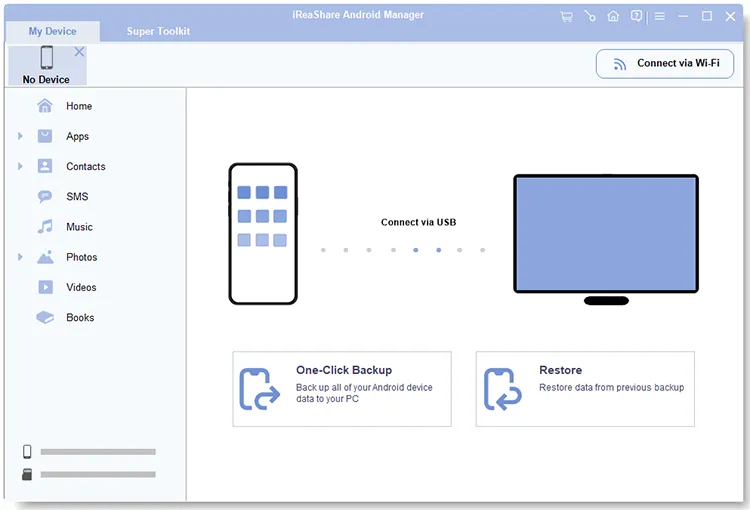
Download, install, and launch iReaShare Android Manager on your computer. Connect your Samsung Galaxy phone to the computer using a USB cable.
-
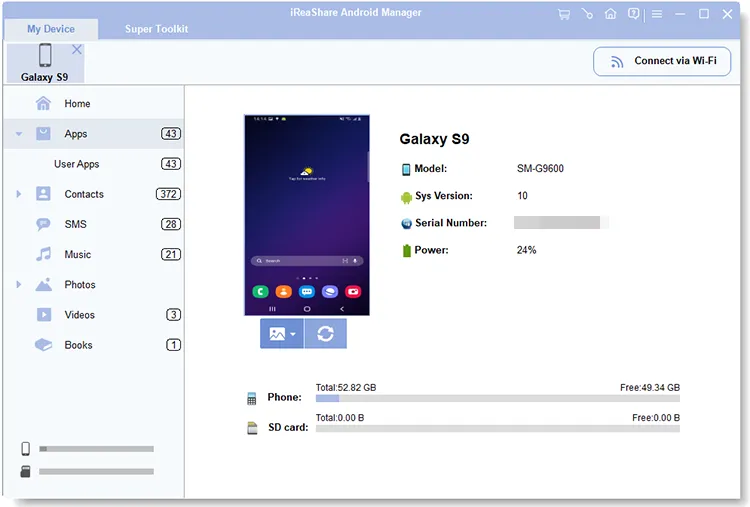
Enable USB debugging on your Samsung phone as prompted. Once the software detects your device, click "Super Toolkit".
-
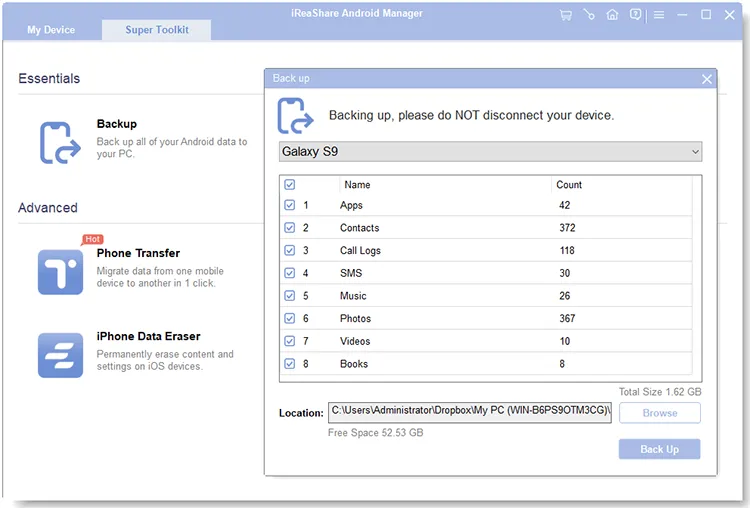
Select "Backup", check the Samsung data types you want to save, and choose a destination folder on your computer. Then click "Back Up" to start backing up your selected data.
How to Restore Samsung Data from a Computer:
-
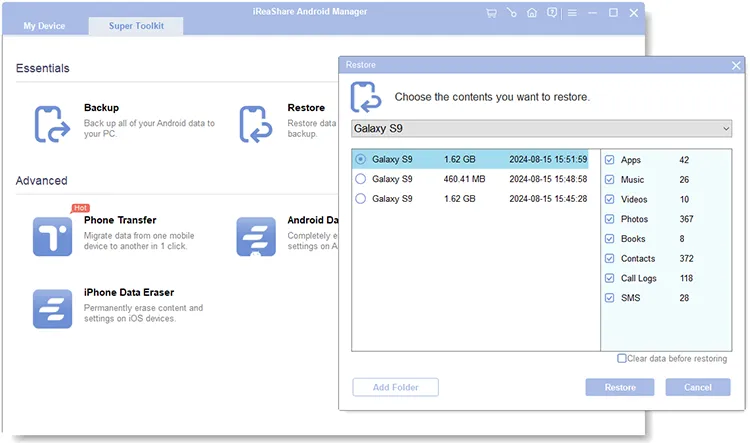
Connect your Samsung phone to the computer where your backup is stored. Launch iReaShare Android Manager and open "Super Toolkit".
-
Click "Restore" and select the backup file you want to use. Then check the data categories you need to restore.
-
Hit the "Restore" button to transfer the selected backup data to your Samsung phone. Keep the device connected until the process is complete.
Want to see how the backup and restoration process works in practice? Watch the following video tutorial for a visual walkthrough of using iReaShare Android Manager.
Part 5. Which Samsung Backup and Restore Method Is Best?
After learning about these four Samsung backup and restore methods, you may wonder which one is the most suitable. Each option has different advantages depending on your storage preferences, backup requirements, and restoration needs.
Here is a quick comparison to help you decide:
| Method | Backup Location | Main Advantages | Limitations |
|---|---|---|---|
| Samsung Cloud | Cloud | Built-in service; supports manual and automatic backup | Limited data categories and cloud storage |
| Google Account | Cloud | Automatic backup; convenient when switching Android devices | Most data restoration requires initial device setup |
| Samsung Smart Switch | PC/Mac | Official Samsung tool; supports local backup and restoration | Requires a computer and compatible data types |
| iReaShare Android Manager | PC/Mac | One-click backup; data preview and selective restoration | Requires desktop software and device permissions |
Conclusion
Performing regular Samsung backup and restore is essential for protecting your contacts, messages, photos, videos, and other important information. Samsung Cloud and Google Account are convenient for cloud backups, while Smart Switch provides an official way to save and restore data through a computer.
If you want more flexible control over your Android data, iReaShare Android Manager is also worth trying. It allows you to back up supported Samsung data to a computer, preview and select files, and restore your backup whenever necessary. Choose the method that best fits your needs and make regular backups to keep your important data safe.
Download for Win Download for Mac
Related Articles
Samsung Contacts Backup: Easily Back Up Samsung Contacts via 5 Methods
Android Backup and Restore Without Effort | 4 Proven Solutions