


TL;DR:
Successfully syncing your Samsung phone to tablet comes down to choosing the right method for your specific needs. The available methods fall into two distinct strategies:
- For Full Migrations & Media Backups: Use Samsung Smart Switch for seamless, one-time device cloning, or iReaShare Phone Transfer if you prefer a secure, cable-bound desktop interface to copy large amounts of data selectively.
- For Ongoing & Ecosystem Syncing: Rely on Samsung Flow for real-time file sharing, screen mirroring, and clipboard syncing. For automated cloud management, use Samsung Cloud to keep system data updated, and OneDrive (note that the deadline of the built-in OneDrive Sync feature) to automatically back up and view your photos across both devices.
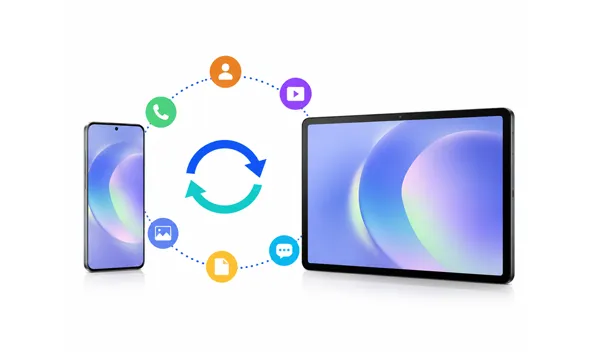
If you want to sync Samsung phone to tablet, you're in luck - Samsung's ecosystem and a few third-party tools make it easier than ever. From transferring photos and contacts to sharing apps and messages, this guide walks you through five proven methods, plus a Q&A section to help you tackle common issues along the way.
- Part 1: Sync Samsung Phone to Tablet via Samsung Smart Switch
- Part 2: Sync Samsung Phone and Tablet via Samsung Flow
- Part 3: Sync Phone to Tablet Android Directly via iReaShare Phone Transfer
- Part 4: Sync Data from Samsung Phone to Tablet via Samsung Cloud
- Part 5: Sync Photos from Samsung Phone to Tablet via OneDrive
- Part 6: Q&A About Syncing Samsung Phone to Tablet
Compare these 5 methods for synchronization between Samsung devices:
| Method | Pros | Cons |
|---|---|---|
| Samsung Smart Switch | 1. Deeply integrated into the Galaxy ecosystem. 2. Moves almost everything (apps, layouts, settings). 3. Does not require internet if using a cable. |
1. Designed for one-time migrations rather than ongoing, real-time syncing. 2. Requires both devices to be physically close or connected. |
| Samsung Flow | 1. Seamless real-time clipboard sharing and notification syncing. 2. Allows screen mirroring between phone and tablet. 3. Fast drag-and-drop file sharing. |
1. Requires both devices to be on the same local network / Bluetooth range. 2. Not suitable for transferring massive whole-device backups. |
| iReaShare Phone Transfer | 1. Stable, direct PC-to-device connection reduces wireless dropouts. 2. Clear, user-friendly interface for choosing specific file types. 3. Safe and independent of cloud storage limits. 4. Supports USB and Wi-Fi transfer methods between Android devices. |
1. Requires a computer to serve as the bridge. 2. The trial version can transfer 10 contacts for free, but the full feature requires a license. |
| Samsung Cloud | 1. Works silently in the background over Wi-Fi. 2. Ideal for lightweight, continuous data (contacts, notes, calendars). 3. Access your data even if one device is powered off. |
1. Limited storage space for larger files. 2. No longer supports native photo/video gallery backups (delegated to OneDrive). |
| OneDrive | 1. Perfect integration with the native Samsung Gallery app. 2. Automatic cloud backup of photos and videos as you take them. 3. Accessible from non-Samsung devices (PC/Web) too. |
1. Limited to photos, videos, and documents (cannot sync apps or text messages). 2. Free tier is capped at 5GB; requires a paid subscription for larger media libraries. |
Part 1: Sync Samsung Phone to Tablet via Samsung Smart Switch
Samsung Smart Switch is the go-to official tool for one-time data transfers. It is ideal when you are setting up a new tablet and want to copy your phone's layout, apps, contacts, and media seamlessly. If you want to sync everything from your Samsung phone to your tablet, Smart Switch will be suitable.
Here's how:
-
Ensure the Smart Switch app is installed and updated on both your Samsung phone and tablet. Open the app on both devices.
-
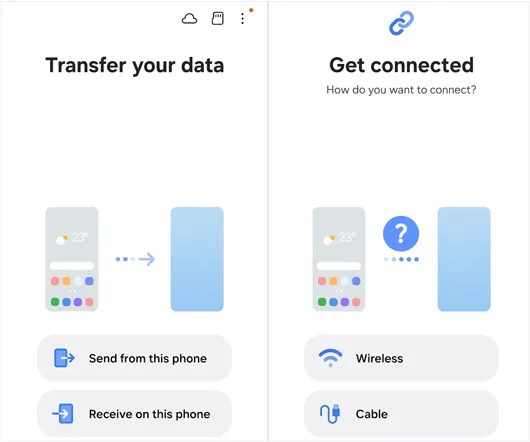
Tap "Send data" or "Send from this phone" on your phone and "Receive data" on your tablet. Choose your preferred connection method: "Wireless" (via Wi-Fi Direct) or "Cable" (using a USB-C to USB-C cable).
-
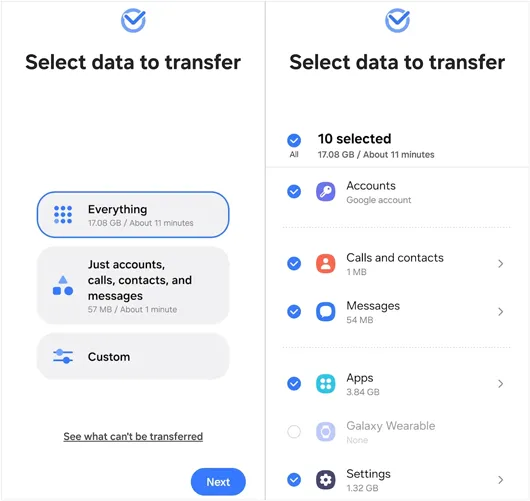
Your tablet will scan your phone for transferable content. Once the list appears, check the boxes next to the items you want to sync.
-
Tap "Transfer" on your phone and select "Copy" on your tablet if prompted. Keep the devices close together until the transfer completes.
Part 2: Sync Samsung Phone and Tablet via Samsung Flow
If you want a continuous, real-time connection and synchronization between your devices rather than a one-time transfer, Samsung Flow is the perfect solution. It allows you to share files, mirror screens, and even sync notifications.
To sync Samsung phone to tablet with Samsung Flow:
-
Download Samsung Flow on both devices from the Galaxy Store or Google Play Store. Turn on Bluetooth and Wi-Fi on both.
-
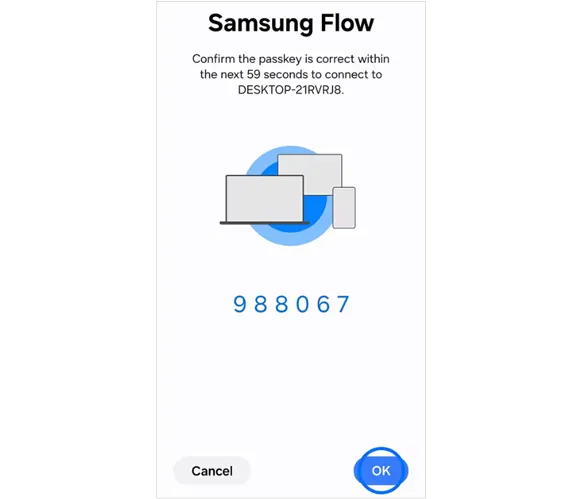
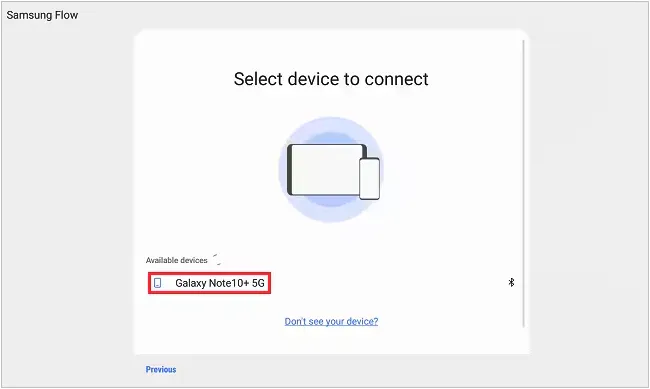
Open the app on both your phone and tablet. On your tablet, select your phone from the list of available devices and confirm the passkey on both screens to pair them.
-
To send files, tap the "+" (plus) icon inside the Samsung Flow chat interface on either device, select your files, and send them.
-
To sync your clipboard, enable the "Clipboard Sync" icon at the top of the app. Copying text on your phone will now allow you to paste it instantly on your tablet.
Part 3: Sync Phone to Tablet Android Directly via iReaShare Phone Transfer
For users looking for a one-stop solution that provides a direct, stable link between Android devices, iReaShare Phone Transfer is a reliable desktop software companion. It specializes in swift, cross-device data cloning. Furthermore, it can transfer your contacts, text messages, call logs, photos, videos, documents, installed apps, and more.
Main features of iReaShare Phone Transfer:
* Transfer SMS, contacts, call history, media files, and apps between Samsung phone and tablet in just a few clicks.
* Support both wireless and USB connection modes, giving you flexibility based on your situation.
* Allow you to select file types before the transfer, and the transferred data will not overwrite your existing files.
* Provides four modes: from Android to Android, Android to iOS, iOS to Android, and iOS to iOS.
* Compatible with all major Samsung models and Android versions, like Samsung Galaxy S26/Z TriFold/S25/S24/S23, Galaxy Tab S11/S10/S9/S8/A11/A9/A8, and more, ensuring broad device coverage.
* No ads and comply with the read-only mode.
Download iReaShare Phone Transfer.
Download for Win Download for Mac
Sync data from a Samsung phone to a tablet with this program:
-
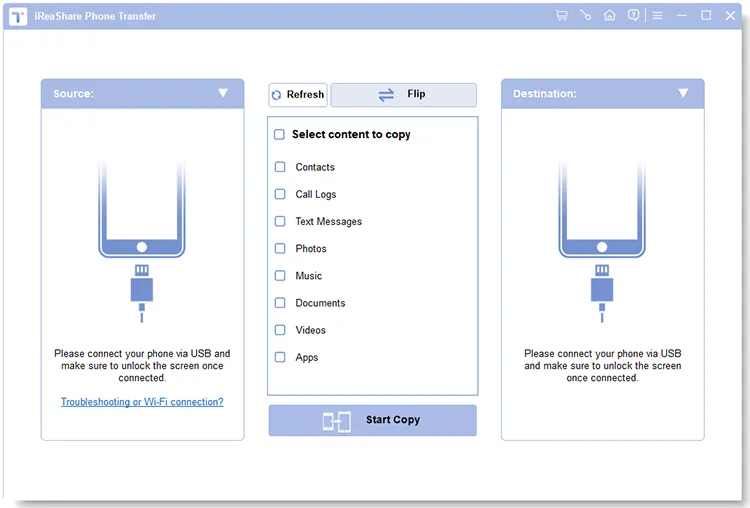
Download and install iReaShare Phone Transfer on your computer. Open the program and use USB cables to connect both your Samsung phone and tablet to the computer.
-
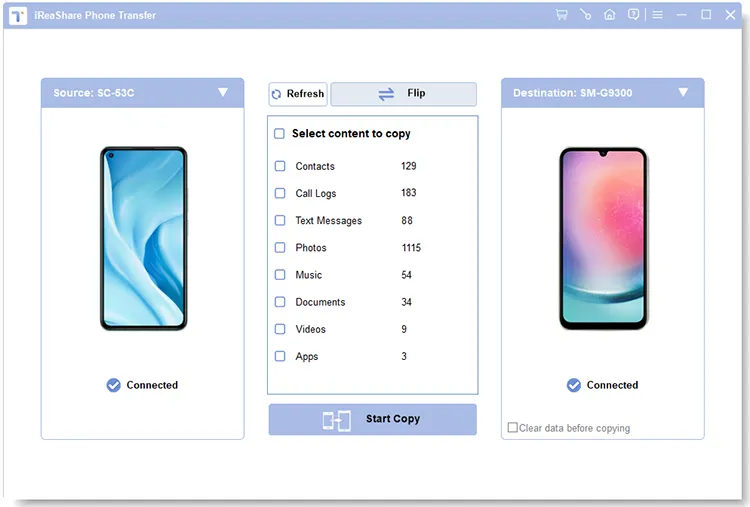
Follow the on-screen guide to enable USB debugging on both devices. Once connected, ensure your tablet is the "Destination" device. If not, click "Flip".
-
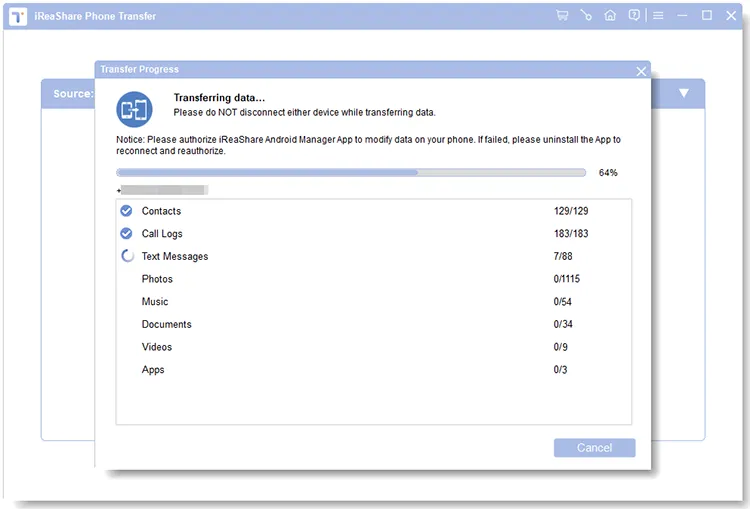
Check the data types you want to sync, and click "Start Copy" to copy the data directly from the phone to the tablet.
Part 4: Sync Data from Samsung Phone to Tablet via Samsung Cloud
For effortless, automated background syncing of essential system data like calendars, contacts, and notes, Samsung Cloud keeps your devices aligned through your Samsung Account. This way requires you have adequate cloud storage space on your Samsung Account.
Here are the steps:
-
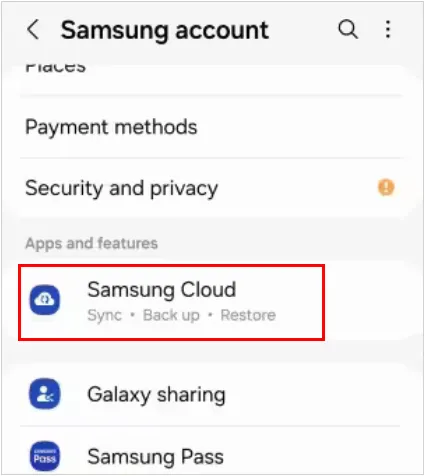
Make sure both your phone and tablet are signed into the exact same Samsung Account. On both devices, go to Settings, tap your "Profile Name" (Samsung Account) at the top, and select "Samsung Cloud".
-
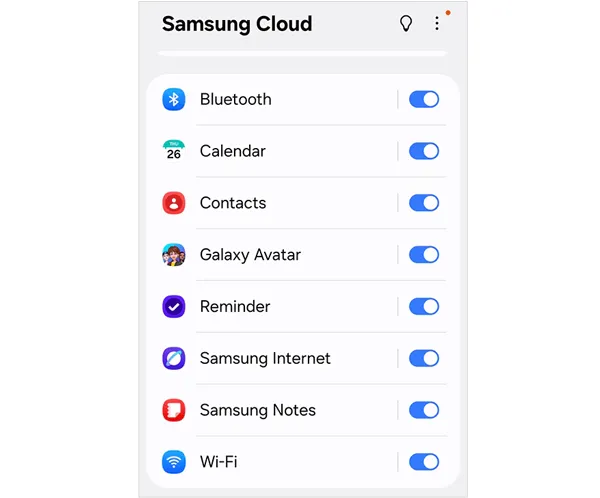
Toggle on the switches for the data categories you want to keep updated in real-time, such as Samsung Notes, Calendar, Contacts, Bluetooth data, etc.
-
As long as both devices are connected to the internet, any changes made on your phone will instantly reflect on your tablet.
Part 5: Sync Photos from Samsung Phone to Tablet via OneDrive
Since Samsung integrated its native Gallery app with Microsoft OneDrive, cloud-syncing your photos and videos across Galaxy devices has become incredibly smooth.
Here's the guide:
-
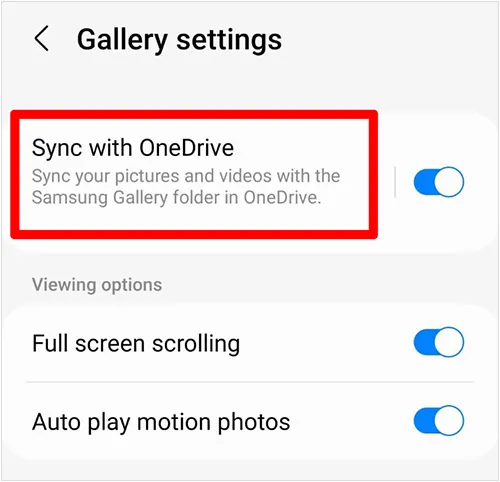
Open the Gallery app on your Samsung phone, tap the three horizontal lines (Menu), and go to "Settings".
-
Tap "Sync with OneDrive" and follow the prompts to link your Samsung account to your Microsoft account.
-
Once enabled, any picture you take or video you record on your phone will automatically upload to OneDrive and appear in the Gallery app of your tablet under the "Synced" tab.
Note: It has been announced that the direct Gallery Sync feature between Samsung and Microsoft OneDrive will be discontinued on September 30, 2026. This means the built-in option to toggle "Sync to OneDrive" directly within the Gallery settings will be completely removed. From that point on, you will need to download the OneDrive app to sync your photos and videos, just like other users.
Part 6: Q&A About Syncing Samsung Phone to Tablet
Q1: Why won't my phone and tablet sync?
There are a few common culprits behind syncing failures. First, ensure both devices are connected to the same stable Wi-Fi network and have Bluetooth turned on. Second, double-check that you are signed into the exact same Samsung and Microsoft accounts on both devices. Finally, make sure both devices have sufficient battery life (above 20%) and that their operating systems and apps are updated to the latest versions.
Q2: Can I only sync my videos from my Samsung phone to my tablet?
Yes. When using methods like Samsung Smart Switch or iReaShare Phone Transfer, you can uncheck all other data categories (like contacts, messages, and apps) and selectively check only the "Videos" box before initiating the transfer. If you are using OneDrive, you can also manage your folders to sync specific media albums.
Q3: Can I transfer everything from my Samsung phone to my tablet?
Almost everything. Using Samsung Smart Switch, you can transfer photos, videos, contacts, call logs, text messages, calendars, home screen layouts, Wi-Fi passwords, and most of your downloaded applications. However, secure data, such as banking app credentials, WhatsApp chat histories (which require a separate in-app backup), and certain copyrighted media files, will need to be logged into manually on the new device for security reasons.
Conclusion
Syncing a Samsung phone with a tablet can be done in multiple ways, depending on your needs. If you want a full migration, Samsung Smart Switch is the most comprehensive tool. For ongoing device continuity, Samsung Flow is more suitable.
Cloud solutions like Samsung Cloud and Microsoft OneDrive provide automatic syncing for specific data types, while tools like iReaShare Phone Transfer offer more flexible control. If you want to sync data with more mobile devices, iReaShare Phone Transfer will be more capable.
Download for Win Download for Mac
Related Articles
Swiftly Transfer Photos from Samsung to PC | 7 Reliable Options
How to Delete Everything on Your Phone Samsung (5 Solutions)
Samsung Contacts Backup: Easily Back Up Samsung Contacts via 5 Methods
How to Sync Android with Mac in 5 Effective Ways (Latest)

