


TL;DR:
You can add a custom ringtone to your iPhone without iTunes in several ways, depending on your iOS version and editing needs. If your iPhone runs iOS 26 or later, the Files app lets you set a short MP3 or M4A file directly as a ringtone. GarageBand is a free option for importing, trimming, and exporting audio on your iPhone, while iPhone Ringtone Maker allows you to create and transfer custom ringtones using a computer.
The default iPhone ringtones may not always match your preferences. You might want to use your favorite song, a memorable sound effect, or a personalized recording as your ringtone. However, the traditional iTunes method can be inconvenient, especially if you don't have iTunes installed or prefer not to connect your iPhone to a computer.
Fortunately, there are other ways to customize your iPhone's ringtone without using iTunes. Whether you want to set an audio file directly on your iPhone or create and transfer a personalized ringtone with a computer, this article will show you how to add ringtone to iPhone without iTunes using three practical methods.
- Part 1. How to Add Ringtone to iPhone Without iTunes Directly via the Files App (iOS 26 or Later)
- Part 2. How to Set Ringtone on iPhone Without iTunes Using the GarageBand App
- Part 3. How to Add Custom Ringtone to iPhone Without iTunes by iPhone Ringtone Maker
- FAQs of How to Add Ringtone to iPhone Without iTunes
Comparison of 3 Ways to Add Ringtone to iPhone Without iTunes
Before choosing a method, check the following comparison to find the most convenient way to add a custom ringtone to your iPhone.
| Method | Required Device | Ringtone Input | Main Limit | Best For |
|---|---|---|---|---|
| Files App (iOS 26 or Later) | iPhone (iOS 26+) | Local MP3 or M4A file | Audio must be no longer than 30 seconds; no built-in editing feature | Quickly setting an existing short audio file |
| GarageBand | iPhone | Local audio files or imported music | Requires manual editing and exporting; ringtone must be no longer than 30 seconds | Editing and trimming audio directly on iPhone |
| iPhone Ringtone Maker | Computer and iPhone | Local audio files and available online audio sources | Requires a computer, additional software, and a USB connection for direct transfer | Creating and managing ringtones on a computer |
Part 1. How to Add Ringtone to iPhone Without iTunes Directly via the Files App (iOS 26 or Later)
If your iPhone is running iOS 26 or later, you can add a custom ringtone directly through the built-in Files app. This feature eliminates the need for GarageBand, iTunes, or a computer, making it one of the simplest ways to personalize your ringtone.
Before starting, prepare an MP3 or M4A audio file that is no longer than 30 seconds and save it to the Files app on your iPhone. Please note that DRM-protected songs downloaded from Apple Music cannot be used directly as custom ringtones.
How to add a ringtone to iPhone without iTunes via Files:
Step 1. Open the Files app on your iPhone and locate the MP3 or M4A audio file you want to use as your ringtone.
Step 2. Touch and hold the audio file, then tap "Share" in the pop-up menu.
Step 3. Scroll through the available actions and tap "Use as Ringtone". If you cannot find this option, tap "More" to check the additional actions.
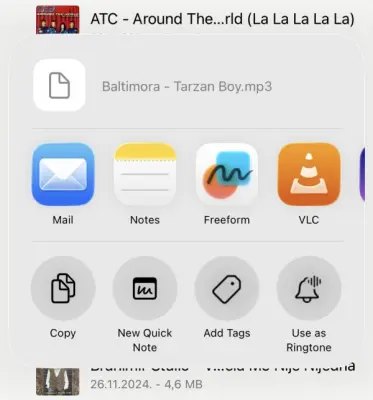
Step 4. Your iPhone will open the ringtone settings screen, where the new audio file should appear as a custom ringtone. If it is not already selected, tap it to set it as your default ringtone.
Part 2. How to Set Ringtone on iPhone Without iTunes Using the GarageBand App
If your iPhone is running an older iOS version or you want to edit an audio clip before setting it as a ringtone, GarageBand is another practical choice. It is Apple's free music creation app that lets you import audio, trim unwanted sections, and export your project as an iPhone ringtone.
Unlike the Files method, GarageBand does not require your audio clip to be prepared in advance. You can adjust its length and choose the exact section you want to hear when someone calls.
How to set a ringtone on iPhone without iTunes using GarageBand:
Step 1. Download and open GarageBand on your iPhone. Swipe through the available instrument options and select "Audio Recorder".
Step 2. Tap the "Tracks" button to enter the track view. Then tap the Loop Browser button in the upper-right corner.
Step 3. Select "Files" and tap "Browse items from the Files app" to locate your desired audio file. Touch and hold the file, then drag it into the GarageBand track area.
Step 4. Tap the audio track and drag its edges to trim the recording to your preferred section. You can also move the clip to the beginning of the track. Make sure the ringtone is no longer than 30 seconds.
Step 5. Tap the downward arrow in the upper-left corner and select "My Songs" to save the project. Then touch and hold the project, tap "Share", and choose "Ringtone".
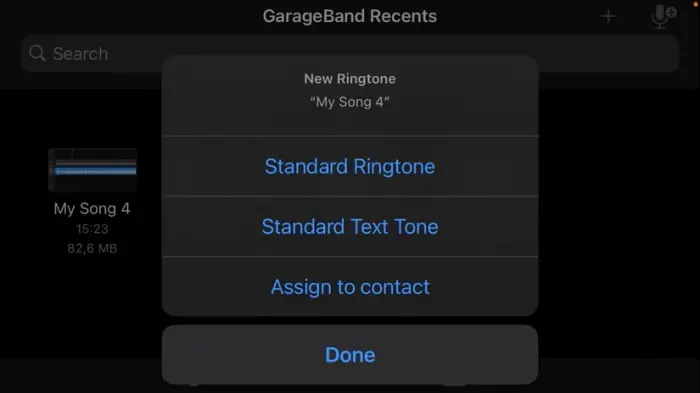
Step 6. Enter a name for your ringtone and tap "Export". Once the export is complete, tap "Use sound as" and select "Standard Ringtone" to apply it.
Part 3. How to Add Custom Ringtone to iPhone Without iTunes by iPhone Ringtone Maker
If you prefer creating and transferring custom ringtones on a computer, iPhone Ringtone Maker is another option worth considering. It provides a desktop-based solution for preparing personalized ringtones and transferring them directly to your iPhone without using iTunes.
Unlike the built-in iPhone methods, this tool lets you complete the ringtone creation and transfer process on your computer. You can also manage ringtone files on your connected iOS device, making it convenient to organize your custom ringtones.
Key features of iPhone Ringtone Maker:
- Create custom ringtones for iPhone, iPad, and iPod touch.
- Import local music files from your PC, SoundCloud, and YouTube videos as ringtone sources.
- Modify audio volume, pitch, and playback speed to customize your ringtone.
- Support multiple audio formats, including MP3, WAV, AAC, AMR, OGG, and M4R.
How to add a custom ringtone to iPhone without iTunes using iPhone Ringtone Maker:
-
Download and install iPhone Ringtone Maker on your computer. Launch the program and connect your iPhone to the computer using a USB cable.
-
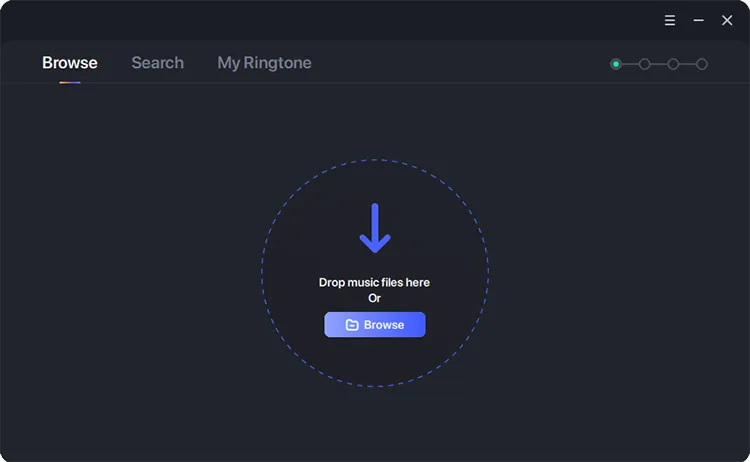
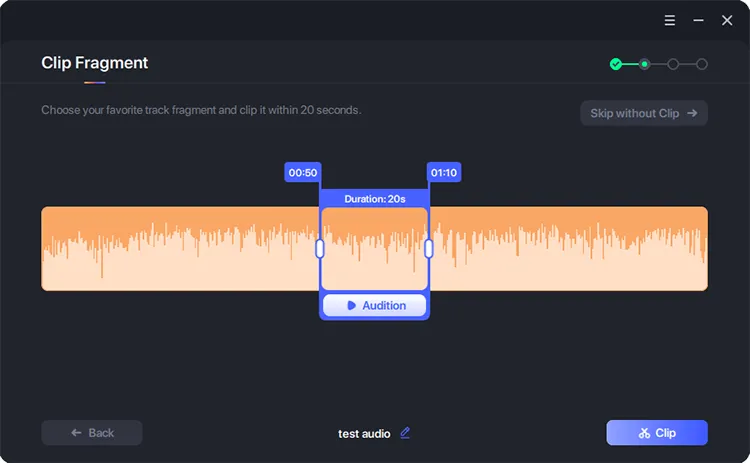
Open the "Browse" section and select a music file from your computer. Then choose the audio segment you want to use as your ringtone.
-
Edit the audio clip as needed. You can trim the recording and add personalized sounds to create your preferred ringtone.
-
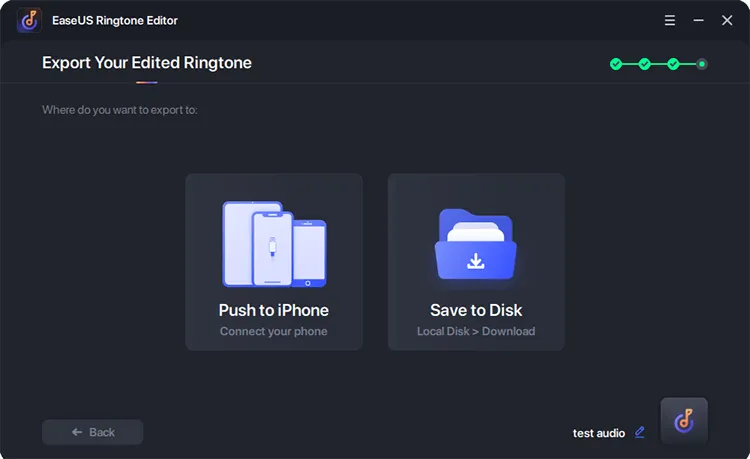
After editing, click "Export" and select your connected iPhone as the destination device. The program will transfer the finished ringtone to your iPhone without using iTunes.
-
Once the transfer is complete, open "Settings" > "Sounds & Haptics" > "Ringtone" on your iPhone. Find and select the newly added ringtone to set it as your default ringtone.
FAQs of How to Add Ringtone to iPhone Without iTunes
1. Where are custom ringtones stored on an iPhone?
Custom ringtones are stored in the iPhone's ringtone library. You can find them by going to "Settings" > "Sounds & Haptics" > "Ringtone". All available default and custom ringtones will appear there, and you can tap any one to set it as your ringtone.
2. How long can a custom ringtone be on an iPhone?
A custom iPhone ringtone can be up to 30 seconds long. If your audio file is longer, you need to trim it before setting it as a ringtone. Both the Files method in iOS 26 and GarageBand support this short ringtone format.
3. Why can't I use an Apple Music song as my iPhone ringtone?
Apple Music songs are generally protected by DRM, which prevents you from exporting them directly as custom ringtone files. Even if you have downloaded a song for offline listening, it does not mean you can use it as a ringtone. Instead, use an unprotected audio file that you own or have permission to use.
Conclusion
There are several ways to add a custom ringtone to your iPhone without iTunes. The Files app is the quickest option if your iPhone runs iOS 26 or later and you already have a short audio file. GarageBand is a free alternative for editing and exporting ringtones directly on your iPhone, while iPhone Ringtone Maker is worth considering if you prefer creating and managing ringtones on a computer. Choose the method that best fits your device and needs to personalize your iPhone's ringtone.
Related Articles
iTunes Alternative for iPhone, iPad, and iPod: 15 Tools Tested
Best iPhone Transfer Software in 2026: Top 5 iTunes Alternatives Compared