TL;DR:
To transfer music from Android to iPhone, you can choose a method based on your needs:
- iPhone Music Transfer: Best for local files (MP3/FLAC). Fast USB transfer with no data loss and no factory reset required.
- Move to iOS App: Apple's free wireless tool. Works only during initial setup (requires a full factory reset if the iPhone is already configured).
- iTunes / Finder Sync: Standard desktop bridge, but will erase and overwrite any existing music libraries on your iPhone.
- Streaming Apps (Spotify/YouTube Music): No file transfer needed. Just install the iOS app and log in to cloud-sync your playlists instantly.
To transfer music from Android to iPhone without data loss, you must navigate cross-platform format restrictions and iOS synchronization limits. While cloud streaming playlists sync automatically via account logins, migrating local audio libraries—including MP3, M4A, and high-fidelity FLAC files—requires a direct transfer method to avoid overwriting existing iOS data.
This guide outlines exactly how to transfer music from Android to iPhone using official Apple tools, cloud protocols, and high-speed desktop software like iPhone Music Transfer.
- Method 1: Move Music from Android to iPhone via iPhone Music Transfer (No Data Overwrite)
- Method 2: Copy Music from Android to iPhone via Move to iOS App
- Method 3: Sync Music from Android to iPhone via iTunes or the Apple Devices App
- Method 4: Download Music from Android to iPhone via Wireless Cloud App (Google Drive & Cloud Storage)
- Method 5: Sync Music from Android to iPhone via Streaming Apps (Spotify, YouTube Music, Apple Music)
- Troubleshooting Common Android-to-iOS Music Transfer Errors
- Frequently Asked Questions (FAQs)
Quick Comparison: Choose the Solution You Need
| Method | Speed | Supported Formats | Factory Reset Required? | Overwrites Existing Music? |
| iPhone Music Transfer | Ultra-Fast (USB Direct) | MP3, M4A, AAC, WAV, FLAC, etc. | No | No (Zero Data Loss) |
| Move to iOS App | Slow (Wi-Fi Local) | Limited Audio/Streaming | Yes | No |
| iTunes / Apple Devices App | Medium (PC Bridge) | MP3, AAC, WAV, AIFF | No | Yes (Erases Existing iPhone Tracks) |
| Cloud Storage (Drive/Dropbox) | Slow (Network Bound) | Format-dependent | No | No |
| Music Streaming Services | Fast (Cloud Sync) | Account Library Sync | No | No |
Method 1: Move Music from Android to iPhone via iPhone Music Transfer (No Data Overwrite)
The major flaw with native Apple data migration solutions is their strict handling of local audio files. Official methods either require a blank, unconfigured iPhone or risk completely wiping your active iPhone music library during an iTunes sync session.
iPhone Music Transfer solves these ecosystem barriers by creating a direct cross-platform bridge between Android and iOS without relying on a factory reset or risking file deletions.
Key Performance Advantages:
- Cross-Platform Data Interoperability: Moves local music straight from Android to iOS in a single click, supporting over 18 data types across thousands of mobile devices.
- Absolute Data Protection: Unlike iTunes or Finder sync, it will never overwrite or erase any pre-existing audio files on your target iPhone.
- Comprehensive Format Handling: Transfers standard MP3, M4A, AAC, WAV, and even high-res audio files, mapping them properly so iOS can read them instantly.
- Physical Connection Stability: Leverages standard USB 3.0 / USB-C wired transfer, bypassing the frequent dropouts, disconnects, and packet losses common to ad-hoc local Wi-Fi migrations.
Steps to Transfer Music from Android to iPhone:
Step 1. Download and Launch the Software
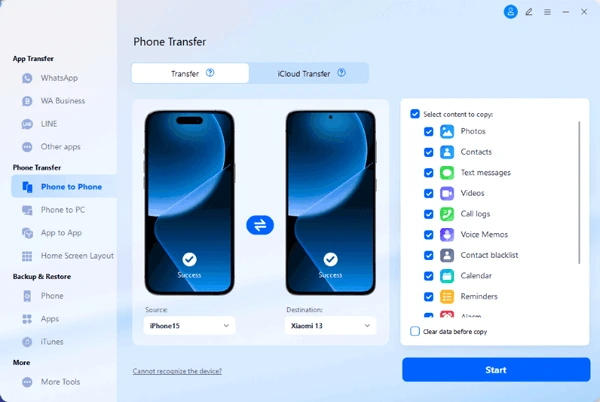
Install iPhone Music Transfer on your Windows PC or Mac. Launch the interface, navigate to the Phone Transfer tab at the top menu, and select the Phone to Phone feature.
Step 2. Connect Android and iPhone Devices via USB
Plug both your Android device and your iPhone into the computer using high-quality USB cables. Follow the on-screen prompts to enable USB Debugging on Android and tap Trust This Computer on the iPhone screen.
Step 3. Confirm Source and Destination Order
Verify the placement layout. The Android phone must appear as the Source on the left, and the iPhone must be the Destination on the right. If inverted, click the Flip button to swap them.
Step 4. Select Music and Initiate the Transfer
Check the box next to Music (and any other files you wish to migrate) in the central data type checklist. Click the Start button to execute the direct file transfer. Keep the cables firmly seated until the completion bar fills.
Method 2: Copy Music from Android to iPhone via Move to iOS App
Apple provides a native Android application named Move to iOS to handle switching architectures. This tool creates a direct private Wi-Fi connection to transition data.
Critical Caveat: This method only works during the initial out-of-box setup of the iPhone. If you have already configured your iPhone, logged into iCloud, and custom-arranged your home screen, you must execute a full factory reset (Settings > General > Transfer or Reset iPhone > Erase All Content and Settings) to use this app.
Step-by-Step Execution:
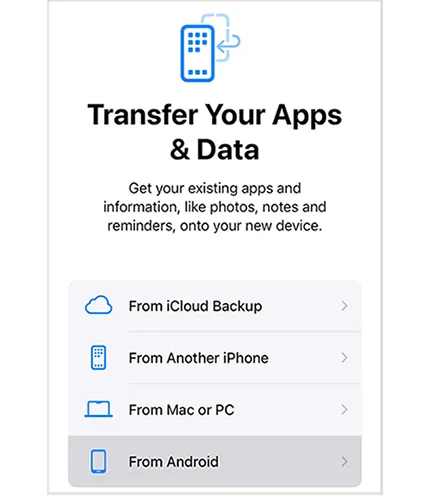
- Boot your new iPhone to the Apps & Data screen and select From Android.
- Download and launch the Move to iOS app from the Google Play Store on your Android device.
- Enter the 6-digit or 10-digit authentication security code generated by the iPhone into the Android application interface.
- The iPhone will deploy a temporary local Wi-Fi hotspot; connect your Android phone to it when prompted.
- Under the transfer checklist, select Music and Audio along with your other data, then tap Continue to start the sync.
Note: While free, this app frequently filters out unpurchased MP3 audio tracks, custom voice recordings, or non-standard file structures.
Method 3: Sync Music from Android to iPhone via iTunes or the Apple Devices App
If you want to manually shift local audio tracks without resetting your iPhone, you can employ a desktop computer as an intermediary file storage container.
Warning: Apple's native desktop syncing model uses a destructive logic system. An iPhone can only link with one iTunes/Finder library at a time. Syncing local files via this route will completely replace any existing local music tracks on your iPhone with the new folder contents.
Step-by-Step Execution:
- Link your Android device to a computer via USB cable. Set the connection configuration to File Transfer (MTP) mode.
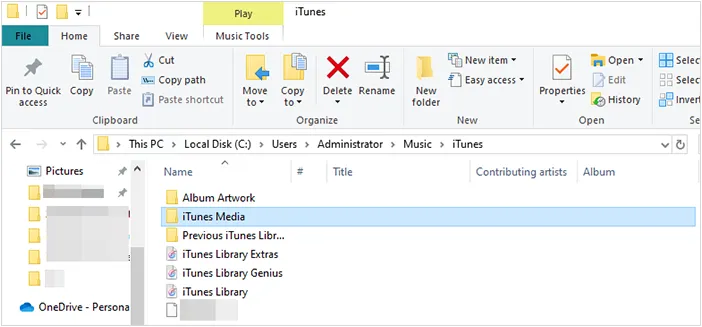
- Open Windows File Explorer or Android File Transfer on macOS, navigate to the internal storage directories, find the folder named Music, and copy your audio files to a local desktop directory. Disconnect the Android phone.
- For Windows users: Open iTunes or the new Apple Devices app. For macOS Catalina or later users: Open the native Music app.
- Drag and drop the exported audio files from your desktop directory directly into the Songs panel of your desktop music application.
- Plug your target iPhone into the computer. Select the iPhone icon, click the Music sub-tab, check the Sync Music box, and click Apply or Sync.
Method 4: Download Music from Android to iPhone via Wireless Cloud App (Google Drive & Cloud Storage)
If you lack access to a computer and only need to transfer a few specific music tracks, cloud storage infrastructure offers a wireless workaround.
Step-by-Step Execution:
- Open your preferred cloud app (e.g., Google Drive, OneDrive, or Dropbox) on your Android device.
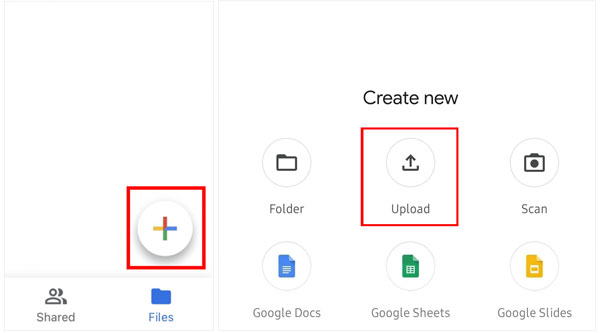
- Tap the + (Add) icon, choose Upload, browse your local storage files, and pick your target tracks.
- Wait for the upload process to finish across your internet network.
- Go to your iPhone, download the matching cloud storage app via the iOS App Store, and log into the identical account credentials.
- Locate the uploaded music files. You can stream them directly from the cloud application interface or select Open In / Save to Files to store them locally within the iOS Files directory structure.
Limitation: Files downloaded this way reside inside isolated application containers and will not integrate natively into the core iOS Apple Music app.
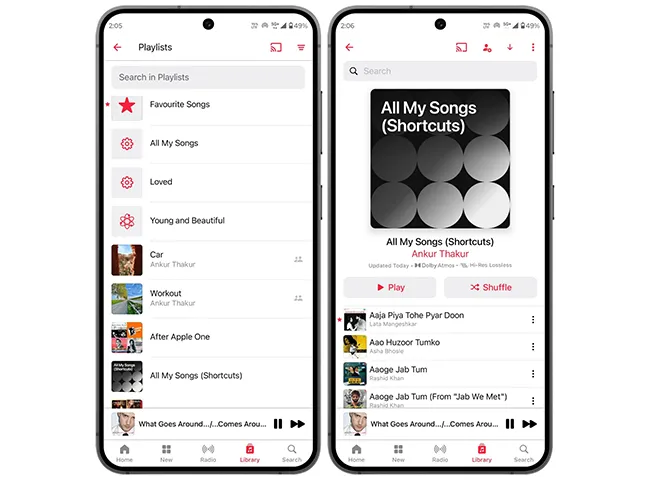
Method 5: Sync Music from Android to iPhone via Streaming Apps (Spotify, YouTube Music, Apple Music)
If your audio library consists primarily of cloud playlists rather than hard, localized file tracks, the migration requires zero hardware connections.
Step-by-Step Execution:
- Ensure your playlists are entirely backed up to your account cloud within your streaming application (Spotify, YouTube Music, Amazon Music, Tidal, or Apple Music).
- Launch the iOS App Store on the iPhone, search for the target music provider application, and download it.
- Log in using the exact credentials deployed on your old Android phone.
- Your custom curated lists, liked tracks, saved albums, and user profiles will populate automatically across server instances. You can then download them locally over Wi-Fi for offline listening.
Troubleshooting Common Android-to-iOS Music Transfer Errors
1. File Sync Options Are Completely Greyed Out in iTunes / Finder
- Root Cause: The Sync Library toggle is turned on inside your iPhone settings. When Apple Music cloud syncing is active, iOS blocks manual local drag-and-drop operations to prevent database errors.
- The Fix: On your iPhone, navigate to Settings > Music and toggle off Sync Library. Re-run your manual desktop transfer. Once finished, you can safely turn the toggle back on.
2. Audio Files Copied but Fail to Play (Format Incompatibility)
- Root Cause: Android supports alternative open-source codecs like FLAC, OGG, or WMA. The native iOS Apple Music environment only supports MP3, AAC, M4A, WAV, and Apple Lossless (ALAC) formats.
- The Fix: Convert non-supported audio files into standard 320kbps MP3 or M4A formats before transferring them, or use a specialized tool like iPhone Music Transfer to smoothly move files across platforms without manual conversion hassle.
3. Move to iOS "Transfer Interrupted" or "Connection Dropped" Error
- Root Cause: Smart Network Switching features or battery-saving optimization protocols on your Android device can kill the ad-hoc temporary Wi-Fi network link.
- The Fix: Turn off mobile cellular data on your Android phone, turn off any battery-saver profiles, and force the device to temporarily forget saved home Wi-Fi configurations so it doesn't try to auto-reconnect away from the iPhone's signal.
Frequently Asked Questions (FAQs)
Can I transfer music from Android to iPhone using Bluetooth?
No. While Apple hardware includes high-performance Bluetooth chips, iOS security frameworks block raw file transfer profiles (OBEX) over Bluetooth from non-Apple operating systems. Bluetooth on iOS is strictly for audio streaming and accessory connections, not file sharing.
Will transferring my music consume my cellular data plan?
If you deploy physical, local solutions like iPhone Music Transfer or a desktop iTunes/Finder bridge, data transfer happens entirely over hardware cables, consuming 0MB of network data. Cloud methods or streaming apps, however, will consume substantial data unless connected to Wi-Fi.
How do I move my old Android ringtones into the iPhone?
iPhone ringtones use a specific proprietary extension format (.m4r) and have a strict length limit of 40 seconds. Standard Android .mp3 ringtones must be trimmed and converted to .m4a, renamed to .m4r, and then imported into the "Tones" section of your device via a synchronization tool before they will appear in your iOS Sound settings.
Conclusion
Migrating your music from Android to iPhone doesn't have to be a headache. If you are setting up a brand-new iPhone from scratch, the Move to iOS app is a solid option for basic cloud profiles. If you rely entirely on streaming apps like Spotify, a simple login handles the move instantly.
However, if you have a large library of local MP3s, high-quality audio rips, or custom files, third-party software is the safest bet. iPhone Music Transfer offers a fast, reliable, and data-safe solution, bypassing the file-type restrictions and library-wiping risks of traditional Apple syncing methods.
Related Articles:
How to Transfer Data from One Phone to Another
How to Sync Samsung Phone to Tablet in Minutes
iPhone to Android Transfer App: Detailed Review About 12 Transfer Tools
Transfer Data from Android to iPhone After Setup Without Data Loss