

TL;DR:
Want to transfer voice memos from your iPhone to a computer without iTunes? Whether you're using Windows or Mac, these 4 easy methods help you move your recordings quickly and keep them accessible. Choose the option that fits your device and transfer needs.
- AirDrop: Best for quick, wireless transfers from iPhone to Mac.
- Email: Best for sending one or two short voice memos to a PC or Mac.
- Cloud Services: Best for transferring recordings across different devices and operating systems.
- iReaShare iPhone Manager: Best for batch transferring multiple or lengthy voice memos to Windows or Mac via USB, with selective export and no iTunes required.
Want to transfer voice memos from your iPhone to a computer without using iTunes? Fortunately, you have several easy methods to choose from. Whether you're using a Windows PC or a Mac, you can save your recorded voice memos to your computer with ease. In this article, we'll introduce four ways to transfer voice memos from iPhone to computer without iTunes, compare their pros and cons, and help you choose the method that best suits your needs.
- Method 1. Transfer Voice Memos from iPhone to Mac Without iTunes via AirDrop
- Method 2. Transfer Voice Memos from iPhone to Computer Without iTunes Using Email
- Method 3. Transfer Voice Memos from iPhone to Computer Without iTunes with Cloud Services
- Method 4. Transfer Voice Memos from iPhone to Computer Without iTunes via iReaShare iPhone Manager
- FAQs About Transferring Voice Memos from iPhone to Computer Without iTunes
Comparison: 4 Ways to Transfer Voice Memos from iPhone to Computer Without iTunes
| Method | Supported Computer | Transfer Method | Batch Transfer | Requires Additional Software? | Best For |
|---|---|---|---|---|---|
| AirDrop | Mac only | Wireless | Yes, multiple recordings | No | Quickly transferring voice memos to a Mac |
| Windows and Mac | Email attachment | Limited; multiple files can be attached, but sending may be inconvenient | No | Sending one or two short voice memos | |
| Cloud Services | Windows and Mac | Cloud upload and download | Yes, depending on the service and upload method | Usually requires a cloud app or account; web access is also available | Transferring recordings across different operating systems |
| iReaShare iPhone Manager | Windows and Mac | USB connection | Yes, supports selecting and exporting multiple recordings | Yes | Transferring multiple or lengthy voice memos and managing iPhone data |
Method 1. Transfer Voice Memos from iPhone to Mac Without iTunes via AirDrop
If you're using a Mac, AirDrop is a very simple way to transfer files wirelessly. It allows you to send voice memos directly from your iPhone to your Mac without installing additional software or connecting a USB cable. However, AirDrop is primarily designed for transferring files between Apple devices and cannot be used directly with Windows PCs.
How to transfer voice memos from iPhone to Mac without iTunes using AirDrop:
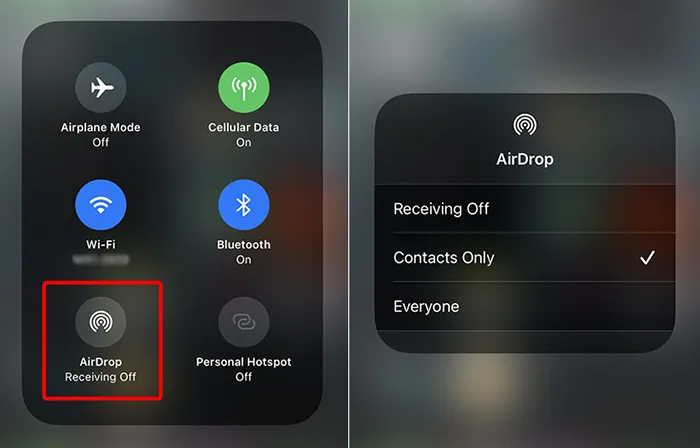
Step 1. Open Control Center on your iPhone, long-press the network settings panel in the upper-left corner, tap "AirDrop", and select "Everyone for 10 Minutes" or "Contacts Only".
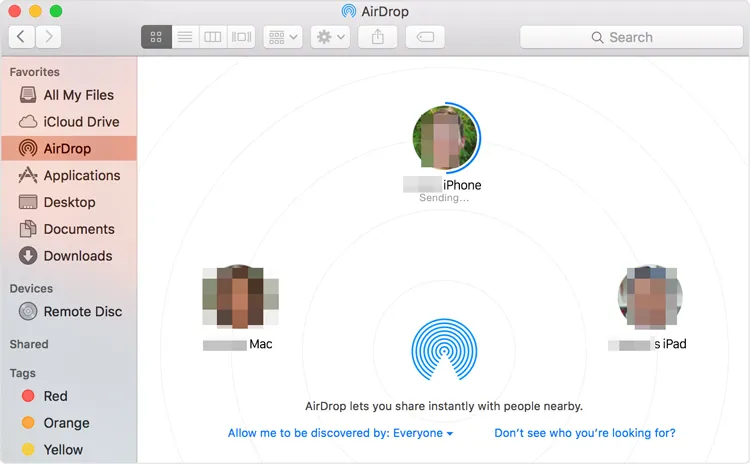
Step 2. Open Finder on your Mac, select "AirDrop" from the sidebar, and make sure your Mac is discoverable. You can choose "Contacts Only" or "Everyone" as the receiving setting.
Step 3. Open the Voice Memos app on your iPhone and find the recording you want to export. Tap the "three-dot" icon next to the recording and select "Share".
Step 4. Select "AirDrop" from the sharing menu, then choose your Mac from the list of nearby devices. If your Mac displays an incoming transfer prompt, accept the recording.
Step 5. Check your Mac's "Downloads" folder or the location where the AirDrop file was saved.
- Completely free and doesn't require iTunes.
- No need to install additional transfer software.
- Transfer recordings wirelessly without uploading them to cloud storage.
- Convenient for sending individual or multiple voice memos.
- Preserve audio files for later playback and editing.
- Only works with compatible Apple devices, not Windows PCs.
- Both devices need to be nearby, with Wi-Fi and Bluetooth enabled.
- Transferring large numbers of files or lengthy recordings may take more time.
- Not suitable for managing or backing up an entire voice memo library.
Method 2. Transfer Voice Memos from iPhone to Computer Without iTunes Using Email
If you only need to transfer one or two voice memos to a Windows PC or Mac, email is another good option. You can share recordings directly from the Voice Memos app on your iPhone and send them to yourself as email attachments. This method doesn't require installing any additional tools or relying on iTunes.
Steps to transfer voice memos from iPhone to computer without iTunes using email:
Step 1. Open the Voice Memos app on your iPhone.
Step 2. Locate the recording you want to transfer.
Step 3. Tap the recording's "More Actions" button and select "Share".
Step 4. Choose "Mail" from the sharing options.
Step 5. Enter your own email address as the recipient. Add a subject if necessary.
Step 6. Tap "Send" to email the voice memo.
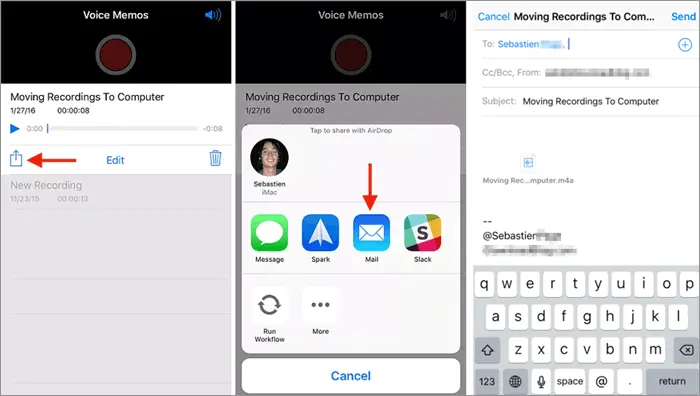
Step 7. Open your email account on your Windows PC or Mac.
Step 8. Find the message and download the attached audio file to your computer.
After downloading, you can play the recording, rename it, move it to another folder, or import it into an audio editor.
- Free and easy to use.
- Compatible with Windows and Mac.
- Doesn't require a USB cable or iTunes.
- Convenient for transferring one or two short recordings.
- Email attachment limits vary by provider.
- Large recordings may fail to send or require a cloud-based attachment link.
- Sending multiple recordings individually can be time-consuming.
- Require an internet connection.
Method 3. Transfer Voice Memos from iPhone to Computer Without iTunes with Cloud Services
If you want to transfer voice memos from an iPhone to a Windows computer without iTunes, cloud storage is another useful option. Services such as iCloud Drive, Google Drive, OneDrive, and Dropbox let you upload recordings from your iPhone and download them on your computer.
Unlike AirDrop, cloud services work across different operating systems. You can transfer recordings from an iPhone to a Windows PC, Mac, or even another device without connecting them directly. For this method, you'll need an internet connection and sufficient available cloud storage.
How to transfer iPhone voice memos to a computer using cloud services:
Step 1. Open the Voice Memos app on your iPhone.
Step 2. Find the recording you want to transfer and tap its "More Actions" button.
Step 3. Select "Share" to open the iPhone sharing menu.
Step 4. Choose "Save to Files" or select an available cloud storage application, such as Google Drive, OneDrive, or Dropbox.
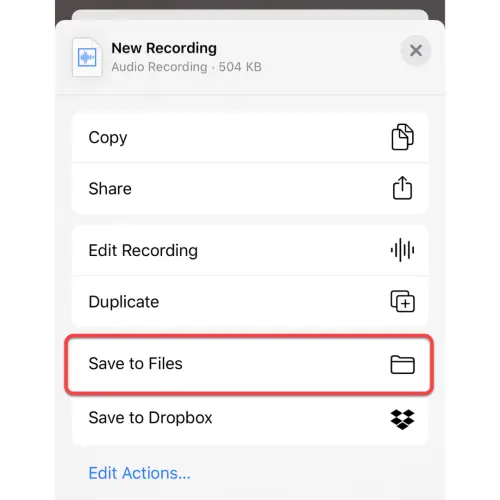
Step 5. If you choose Save to Files, select a cloud storage location, such as iCloud Drive, and tap "Save". If you select another cloud application, follow its upload instructions.
Step 6. On your computer, open the corresponding cloud storage service through its desktop application or website.
Step 7. Sign in using the same account and locate the uploaded recording.
Step 8. Download the audio file to your preferred folder.
The downloaded recording can then be played or edited on your computer without needing iTunes.
- Work with both Windows PCs and Macs.
- No USB cable or iTunes installation required.
- Support different cloud storage providers.
- Convenient for accessing recordings across multiple devices.
- Useful for keeping an additional copy of important voice memos.
- Require a stable internet connection.
- Uploading and downloading large recordings can take time.
- Free cloud storage plans have limited capacity.
- You may need to install a cloud storage app or create an account.
- Cloud synchronization and file backup are not the same thing; deleting a synced file may affect other devices.
Method 4. Transfer Voice Memos from iPhone to Computer Without iTunes via iReaShare iPhone Manager
If the previous methods seem inconvenient, especially when you need to transfer multiple or lengthy voice memos, you can try dedicated iPhone transfer software.
iReaShare iPhone Manager is a desktop tool designed to transfer and manage iPhone data on Windows PCs and Macs without relying on iTunes. It supports exporting various types of iOS data, including voice memos, contacts, messages, photos, videos, music, and other files.
Unlike email and cloud storage, this method uses a USB connection to transfer recordings directly from your iPhone to your computer. You can preview and select the recordings you want to export instead of sending them individually. It can be particularly helpful when you're moving a collection of recordings from your iPhone to a computer for long-term storage, organization, or further editing.
Key features of iReaShare iPhone Manager:
* Export voice memos from your iPhone to a Windows PC or Mac without using iTunes.
* Preview recordings and choose specific files to transfer instead of exporting your entire collection.
* Transfer and manage various iPhone data, including contacts, messages, photos, videos, music, notes, and more.
* Back up iPhone data to your computer and restore supported backups whenever needed.
* Compatible with Windows 11/10/8/7 and Mac OS X 10.9 or later.
* Work with most iOS devices, including the latest iPhone Duo, iPhone 18 Pro Max, and iPhone 18 Pro.
Download for Win Download for Mac
How to Transfer Voice Memos from iPhone to Computer Without iTunes via iReaShare iPhone Manager:
-
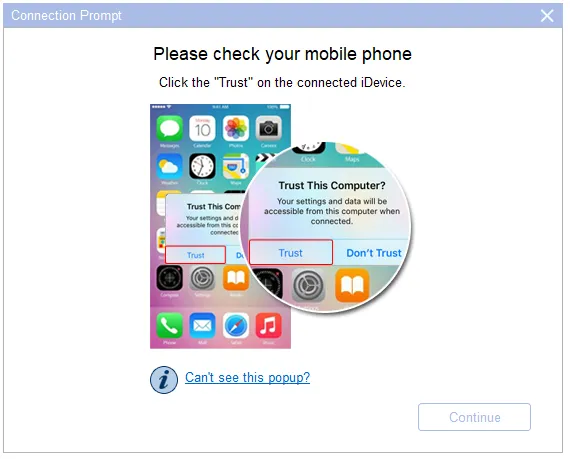
Download the Windows or Mac version and open the software. Connect your iPhone to the computer using a USB cable. Tap "Trust" on your iPhone and enter your passcode if prompted.
-
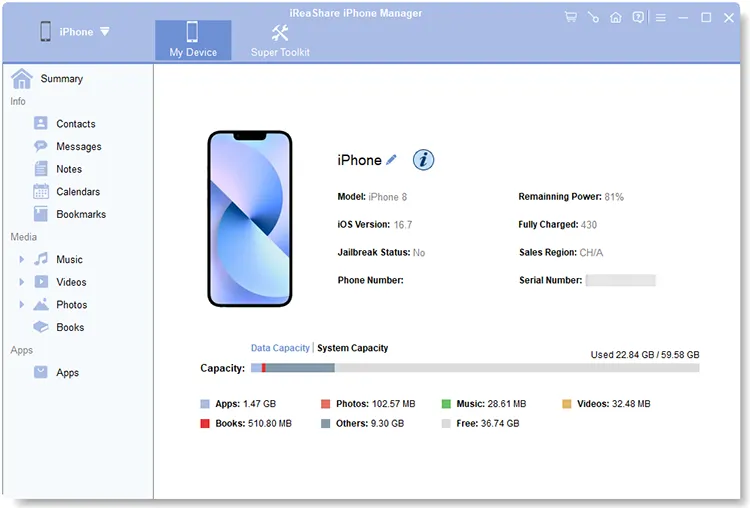
Once detected, open the "Voice Memos" category from the left panel. Preview and select the files you want to transfer.
-
Click "Export", choose a destination folder on your computer, and wait for the transfer to finish. Open the folder and play the exported recordings to confirm they are accessible.
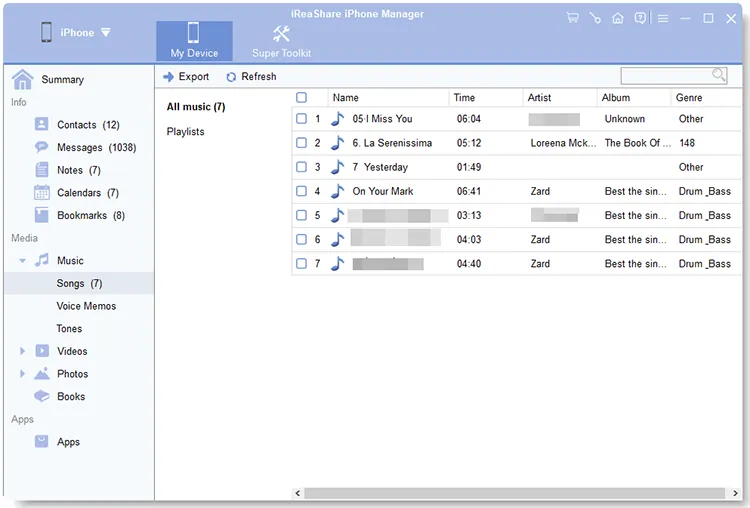
That's it! You can now access your selected voice memos on your computer without using iTunes.
Here's the video guide:
- Support both Windows and Mac computers.
- Transfer voice memos directly through a USB connection.
- Allow users to preview and selectively export recordings.
- Support transferring and managing multiple types of iPhone data.
- Doesn't require iTunes to perform the export.
- Require installing third-party software on your computer.
- Usually requires a USB cable to connect your device.
- Some advanced features may require a paid upgrade.
FAQs About Transferring Voice Memos from iPhone to Computer Without iTunes
Q1. Do voice memos expire on iPhone?
No, Voice Memos don't expire automatically on an iPhone. Your recordings remain in the Voice Memos app until you delete them manually. If iCloud sync is enabled, they can also sync across your Apple devices. To protect important recordings, consider exporting a backup to your computer or another storage location.
Q2. Where are voice memos stored on an iPhone?
Voice Memos are stored in the recording library of the Voice Memos app on your iPhone. You can play, edit, or share your recordings directly from the app. If you enable iCloud sync for Voice Memos, your recordings are also synced to iCloud and made available on other devices signed in to the same Apple Account.
Q3. What format are iPhone voice memos saved in?
iPhone Voice Memos are generally exported as M4A audio files. This format offers good audio quality and is compatible with many media players and audio editing programs.
If you need MP3 files, you can convert the exported M4A recordings using an audio converter.
Q4. Why can't I find voice memos in Windows File Explorer?
When you connect an iPhone to a Windows PC using a USB cable, File Explorer does not normally display Voice Memos as a regular folder.
The USB connection alone does not provide direct access to every type of iPhone app data. You should export recordings through the Voice Memos sharing menu or use compatible third-party software.
Q5. Will transferring voice memos delete them from my iPhone?
No. Normally, sharing or exporting a Voice Memo creates a separate copy on your computer. The original recording remains in the iPhone Voice Memos app.
However, be careful when using iCloud synchronization. Deleting a synced recording may also remove it from other devices using the same Apple Account. Always verify that you have an independent local copy before deleting important recordings.
Conclusion
Transferring voice memos from an iPhone to a computer without iTunes isn't difficult once you choose the right method. AirDrop is ideal for Mac users who want quick wireless transfers, while email works well for a few short recordings. Cloud services offer greater flexibility for transferring files between different operating systems.
However, if you frequently transfer voice memos, need to export multiple recordings, or want to manage other iPhone data on your computer, iReaShare iPhone Manager is worth considering. It supports Windows and Mac, allows selective file export, and transfers supported iPhone data through a USB connection without requiring iTunes.
Choose the method that fits your needs and make an additional copy of important recordings to keep them safe.
Download for Win Download for Mac
Related Articles
How to Transfer Files from iPhone to PC with Ease (Practical Guide)
How to Send Large Audio Files from iPhone to Different Devices Easily
How to Access iPhone Files on PC Without iTunes: 7 Alternatives