


TL;DR:
Facing the Samsung black screen of death? Don't panic! This guide explains the common causes and shares 7 practical fixes to get your Samsung phone or tablet working again. Learn how to charge your device, force restart it, enter Safe Mode or Recovery Mode, and use Android Repair to fix supported system issues. Whether your Samsung screen went black after an update or your phone still vibrates but shows nothing, find the right solution and get your Galaxy device back on track.

Android Repair Repair Android system issues quickly


Ever picked up your Samsung phone only to find a completely black screen staring back at you? Even worse, your phone may still vibrate, ring, or receive notifications, but nothing shows up on the display. Whether you're dealing with a Samsung black screen of death after a software update, a frozen Galaxy S24 Ultra, or a Samsung tablet that suddenly refuses to turn on, it's definitely frustrating. But don't panic just yet! A black screen doesn't always mean your device is broken beyond repair. It could be something as simple as a drained battery or a temporary system glitch.
In this guide, we'll explore what causes the Samsung black screen of death and walk you through 7 practical fixes to get your device working again.
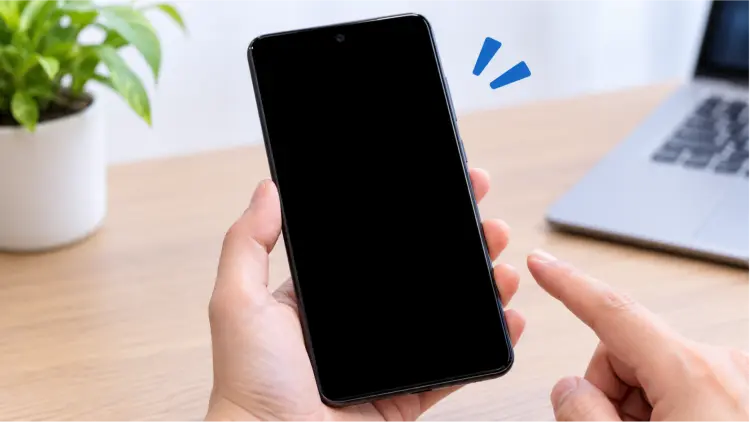
Part 1. What Causes the Samsung Black Screen of Death?
The Samsung black screen of death occurs when your device's display remains black or fails to respond, preventing you from using the phone normally. Sometimes, the device is still running in the background, while in other cases, it may be completely unresponsive.
Understanding the cause of the Samsung black screen of death can help you choose the most appropriate solution.
- A drained or faulty battery: If your Samsung phone runs out of power or the battery cannot deliver sufficient power, the screen may remain black when you try to turn it on.
- A temporary system crash: Android or One UI may freeze because of a software bug, an unresponsive app, or a system process failure.
- A failed software update: The Samsung black screen of death after a software update may occur when an update encounters errors, system files become corrupted, or the device fails to boot properly.
- An incompatible or problematic app: Certain third-party apps may cause system instability, particularly if they conflict with other applications or consume excessive system resources.
- Display or internal hardware damage: A cracked screen, loose display connector, damaged motherboard, or other hardware failure may prevent the screen from displaying anything.
- Overheating: Excessive heat can cause the device to slow down, shut off, or temporarily stop functioning normally.
- Liquid damage: Moisture can damage internal components and interfere with the display or power system.
Part 2. How to Fix the Samsung Black Screen of Death
If your Samsung phone or tablet has a black screen, try the following solutions in order, starting with the simplest options.
Fix 1. Charge Your Samsung Device
A depleted battery is one of the easiest potential causes to rule out. If your Samsung device has completely run out of power, the screen may remain black even when you press the Power or Side button.
Follow these steps to check whether charging resolves the issue.
Step 1. Connect your Samsung phone or tablet to a compatible charger and wall outlet.
Step 2. Check the charging cable, power adapter, and charging port for visible damage or debris.
Step 3. Leave the device charging for at least 30 minutes.
Step 4. Press and hold the Power or Side button to see whether the device starts.
Step 5. If the screen remains black, try a forced restart while the device is connected to the charger.
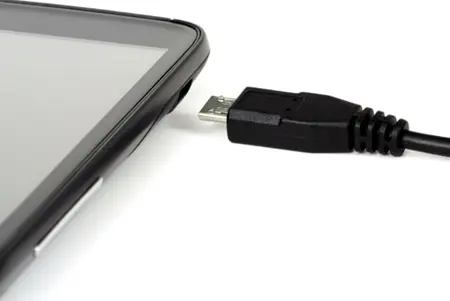
If possible, test another compatible charging cable, adapter, and wall outlet. Avoid using a device that is unusually hot, swollen, or visibly damaged, and do not attempt to charge it if liquid damage is suspected.
Fix 2. Force Restart Your Samsung Phone
A forced restart can resolve temporary system freezes without deleting your personal data. It is particularly useful when your Samsung phone black screen of death occurs suddenly, but the device may still be running.
On most recent Samsung Galaxy phones, including many Galaxy S series and A series models, you can force a restart as follows:
Step 1. Press and hold the Volume Down button and the Side button simultaneously.
Step 2. Continue holding both buttons for approximately 7–20 seconds, or until the Samsung logo appears.
Step 3. Release the buttons when the device restarts.
Step 4. Wait for Android to finish loading and check whether the display works normally.
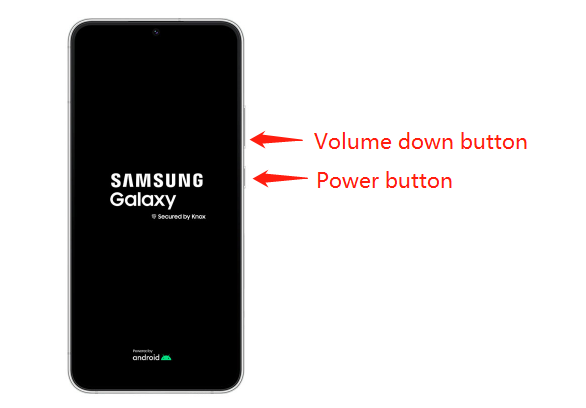
The exact button behavior may vary by model, so consult your device's manual if this combination does not work.
Fix 3. Enter Safe Mode
If the Samsung black screen started after installing a new app, Safe Mode can help determine whether a third-party application is responsible.
Safe Mode starts Android with most downloaded apps disabled. If the screen works normally in this mode, a recently installed or updated app may be causing the problem.
Here is how to enter Safe Mode on many Samsung Galaxy devices:
Step 1. Force restart the phone if necessary.
Step 2. When the Samsung logo appears, release the "Side" button while continuing to hold "Volume Down".
Step 3. Keep holding "Volume Down" until the phone finishes starting.
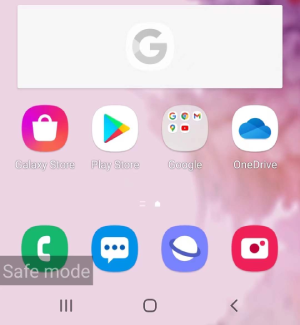
Step 4. Look for the Safe mode label near the bottom of the screen.
Step 5. If the display works, uninstall recently installed or updated apps one at a time.
Step 6. Restart the phone normally to check whether the issue has been resolved.
Fix 4. Boot into Recovery Mode
Recovery Mode provides access to system maintenance options outside the normal Android interface. It may help when a Samsung black screen of death occurs because Android cannot start correctly.
However, Recovery Mode is not a guaranteed repair. If the screen itself is damaged, you may not be able to see the recovery menu even if the device enters the mode successfully.
Here is how to repair a Samsung black screen of death via Recovery Mode:
Step 1. Connect your Samsung device to a computer using a USB-C cable.
Step 2. Press and hold the "Power" and "Volume Up" buttons simultaneously.
Step 3. Release both buttons when you feel a vibration and the Samsung Galaxy logo appears.
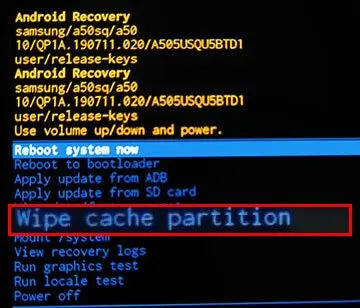
Step 4. Once the Recovery Mode menu appears, use the "Volume Down" button to highlight "Wipe cache partition", then press the "Power" button to select it.
Step 5. Wait for the cache-clearing process to finish. The "Reboot system now" option should then be highlighted automatically. Press the "Power" button to restart your device.
Fix 5. Use Android Repair
If basic troubleshooting methods fail to resolve the issue, you can consider using an Android system repair tool. Android Repair is a desktop utility that can quickly fix over 50 types of Android system issues, such as Samsung stuck on the logo, forced shutdowns, black or blue screens of death, and frequent app crashes, without requiring any technical skills.
Key features of Android Repair:
- Repair 50+ Android system issues, including Samsung stuck on the logo, frozen phones, and repeated restarts.
- Enter or exit Android Fastboot Mode with one click for free.
- Easily access or exit Android Recovery Mode for free.
- Enter or exit Download (Odin) Mode on Samsung and other supported phones.
- Clear Android system cache with one click to help your phone run smoothly.
Here's how to fix the Samsung S24 Ultra black screen of death using Android Repair:
-
Download and install Repair on your PC. Launch the program, connect your Samsung device to the computer, and select "Repair Android System" from the available options.
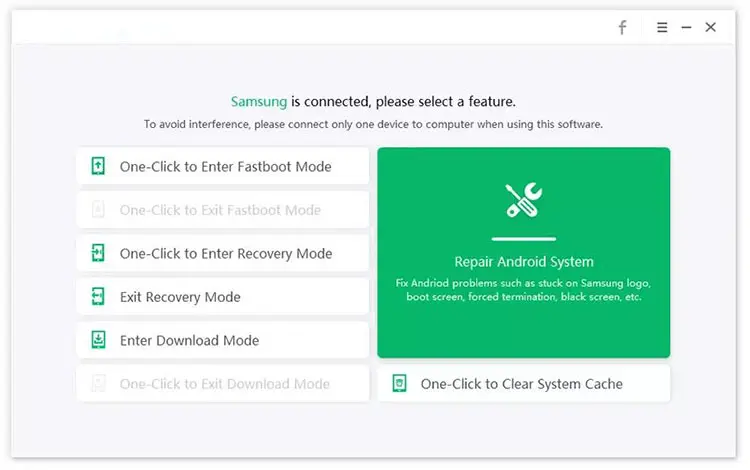
-
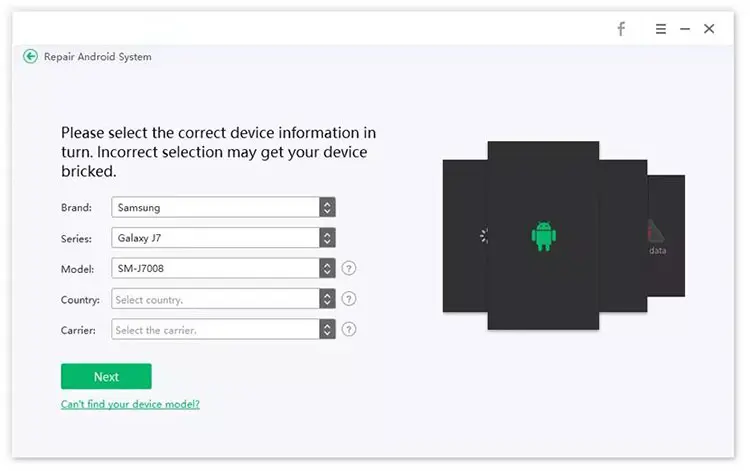
Once the next interface appears, click "Repair Now" to continue. Then, select the correct device information from the available options, and click "Next".
-
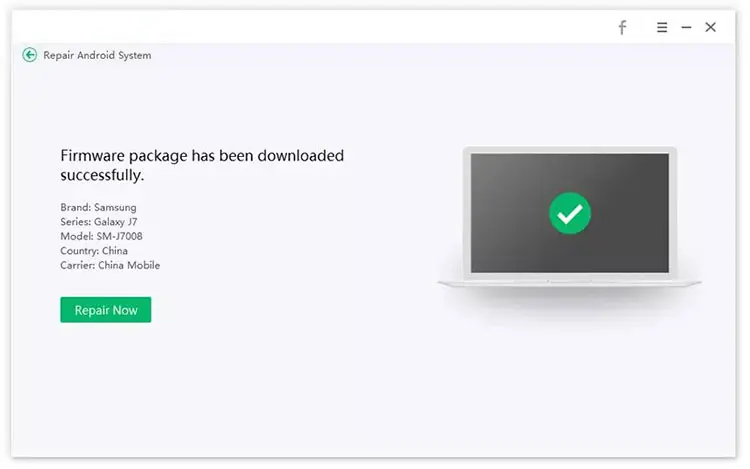
The program will begin downloading the appropriate firmware package. Wait for the download to complete. Once the firmware package has been downloaded to your computer, click "Repair Now" to start the Android system repair process.
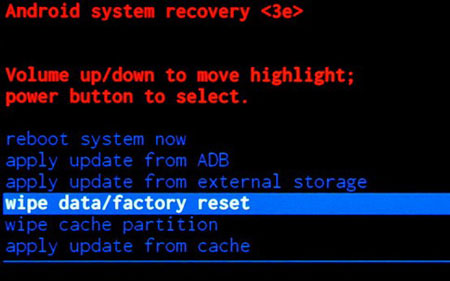
Fix 6. Factory Reset Your Samsung Phone
If the Samsung black screen of death is caused by severe software corruption or persistent system problems, a factory reset may help. However, it should be treated as a last-resort software solution because it erases personal data stored on the device.
To factory reset your Samsung phone, follow the steps below:
Step 1. Press and hold the "Power" button and "Volume Up" button simultaneously.
Step 2. Release both buttons when the Samsung logo appears.
Step 3. In the Recovery Mode menu, use the "Volume Down" button to highlight "Wipe data/factory reset", then press the "Power" button to confirm.
Fix 7. Contact Samsung Support
If none of the above methods resolves the Samsung black screen of death, your device may have a hardware malfunction or a system issue that requires professional diagnosis. In this case, it's recommended to contact Samsung Support or visit an authorized service center for inspection. Professional technicians can examine the display assembly, battery, charging components, internal connectors, and motherboard to identify the root cause of the problem.
Before handing over your device for repair, ask about diagnostic fees, warranty coverage, available repair options, and whether the repair process may result in data loss.
The Bottom Line
Dealing with a Samsung black screen of death can be frustrating, but it doesn't always mean your device is permanently damaged. From charging your phone and performing a forced restart to entering Safe Mode or Recovery Mode, there are several ways to troubleshoot the problem before seeking professional help. If the issue is caused by an Android system error, Android Repair is another option worth trying to repair supported software problems. A factory reset may help as a last resort, but remember to back up your data first.
If none of these Samsung black screen of death fixes work, contact Samsung Support to check for possible hardware damage and get your device properly repaired.
Related Articles
How to Speed Up a Slow Android Phone (9 Effective Methods)
How to Factory Reset Any Motorola Phone (Complete 2026 Guide)
A Complete Guide to Downgrade iOS on iPhone [iOS 27 to iOS 26]