


TL;DR:
Need to remove partitions from an SD card and restore its usable storage space? This guide shows you 4 easy ways to delete SD card partitions on Windows 10/11 and Mac using Disk Management, DiskPart, Partition Master, and Disk Utility. Compare built-in and third-party tools, follow the step-by-step instructions, and learn how to create new partitions after deletion. Whether you want to remove unwanted partitions or reorganize your SD card, find the right method for your needs. Remember to back up your data before making changes to avoid accidental data loss.
Have you ever inserted an SD card into your computer only to find that its storage space is split into multiple partitions, or that some of its capacity is missing? This can happen when an SD card has been used in different devices, such as cameras, Android phones, Raspberry Pi boards, or game consoles. If you want to reuse the card, organize its storage, or restore its full available capacity, you may need to remove partitions from the SD card.
Fortunately, you don't need to be a technical expert to do this. Whether you want to remove partitions from an SD card in Windows 10, Windows 11, or macOS, there are several ways to get the job done. In this guide, we'll walk you through four practical methods. Let's look at them together.
Part 1. How to Remove Partitions from an SD Card on Windows
If you're using a Windows PC, you can remove partitions from an SD card through third-party partition management software or Windows' built-in Disk Management and DiskPart utilities.
1.1 Using Disk Management
Disk Management is a built-in Windows utility that lets you manage hard drives, USB drives, and SD cards without installing additional software. It allows you to delete existing partitions and turn their storage space into unallocated space.
This method is suitable if you only need to remove one or more partitions and don't mind performing the operations manually. It's free and works on both Windows 10 and Windows 11.
Steps to remove partitions from an SD card using Disk Management:
Step 1. Insert your SD card into your computer using a card reader.
Step 2. Press "Windows" + "X" and select "Disk Management" from the menu.
Step 3. Find your SD card in the list of available disks. Check its capacity and partition layout carefully to avoid selecting the wrong drive.
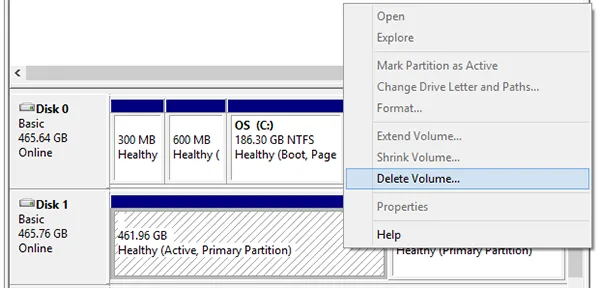
Step 4. Right-click the partition you want to remove and select "Delete Volume".
Step 5. Read the warning message and confirm the deletion if you've backed up the data.
Step 6. Repeat the process for other partitions if you want to remove all partitions from the SD card.
Once finished, the deleted partitions will appear as unallocated space.
What If You Want to Use the Entire SD Card Again?
Deleting partitions doesn't automatically create one large usable partition. If you want to restore the card to a single storage volume, right-click the unallocated space and select "New Simple Volume". Follow the wizard to create a new partition, assign a drive letter, and format it with a suitable file system, such as exFAT or FAT32.
Limitations to Know:
Although Disk Management is convenient, it has some restrictions:
- The Delete Volume option may be unavailable for protected, system, or otherwise restricted partitions.
- It requires you to delete partitions individually, which can be inconvenient when the card contains several partitions.
- It doesn't provide advanced partition management features found in dedicated third-party tools.
1.2 Using DiskPart
If Disk Management cannot delete certain partitions, DiskPart is another option. It is a built-in Windows command-line disk management tool that can delete individual partitions or remove the entire partition structure from an SD card.
However, be extra careful when using this method. A single incorrect disk selection can erase the partition information on another drive.
Steps to remove all partitions from an SD card using DiskPart:
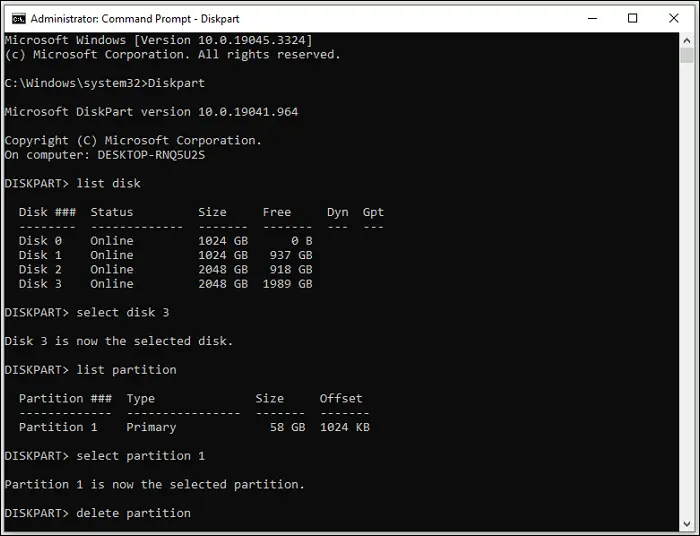
Step 1. Connect your SD card to the computer. Press "Win" + "R" to open the Run dialog box, type cmd, and then press "Ctrl" + "Shift" + "Enter" to launch Command Prompt with administrator privileges.
Step 2. Enter the following commands one by one, pressing "Enter" after each command to delete the selected SD card partition:
- diskpart
- list disk
- select disk n (Replace n with your SD card's disk number.)
- list partition
- select partition n (Replace n with the number of the partition you want to delete.)
- delete partition
Step 3. Once the process is complete, the selected partition will be removed. If you need to delete other partitions, repeat the last three commands for each one.
Limitations to Know:
DiskPart is powerful, but it isn't necessarily the easiest option for everyone.
- It uses command-line instructions, so beginners may find it less intuitive.
- Selecting the wrong disk can cause serious data loss.
- It cannot fix physical SD card damage or bypass every hardware-level write-protection restriction.
1.3 Using Partition Manager
If you find Windows' built-in tools confusing or want a more convenient way to manage multiple partitions, a dedicated partition manager may be a better choice. Partition Master is a Windows disk and partition management program designed to simplify tasks such as deleting, creating, resizing, formatting, and moving partitions.
Instead of entering commands manually, you can manage partitions through a graphical interface. This can be particularly helpful if your SD card contains several partitions or you frequently work with different storage devices.
Key features of Partition Manager:
- Resize existing disk partitions on Windows without deleting stored data.
- Create new partitions or delete unnecessary ones to organize disk space.
- Easily merge, format, wipe, and clone partitions.
- Convert disks between MBR and GPT, Dynamic and Basic, and file systems such as FAT and NTFS or FAT and exFAT.
- Support Windows 11, 10, 8, and 7.
Here is how to remove partitions from an SD card in Windows 10/11 using Partition Manager:
-
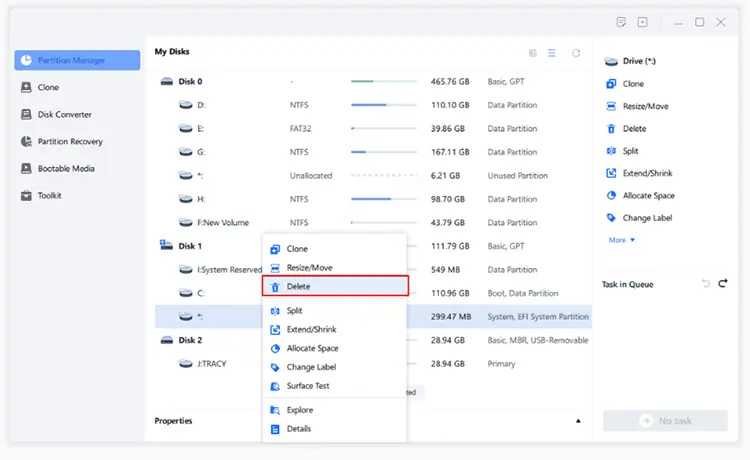
Launch Partition Master on Windows 10/11 and navigate to "Partition Manager". Right-click the partition you want to remove and select "Delete".
-
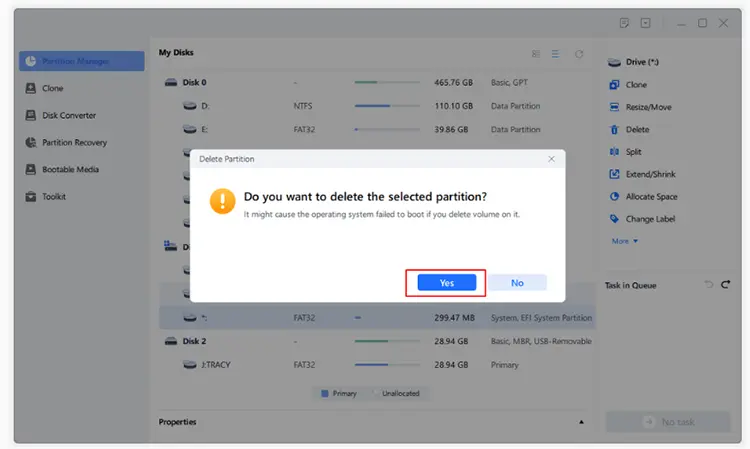
When the confirmation message appears, click "Yes" to confirm the partition deletion.
-
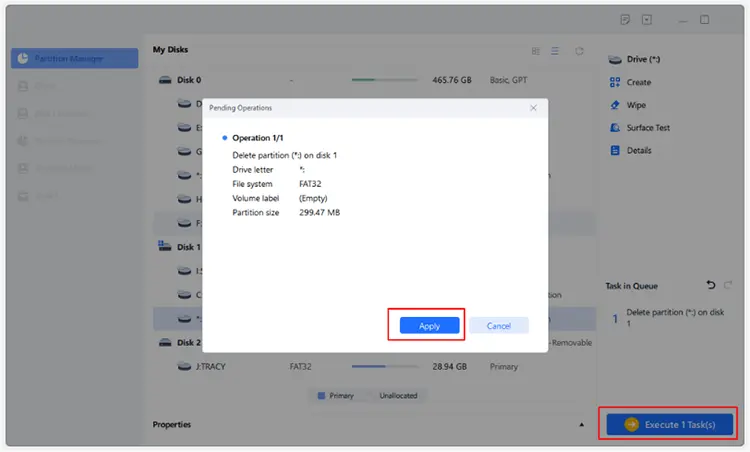
Click "Execute Task(s)" and then "Apply" to begin deleting the selected partition. Wait for the process to complete.
- Provide a graphical interface that is easier for beginners to understand.
- Offer more partition management options than basic Windows tools.
- Make it convenient to manage multiple partitions.
- Help users organize disk space without manually entering commands.
- Some advanced features require a paid license.
- The free edition's available operations may vary by version, so check the current feature list before purchasing.
- It requires installation and may be unnecessary if you only need to delete a single ordinary partition.
- It cannot guarantee successful partition removal from physically damaged or hardware-locked SD cards.
When Is It Worth Using?
Partition Master is worth considering if you regularly manage storage devices, need a graphical alternative to DiskPart, or want additional partition management functions in one place.
However, if your only goal is to remove a normal SD card partition, Windows Disk Management is usually sufficient. You don't necessarily need to purchase third-party software for such a simple task.
Part 2. How to Remove Partitions from an SD Card on Mac via Disk Utility
If you're using a Mac, you can also remove SD card partitions using macOS's built-in Disk Utility. Follow the steps below to remove partitions from an SD card on Mac using Disk Utility:
Step 1. Open Finder, go to "Applications" > "Utilities", and launch "Disk Utility".
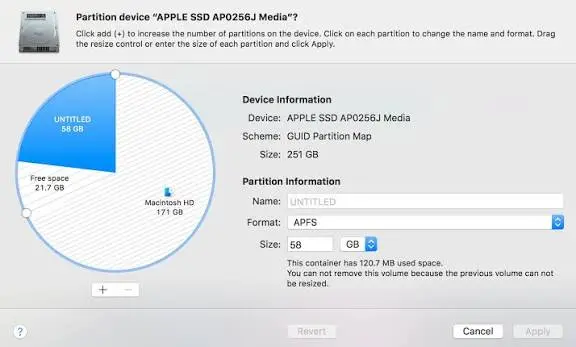
Step 2. In the left sidebar, locate and select your SD card, then click the "Partition" button in the toolbar.
Step 3. Select the partition you want to remove and click the "Delete" (-) button. Then click "Apply" to review and confirm the changes. If a confirmation dialog appears, click "Partition" to proceed. Wait for the operation to finish, then click "Done".
Limitations to Know:
Although Disk Utility is convenient, it also has some restrictions:
- Some partition layouts or file systems may not be fully manageable through its graphical interface.
- The available formatting options depend on the card's capacity and selected partition scheme.
- If the SD card is write-protected, corrupted, or physically damaged, Disk Utility may fail to erase it.
Part 3. FAQs on How to Delete Partitions from an SD Card
Q1. Can I create new partitions on my SD card after deleting the old ones?
Yes. After deleting existing partitions, you can use the unallocated space on your SD card to create new partitions.
Follow these steps:
Step 1. Open "Disk Management" and locate your SD card.
Step 2. Right-click the unallocated space on the SD card and select "New Simple Volume".
Step 3. Follow the New Simple Volume Wizard to specify the partition size, assign a drive letter, and select a suitable file system.
Step 4. Complete the wizard to create and format the new partition. Your SD card will then be ready for use.
Q2. Does deleting partitions affect an SD card's lifespan?
No. Deleting partitions does not directly affect an SD card's lifespan because it does not physically damage the storage chips or cause significant wear.
Q3. What's the difference between removing SD card partitions, formatting an SD card, and wiping an SD card?
Removing SD card partitions means deleting the existing partition structure and turning the affected space into unallocated space. You can then create new partitions to reorganize the card's storage.
Formatting an SD card prepares it for reuse by creating a new file system, making previously stored files inaccessible through normal file browsing.
Wiping an SD card goes a step further by securely overwriting stored data to make recovery more difficult. Unlike simply deleting partitions or formatting the card, wiping is typically intended to prevent sensitive data from being recovered.
Final Words
Removing partitions from an SD card is straightforward once you choose the right method for your operating system. Windows users can use Disk Management to delete partitions individually or DiskPart to remove selected partitions through command-line instructions, while Mac users can manage their SD card partitions with Disk Utility. If you prefer a more user-friendly interface and additional partition management options, Partition Master is also worth considering, especially when dealing with multiple partitions.
Before making any changes, remember to back up your important files and double-check that you've selected the correct SD card to avoid accidental data loss. Once the unwanted partitions are removed, you can create new partitions and format the card to restore its available storage space.
Related Articles
How to Erase SanDisk SD Card: Remove All Data Permanently
How to Erase SD Card Completely (Comprehensive Guide in 2026)
Best Data Wipe Software: Top 9 Tools to Securely Erase Your Data