


TL;DR:
To wipe a PC with Windows OS booting normally, execute the built-in Windows Reset ("Remove everything" + "Clean data"), run command-line tools like diskpart clean all, or use a reliable GUI utility like iReaShare Data Wipe to overwrite drive sectors using multi-pass military algorithms (DoD 5220.22-M / Gutmann) without misidentifying drive letters.
To wipe a PC without Windows OS (unbootable, crashed, or blank system), access the motherboard's BIOS/UEFI NVMe Secure Erase feature, boot into a Linux Live USB to run low-level terminal commands, or extract the internal drive and connect it externally to a working PC via USB adapter for sanitization.
- Part 1. Understand Storage Sanitization: SSD vs. HDD Erasure Principles
- Part 2. Prepare Your Computer Before Wiping: Pre-Sanitization Checklist
- Part 3. Wipe a PC WITH Windows OS Installed (3 Working Methods)
- Part 4. Wipe a PC WITHOUT Windows OS Installed (Unbootable or Blank System)
- Part 5. Compare PC Wiping Methods and Security Standards
- Part 6. Troubleshoot Common PC Wiping Errors and Failures
- Part 7. Review Frequently Asked Questions (FAQs About PC Wiping)
Part 1. Understand Storage Sanitization: SSD vs. HDD Erasure Principles
Sanitizing a computer drive permanently requires applying the correct overwriting technology based on your storage physical hardware type:
-
Magnetic Hard Disk Drives (HDDs): Store data across spinning magnetic platters. You can permanently destroy data on Windows PC by overwriting physical sectors with binary zeros, ones, or random bit sequences using algorithms like DoD 5220.22-M or Gutmann.
-
Flash-Based Solid State Drives (SSDs): Utilize NAND flash memory controlled by wear-leveling controllers. Standard software sector overwriting might skip reserved blocks in over-provisioning areas. True SSD sanitization requires firing controller-level ATA Secure Erase or NVMe Sanitize commands to flush electrical voltage across all physical NAND cells.
Part 2. Prepare Your Computer Before Wiping: Pre-Sanitization Checklist
Perform these necessary steps prior to initiating a drive erase to avoid accidental lockouts or losing vital software access:
-
Back Up Essential Data: Copy critical documents, family photos, and browser data to an external flash drive or cloud storage platform.
-
Export Product Licenses: Save activation serial keys for Windows OS, Microsoft Office, and installed premium software.
-
Deauthorize Personal Accounts: Log out of Microsoft, iTunes, Steam, Adobe Creative Cloud, and active password managers.
-
Turn Off BitLocker Encryption: Open Command Prompt as Administrator and enter
manage-bde -off C:to decrypt drive volumes before running low-level wipers. -
Clear TPM Keys in BIOS: If selling the PC hardware along with the motherboard, clear the Trusted Platform Module (TPM) security keys in the UEFI menu.
Part 3. Wipe a PC WITH Windows OS Installed (3 Working Methods)
If your Windows 11 or Windows 10 computer powers on and boots to the desktop, you can use native built-in Windows features or dedicated Windows disk utilities to erase local drives.
Method 1: Reset Windows PC and Clean Drive Data Completely
Windows includes an internal recovery wizard that reinstalls the operating system while purging user files from local drives.
-
Press
Win + Ito open the Settings app. -
Navigate to System > Recovery (Windows 11) or Update & Security > Recovery (Windows 10).
-
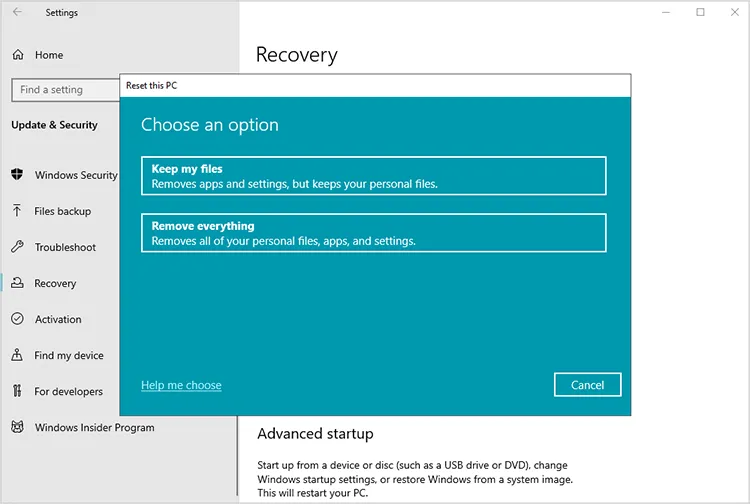
Click Reset PC (or Get Started).
-
Select Remove everything to erase user files and applications.
-
Choose Local reinstall or Cloud download.
-
Click Change settings, toggle Clean data? to Yes, and click Confirm.
-
Click Reset to start the automated wiping and reinstall process.
Note: Enabling "Clean data" executes a single zero-fill pass on the system drive. It does not perform multi-pass overwriting on secondary attached hard drives.
Method 2: Wipe Hard Drive via Windows Command Line (Diskpart & Cipher)
Advanced users can execute low-level sector overwriting without installing third-party utilities by using native command prompt utilities.
Erase Physical Disks using Diskpart Clean All:
-
Press
Win + Xand select Terminal (Admin) or Command Prompt (Admin). -
Type
diskpartand press Enter. -
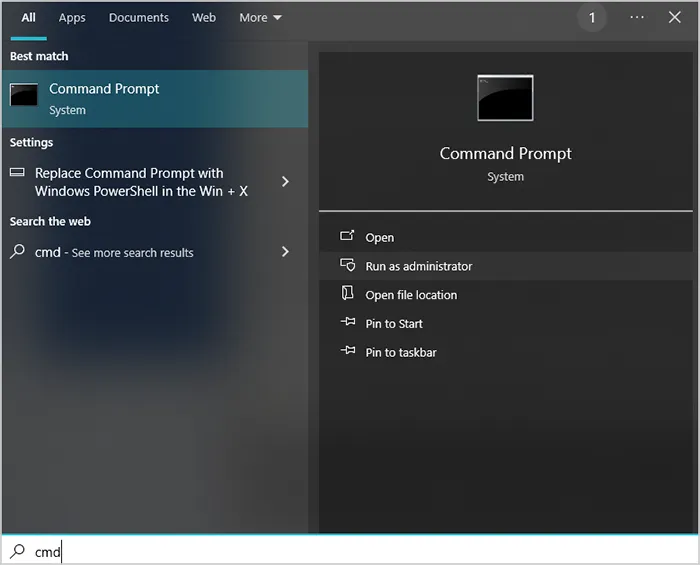
Type
list diskto display all attached physical storage drives. -
Type
select disk X(replace X with your actual drive index number). -
Type
clean alland hit Enter. This command writes binary zeros across every logical sector on the selected drive. See more details >>
Overwrite Unallocated Free Space using Cipher Command:
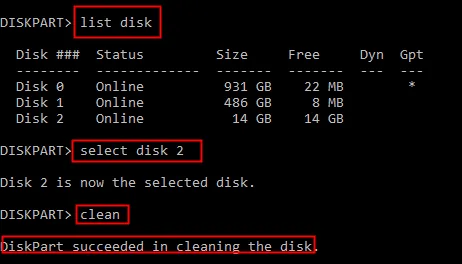
To sanitize deleted file traces on an active volume without removing your current OS files, open Admin CMD and run:
cipher /w:C:
This writes 0x00, 0xFF, and random numbers across all unallocated clusters on drive C:.
Method 3: Overwrite Drive Sectors Safely via iReaShare Data Wipe Software
Executing CLI tools like diskpart clean all risks selecting the wrong disk index, which can accidentally erase system partitions. Furthermore, native Windows tools lack custom compliance options for multi-pass sanitization standards.
For a visually safe and flexible GUI experience, using specialized disk sanitization software provides clear drive labeling alongside certified erasure algorithms. iReaShare Data Wipe is a dedicated Windows utility engineered to wipe internal HDDs, SSDs, external hard drives, USB flash drives, and SD cards permanently.
Explore Key Capabilities of iReaShare Data Wipe:
-
Select Multiple Overwriting Standards: Provides customizable data wiping modes ranging from Quick Overwrite (1 pass) to recognized military algorithms such as DoD 5220.22-M (3/7 passes) and Gutmann (35 passes).
-
Target Specific Disks or Partitions: Enables users to wipe an entire disk drive, wipe specific secondary non-system partitions, or sanitize unallocated free space without damaging the current operating system.
-
Visual Drive Selection: Displays volume labels, capacity, file formats, and connection bus types to eliminate disk index confusion.
-
Destroy Data Irrecoverably: Overwrites master boot records (MBR/GPT), index tables, and raw sectors to render data 100% unrecoverable by forensic tools.
Follow Steps to Wipe a Hard Drive with iReaShare Data Wipe:
Step 1: Download and install iReaShare Data Wipe on your Windows computer.
Step 2: Launch the program and select your preferred module (e.g., File Shredder, Drive Wiper, or Free Space Wiper).
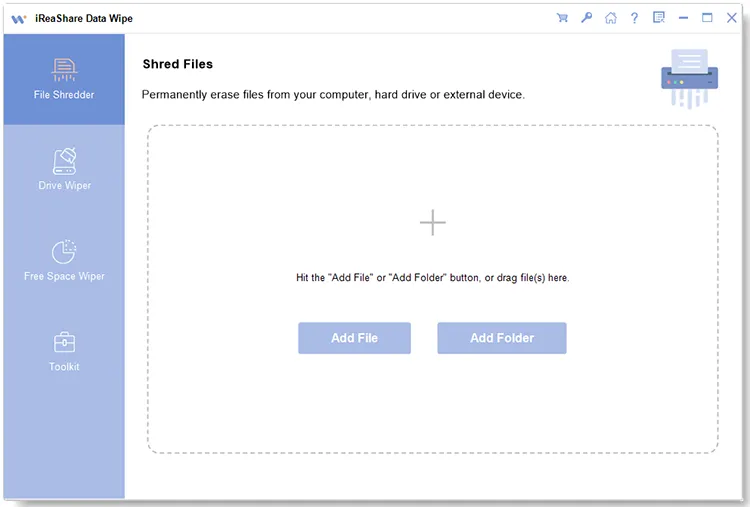
Step 3: Select the target disk drive or partition from the visual list. Choose your desired security wiping standard (e.g.,Quick Erase or Deep Erase).
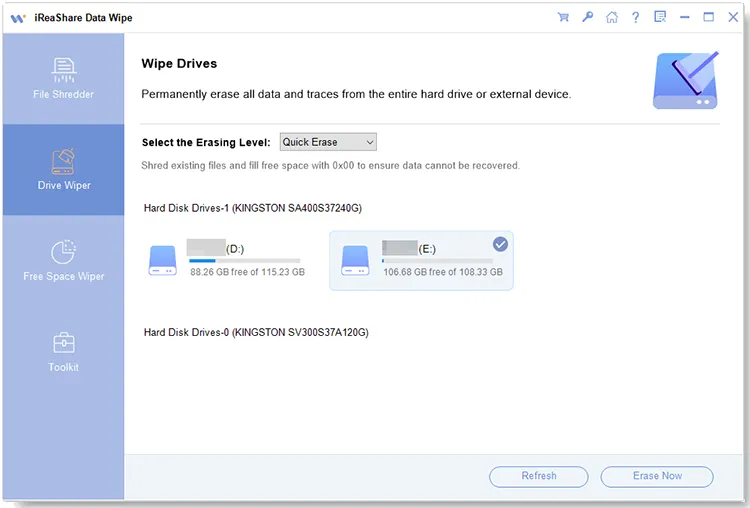
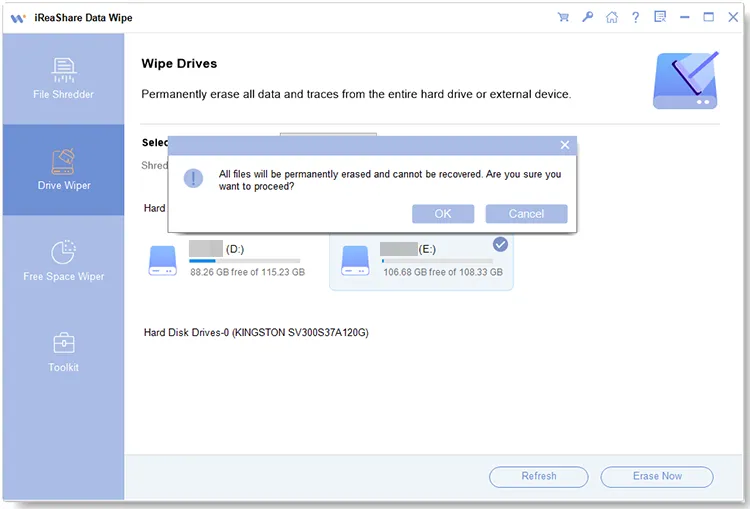
Step 4: Click Erase Now to initiate permanent sector destruction.
Video Guide: Watch the video to erase hard drive with iReaShare Data Wipe.
Part 4. Wipe a PC WITHOUT Windows OS Installed (Unbootable or Blank System)
If a computer cannot boot into Windows due to a missing OS, crashed system files, or black screen errors, standard Windows software cannot be launched directly. Use these hardware-level or out-of-band sanitization strategies instead.
Method 4: Erase SSD from UEFI/BIOS Setup (NVMe & SATA Secure Erase)
Modern motherboard firmware (ASUS, MSI, Gigabyte, ASRock, Dell, HP, Lenovo) includes built-in SSD erasure tools inside the UEFI BIOS interface.
-
Power on the PC and repeatedly tap the BIOS hotkey (typically
F2,Del,F12, orEsc). -
Switch to Advanced Mode (usually
F7). -
Navigate to the Tool, Security, or Utilities tab.
-
Select utilities such as ASUS Secure Erase, MSI Secure Erase+, NVMe Sanitization, or HP DriveLock.
-
Select your target internal SSD from the physical hardware list.
-
Confirm the action. The motherboard sends a hardware command directly to the drive controller to flush electrical charges across all NAND storage blocks.
Warning: UEFI Secure Erase is designed specifically for flash-based SSD storage, making SSD data unrecoverable. Do not run BIOS Secure Erase on mechanical HDDs.
Method 5: Connect Hard Drive Externally to Another PC to Wipe Data
When an unbootable computer lacks native UEFI Secure Erase tools—or when you need to sanitize mechanical HDDs or corrupted partitions using a Windows GUI tool—connecting the drive to another working PC is the most practical approach.
-
Power off the unbootable PC, unplug the power cable, and open the computer case.
-
Remove the internal 2.5-inch SATA drive, 3.5-inch desktop HDD, or M.2 NVMe SSD.
-
Insert the drive into a compatible USB hard drive enclosure, docking station, or M.2 NVMe-to-USB adapter.
-
Plug the USB enclosure into a secondary functional Windows PC.
-
Open iReaShare Data Wipe on the working PC.
-
Select the connected external drive, pick your target security algorithm (such as DoD 5220.22-M), and execute the full disk wipe safely.
-
Safely disconnect the sanitized drive once the process completes.
Method 6: Sanitize Storage Drives using Linux Live USB (dd & nvme-cli)
System administrators can boot an unbootable PC using a bootable Linux Live USB (such as Ubuntu or GParted Live) to execute command-line drive sanitization tools without needing Windows.
Overwrite HDDs using the dd Command:
- Boot the PC into the Linux Live environment.
- Open the Terminal and run
lsblkto identify your target drive path (e.g.,/dev/sdb). - Run zero-fill sector overwriting by entering:
sudo dd if=/dev/zero of=/dev/sdX bs=1M status=progress(Replace
/dev/sdXwith your actual target drive name. Verify the target carefully to avoid wiping the live USB stick).
Sanitize NVMe SSDs using nvme-cli Tools:
- In the Linux terminal, install the package:
sudo apt install nvme-cli. - List connected NVMe drives:
sudo nvme list. - Send a hardware sanitize command:
sudo nvme sanitize /dev/nvme0n1 -a 0x02The action parameter
0x02performs a hardware-level Block Erase across all NVMe NAND blocks.
Part 5. Compare PC Wiping Methods and Security Standards
Review the comparative matrix below to choose the right sanitization method based on your OS status and hardware type:
| Sanitization Method | OS Status Needed | Drive Compatibility | Erasure Mechanism | Risk of Accidental Data Loss |
|---|---|---|---|---|
| Windows Reset | Bootable OS Required | Internal HDD / SSD | Single-pass logical zero fill | Low |
| Diskpart Clean All | Bootable OS / WinRE | HDD / SSD / USB | Sector-by-sector zero overwrite | High (Drive letter mismatch) |
| iReaShare Data Wipe | Bootable OS (Direct) / Unbootable (via Enclosure) | HDD / SSD / USB / SD Cards | Multi-pass overwriting (DoD 5220.22-M / Gutmann / NIST) | Low (Visual drive confirmation) |
| UEFI BIOS Secure Erase | No OS Required | SATA / NVMe SSDs Only | Hardware ATA/NVMe voltage flush | Low |
| Linux Live USB (dd / nvme-cli) | No OS Required | HDD / SSD | Terminal sector block zeroing / NVMe Sanitize | High (Command-line risk) |
Part 6. Troubleshoot Common PC Wiping Errors and Failures
1. Fix "There was a problem resetting your PC. No changes were made"
Cause: Corrupted Windows Recovery Environment (WinRE) binary files or missing local recovery images.
Solution: Launch Command Prompt as Administrator and run reagentc /enable. If system recovery fails completely, remove the internal hard drive, mount it into a USB enclosure, connect it to another PC, and wipe it using iReaShare Data Wipe or diskpart.
2. Unlock SATA SSD when Security State Shows "Frozen" in BIOS
Cause: System motherboard firmware locks SATA drive security states during bootup to prevent unauthorized password modifications.
Solution: Power cycle the hardware. While keeping the PC powered on in the BIOS screen, carefully disconnect the SATA power cable from the back of the SSD, wait 5 seconds, and reconnect it. Refresh the BIOS screen to unfreeze the Secure Erase feature.
3. Resolve Diskpart "Access is Denied" or Read-Only Errors
Cause: Drive volumes are locked by BitLocker encryption flags or write-protection attributes.
Solution: Inside Diskpart, type attributes disk clear readonly and press Enter. If partitions remain locked, run clean before attempting clean all, or use a dedicated GUI wiping tool to clean raw sectors directly.
Part 7. Review Frequently Asked Questions (FAQs About PC Wiping)
Q1: Does wiping a PC delete the Windows Operating System permanently?
Answer: It depends on the wiping method selected. Using Windows Reset reinstalls a clean copy of Windows OS while removing user files. However, running diskpart clean all, performing UEFI BIOS Secure Erase, or using tools like iReaShare Data Wipe on the primary drive erases all system structures, leaving the hard drive blank without an OS.
Q2: Is a standard Quick Format sufficient before selling a used laptop?
Answer: No. A Quick Format only clears the master file table (MFT) index without destroying physical data blocks. File recovery software can easily retrieve private documents from a quick-formatted drive. A complete sector-level overwrite is mandatory before selling your PC.
Q3: Are multi-pass algorithms like Gutmann (35 passes) necessary for SSDs?
Answer: No. Multi-pass algorithms were developed for older magnetic HDDs. Applying 35 overwriting passes to a modern SSD provides no extra security and causes excessive NAND flash write wear. A single NIST SP 800-88 pass or an NVMe Sanitize command is fully sufficient for flash memory.
Q4: How do I wipe a laptop with a broken or dead display screen?
Answer: Plug an external monitor into the laptop via HDMI or DisplayPort, power on the system, and press Win + P to mirror your screen. Alternatively, extract the storage drive and connect it externally to another PC to sanitize it using iReaShare Data Wipe. See more about how to wipe a hard drive on a dead computer here.
Final Thoughts on Secure Data Sanitization
Wiping your computer completely is a critical security measure before selling, recycling, or donating PC hardware.
If your Windows OS boots normally, native options like Windows Reset or Command Prompt provide basic wiping capabilities, while dedicated tools like iReaShare Data Wipe deliver visual drive mapping and customizable military algorithms (DoD/Gutmann) without risk of drive index errors.
For unbootable PCs without an operating system, using motherboard UEFI NVMe Secure Erase or connecting the hard drive externally to another PC guarantees complete, irrecoverable data destruction.
Related Articles:
How to Delete Everything Except Windows 10 OS on PC (Useful Tips)
How to Easily Reset a Hard Drive in Windows 11/10 [Step by Step]
How to Wipe a Thumb Drive Without Effort? (3 Solutions)
How to Format Hard Drive on Windows 11/10 PC Effectively

