


When you decide to reinstall your operating system, whether it is for a fresh start, upgrading hardware, or preparing to sell your device, a standard "format" or "reinstall" might not be enough to keep your private data safe. Thus, you need to permanently erase data after reinstalling Windows OS to ensure your personal information is gone for good.
- Part 1: Permanently Erase Data After Reinstalling Windows OS via iReaShare Data Wipe
- Part 2: Permanently Erase Data After Reinstalling Windows 11 OS via Full Format
- Part 3: Delete All Data After Reinstalling Windows 11 by Resetting PC
- Part 4: Permanently Wipe Data After Reinstalling Windows OS with DBAN
- Part 5: Q&A About Erasing Data and Reinstalling Windows OS
Compare these 4 methods:
| Method | Pros | Cons |
|---|---|---|
| iReaShare Data Wipe | 1. Supports military-grade standards (DoD 5220.22-M). 2. Can target specific files, folders, free space, hard drives, and other storage devices. 3. User-friendly graphical interface. |
1. Requires software app installation. 2. Full features require a paid license. |
| Windows 11 Full Format | 1. No additional software required. 2. Built directly into File Explorer. 3. Scans for bad sectors while wiping. |
1. Significantly slower than Quick Format. 2. Only performs a single-pass overwrite (zeros). |
| Reset This PC (Clean Data) | 1. Native Windows 11 feature. 2. Automates OS reinstallation after the wipe. 3. Simple "one-click" workflow in Settings. |
1. May fail if recovery image is corrupted. 2. Can be very time-consuming on older hardware. |
| DBAN (Boot and Nuke) | 1. Free and open-source. 2. Runs outside the OS to wipe the primary drive. 3. Offers extreme security (Gutmann method). |
1. Not recommended for SSDs (causes wear). 2. Requires bootable media and BIOS knowledge. 3. Outdated for some modern UEFI/NVMe hardware. |
Part 1: Permanently Erase Data After Reinstalling Windows OS via iReaShare Data Wipe
If you have already reinstalled Windows but realized your old files might still be lurking in the "unallocated space" of your hard drive, a professional tool like iReaShare Data Wipe is highly effective. Unlike a standard delete command, this software overwrites the disk space multiple times with random data.
Main features of iReaShare Data Wipe:
* High-level security with multiple overwrite passes.
* Wipe an HDD completely, including deleted data.
* Allow you to shred files selectively.
* Wipe the free space on SSDs and hard drives without losing existing files.
* Erase data on an SD card without effort.
* Compatible with Windows 11/10/8/7.
Download iReaShare Data Wipe.
To permanently erase data after reinstalling Windows OS:
-
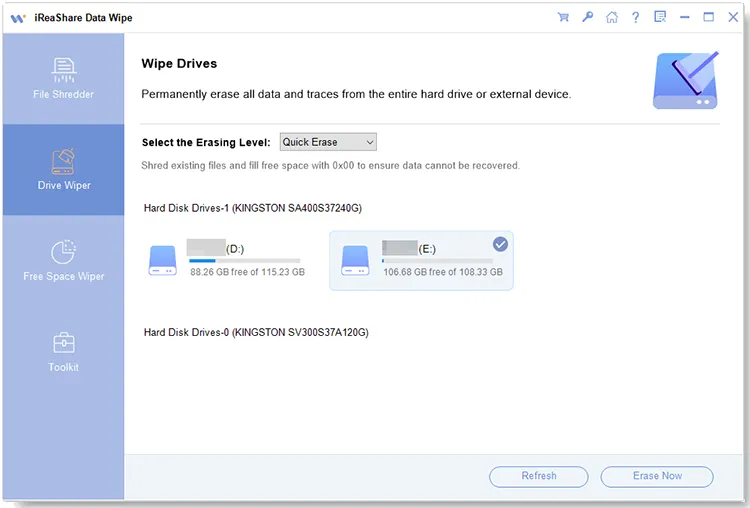
Install iReaShare Data Wipe on your Windows PC, and launch it. Then choose "Drive Wiper".
-
Select a level for erasing data, and choose a hard drive. Then click "Erase Now".
-
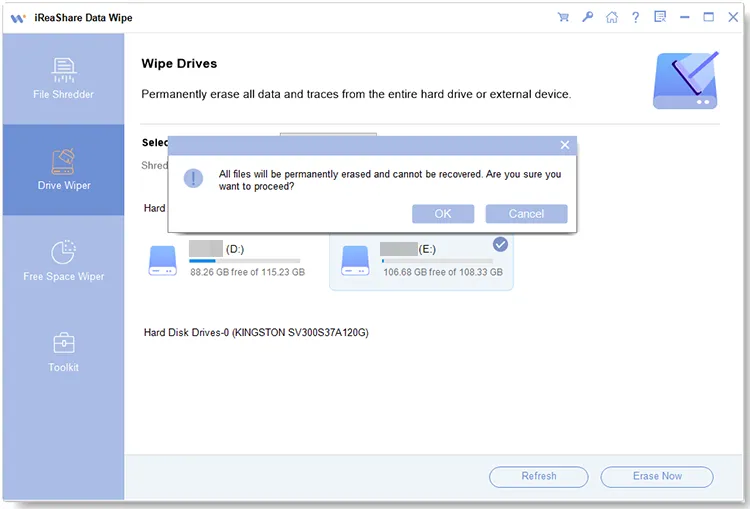
It will prompt you to confirm your action. To proceed, click "OK". The program will begin to erase all the data from the selected hard drive. Once done, you can continue to wipe other disks.
Part 2: Permanently Erase Data After Reinstalling Windows 11 OS via Full Format
If you intend to wipe your data after reinstalling Windows 11/10 on your PC, you can utilize "Full Format". Many users mistakenly choose a "Quick Format" during or after installation, which only deletes the file path. A Full Format is essential for data security as it scans the entire drive for bad sectors and overwrites existing data with zeros.
To completely erase data after reinstalling Windows 11/10 OS via full format:
-
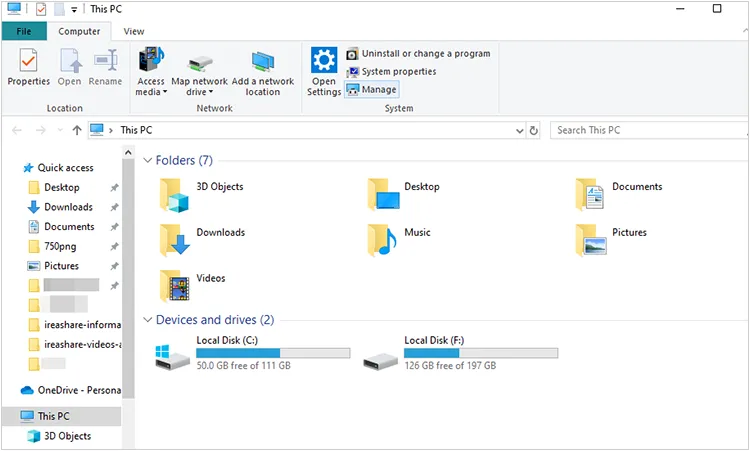
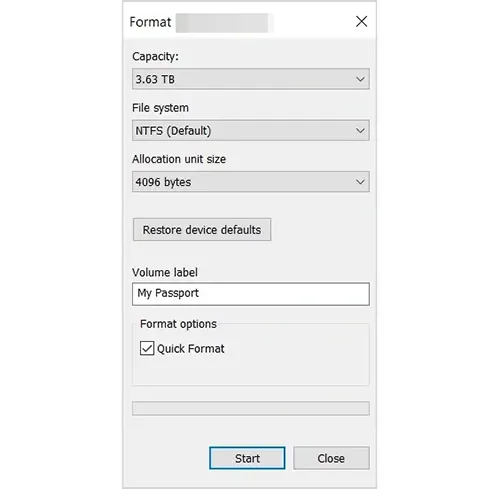
Please open This PC or File Explorer on your computer. Then right-click the drive or partition you wish to clear (e.g., a secondary D: drive) and select "Format".
-
Uncheck the box that says "Quick Format", and click "Start".
-
This process will take significantly longer than a quick format, but it ensures that every sector is overwritten, making your old data much harder to retrieve.
Part 3: Delete All Data After Reinstalling Windows 11 by Resetting PC
If you are already using Windows 11 and want to perform a "clean slate" wipe without external media, the "Reset this PC" feature is the most user-friendly method.
To delete all the data after reinstalling Windows 11 via factory reset:
-
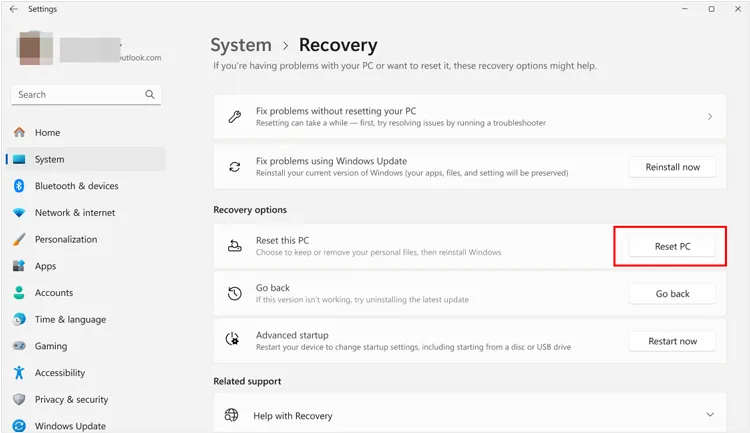
Please navigate to "Settings" > "System" > "Recovery". Then click "Reset PC" and choose "Remove everything".
-
Select "Change settings" and toggle the "Clean data?" switch to "Yes".
-
Then this option performs a more thorough cleaning of the drive, specifically designed for when you are selling or recycling the computer.
Part 4: Permanently Wipe Data After Reinstalling Windows OS with DBAN
For those dealing with traditional Hard Disk Drives (HDDs), DBAN (Darik's Boot and Nuke) is a highly secure, independent utility. However, DBAN is not recommended for SSDs. For SSDs, it is better to use the manufacturer's "Secure Erase" utility to avoid unnecessary wear on the drive.
Here's how to permanently wipe data after reinstalling Windows OS via DBAN:
-
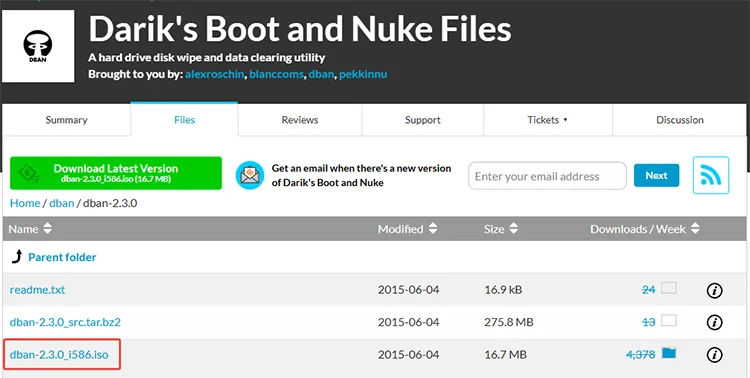
Download the DBAN ISO and create a bootable USB.
-
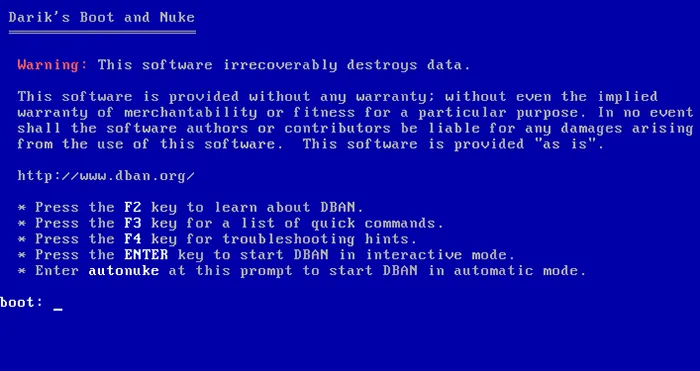
Boot your computer from the USB drive before the Windows logo appears.
-
Use the "autonuke" command to completely scrub every bit of data from the hard drive. After this, you will have a truly blank canvas to reinstall Windows.
Part 5: Q&A About Erasing Data and Reinstalling Windows OS
Q1: Does reinstalling Windows OS delete everything permanently?
Not necessarily. A standard reinstallation often only replaces system files or moves old data to a folder called "Windows.old". Even a quick format only deletes the "index" to your files, not the files themselves. To delete things permanently, you must use a "Full Format" or a data-wiping tool that overwrites the sectors.
Q2: Should I update to Windows 11?
It depends on your hardware. If your PC supports TPM 2.0 and a compatible CPU, Windows 11 offers better security features and a more modern interface. However, if your current system works well and meets your requirements, upgrading is optional.
Q3: Is Windows 12 coming out soon?
Microsoft has not officially announced a release date for "Windows 12". While there are many rumors regarding a 2026 or 2027 release focused heavily on AI integration, Microsoft is currently focused on large "24H2" updates for Windows 11.
Conclusion
Reinstalling Windows is only half the battle when it comes to privacy. To truly protect your identity and files, you must go beyond simple deletion. By utilizing methods like the Full Format in Windows 11 or professional overwriting software like iReaShare Data Wipe, you can rest easy knowing your old data is permanently erased.
Related Articles
Solved: How to Erase Data from Sony XQD Card Permanently
How to Format USB Drive Easily in 5 Ways (Step by Step)
Select Free Drive Wiper to Erase a Disk Without Any Hassle
How to Erase Locked Hard Drive Effectively? Exhaustive Explanation

