

TL;DR:
You can transfer contacts from a computer to Android through Google Contacts, a USB connection, iReaShare Android Manager, or cloud storage, depending on your preferred transfer method and contact file format.
- Google Contacts accepts CSV and VCF files, but CSV files generally need to be converted to VCF before direct import through Android's Contacts app.
- iReaShare Android Manager supports USB and Wi-Fi connections, as well as contact import, export, backup, and restore.
- Direct file transfer requires a compatible VCF file, while wireless methods may require an internet connection or additional app setup.
When you switch to a new Android phone or need to move contacts saved on your computer, transferring them manually one by one can be time-consuming. Fortunately, you don't have to enter every name and phone number again. Whether your contacts are stored in a spreadsheet, a VCF file, or another supported format, you can transfer them to your Android device using several convenient methods.
In this article, we'll introduce four practical ways to transfer contacts from computer to Android, including Google Contacts, USB file transfer, iReaShare Android Manager, and cloud storage. Each method offers a different way to move your contact list, so you can choose one based on your available devices and personal preferences.
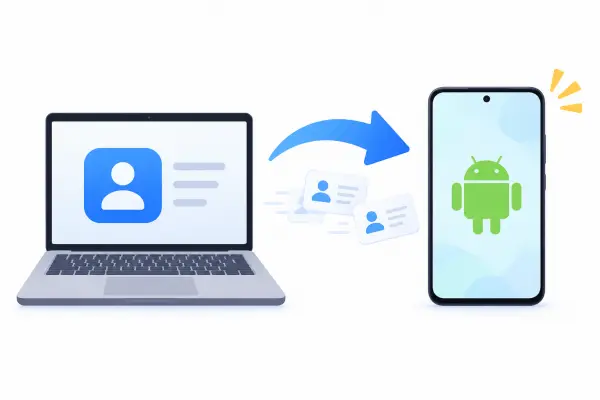
Comparison of 4 Methods to Transfer Contacts from Computer to Android
Each method has different requirements and advantages. The table below provides a quick comparison to help you choose the most suitable option.
| Method | Connection | Need Extra Software? | Supported Contact Format | Main Advantage |
|---|---|---|---|---|
| Google Contacts | Internet | No | CSV, VCF | Automatically syncs contacts through a Google account |
| USB Cable | USB | No | VCF | Transfers contacts without an internet connection |
| iReaShare Android Manager | USB or Wi-Fi | Yes | VCF, XML, BAK | Imports and manages contacts directly on a computer |
| Cloud Storage | Internet | Cloud storage app | VCF | Transfers contacts wirelessly between devices |
Way 1. Send Contacts from Computer to Android with Google Contacts
Google Contacts is a convenient option if you want to transfer contacts from your computer to Android without using a USB cable. It supports importing contacts from CSV and VCF files. Once you import them into your Google account, you can synchronize them with your Android phone by signing in to the same account. This method is particularly useful if you already use Google services to manage your contacts.
Step 1. Open a web browser on your computer and visit Google Contacts. Sign in with the Google account you use on your Android phone.
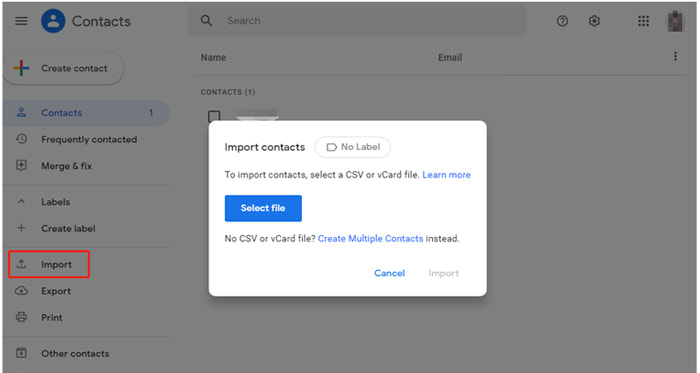
Step 2. Click "Import" in the left sidebar, then select "Select file" to browse for the contact file stored on your computer.
Step 3. Choose your CSV or VCF file and click "Import". Google Contacts will add the contacts to your account.
Step 4. Unlock your Android phone and open "Settings". Go to "Passwords & accounts" or "Accounts" (the exact name may vary by device), then select the Google account you used above.
Step 5. Tap "Account sync" and make sure "Contacts" synchronization is enabled. If necessary, tap "Sync now" to start syncing. Once synchronization is complete, open the Contacts app to check the imported contacts.
Since Google Contacts handles the synchronization online, you don't need a USB cable or additional desktop software. However, both devices need an internet connection, and you must use the same Google account on your computer and Android phone.
Way 2. Transfer Contacts from Computer to Android Through USB Cable
If you prefer not to use a Google account or upload your contacts to a cloud service, a USB cable provides a straightforward alternative. You can copy a VCF contact file from your computer to your Android phone and import it using the built-in Contacts app. This approach is also suitable for transferring a large contact list in one batch.
Step 1. Make sure your contacts are saved as a VCF file on your computer. If they are currently stored in another format, export or convert them to VCF using a compatible contact management application.
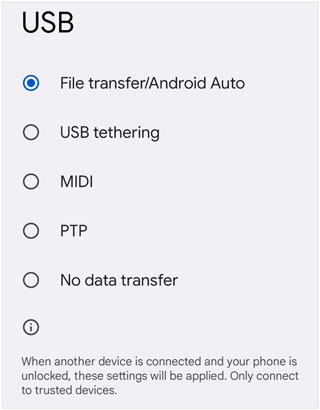
Step 2. Connect your Android phone to the computer with a USB cable. Unlock your phone and select "File transfer" or "MTP" from the USB notification if prompted.
Step 3. Open File Explorer on Windows or a compatible Android file transfer utility on Mac. Locate your Android device and open its internal storage.
Step 4. Copy the VCF file from your computer and paste it into a folder on your Android phone, such as "Download" or "Documents".
Step 5. Disconnect your phone safely. Open the Contacts app on Android and find the "Import from file" option in its settings or management menu.
Step 6. Select the VCF file you just copied and choose where to save the imported contacts, such as your phone or Google account. Wait for the import to finish.
One advantage of this method is that it doesn't require an internet connection, Google account, or additional contact management software. The file transfer itself is usually quick for a list of 100 contacts. However, you need a compatible USB cable, and your contacts must be available in a supported file format, typically VCF.
Way 3. Copy Contacts from Computer to Android by iReaShare Android Manager
If you want to transfer contacts from your computer to Android more directly, iReaShare Android Manager is worth trying. It allows you to import contacts from a computer to an Android device and manage them through a desktop interface. You can also connect your phone via USB or Wi-Fi, giving you more flexibility during the transfer.
Key Features of iReaShare Android Manager:
- Import contacts from your computer to an Android device without manually copying files to your phone.
- Export Android contacts as CSV, XML, VCF, HTML, and other supported file formats.
- Back up and restore Android contacts on your computer in one click.
- Transfer photos, videos, music, documents, and other files between Android devices and computers.
- Supports most Android devices, including Samsung Galaxy, Xiaomi, Redmi, Tecno, Vivo, OPPO, OnePlus, and Huawei.
How to transfer contacts from your computer to your Android easily?
-
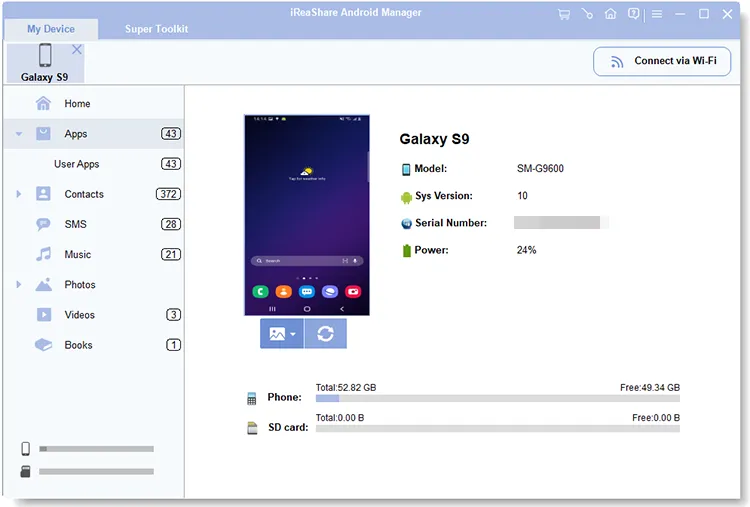
Download and install iReaShare Android Manager on your Windows or Mac computer. Launch the program and connect your Android phone to the computer using a USB cable or Wi-Fi.
For a USB connection, follow the on-screen instructions to enable USB debugging. For a Wi-Fi connection, follow the software's wireless connection guide.
-
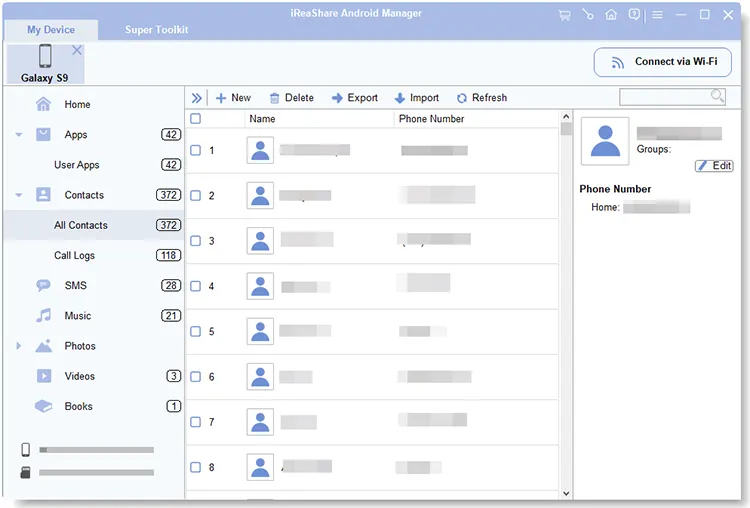
Once the software recognizes your Android device, select "Contacts" from the left sidebar to access the contact management interface.
-
Click "Import" at the top of the interface and select the contact file you want to transfer from your computer. Follow the prompts to complete the import process, then check your Android phone to make sure the contacts have been added.
For a clearer demonstration of the connection and contact import process, you can also watch the following video tutorial.
Way 4. Transfer Contacts from Computer to Android Wirelessly Using Cloud Storage
Cloud storage services such as Google Drive, OneDrive, and Dropbox provide another way to transfer contacts without connecting your computer and Android phone with a cable. You can upload a VCF contact file from your computer and download it to your phone for importing. This is a convenient choice if your devices are in different locations or you prefer wireless file sharing.
Step 1. On your computer, prepare your contacts in VCF format. If necessary, export them from your contact management application.
Step 2. Open a cloud storage service, such as Google Drive, OneDrive, or Dropbox, in your computer's browser. Sign in to your account.
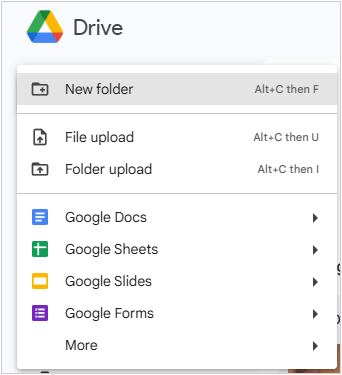
Step 3. Upload the VCF file to your cloud storage account and wait for the upload to finish.
Step 4. On your Android phone, open the corresponding cloud storage app and sign in with the same account.
Step 5. Locate the uploaded VCF file and download it to your phone.
Step 6. Open the downloaded file or launch the Contacts app and choose "Import from file". Select the VCF file and follow the prompts to save the contacts to your phone or account.
This method doesn't require a USB cable and works with different computers and Android devices. You can also keep the VCF file in cloud storage as an extra copy. However, it requires an internet connection and sufficient cloud storage space. You must also download and import the contact file manually rather than syncing contacts automatically.
Conclusion
There are several ways to transfer contacts from computer to Android, and the best choice depends on your needs. Google Contacts is suitable for automatic account-based synchronization, while USB transfer and cloud storage are practical for importing VCF files. If you want to manage and import contacts directly through a computer, iReaShare Android Manager provides additional contact management and backup features.
Choose a method that supports your contact file format and fits your transfer preferences. Before moving a large contact list, remember to keep a backup of the original contact file to avoid losing important information.
Related Articles
Transfer Files from PC to Android Without Effort: Full Guide with 6 Solutions
How to Transfer Contacts to New Phone Without A Hitch (5 Ways)
Sync Outlook Contacts to Android Without Any Hurdle: 4 Solutions
How to Easily Back Up Contacts on Android Device (5 Viable Ways)