


TL;DR:
Deleting files normally leaves remnants behind that anyone can recover. To protect your privacy, you must use data-wiping software to completely overwrite that hidden data.
- User-Friendly Desktop Tools: Applications like iReaShare Data Wipe, Eraser, BleachBit, and File Shredder offer intuitive graphical interfaces, context-menu integration, and bonus features like automated scheduling or system junk cleaning.
- Advanced Command-Line Utilities: Microsoft's SDelete provides a lightweight, scriptable, and installation-free approach favored by advanced users who prefer automation over a visual interface.
Deleted files aren't actually gone when you empty the Recycle Bin. The operating system simply marks that storage space as "available", while the original data remains intact until new files overwrite it - which means anyone with the right software can recover it. If you're wondering how to prevent deleted file recovery for good, the answer lies in specialized tools that overwrite that space with random data or zeroes, making the original content unrecoverable.
Below are five of the most effective tools available today for permanently erasing files and keeping your sensitive information out of reach.
- Part 1: How to Prevent Deleted File Recovery via iReaShare Data Wipe
- Part 2: How to Make Sure File Cannot be Retrieved on Computer via SDelete
- Part 3: How to Permanently Delete Files on PC Without Recovery via Eraser
- Part 4: How to Prevent Recovery of Deleted Files with BleachBit
- Part 5: How to Prevent Deleted Data Recovery with File Shredder
- Part 6: Q&A About Preventing Deleted File Recovery
Compare these 5 approaches:
| Method / Tool | Pros | Cons |
|---|---|---|
| iReaShare Data Wipe | 1. User-friendly graphical interface. 2. Offers specific, tailored modes for active files vs. free space. 3. Includes industry-standard wiping algorithms. |
1. Trial version may have limitations. 2. Proprietary (not open-source). |
| SDelete | 1. Official, trusted Microsoft tool. 2. Light-weight (no installation required). 3. Highly scriptable for automation. |
1. No graphical interface (Command Line only). 2. Steep learning curve for casual users. |
| Eraser | 1. Excellent Windows Explorer context menu integration. 2. Robust, customizable scheduling for automated wipes. 3. Free and open-source. |
1. Interface can feel slightly dated. 2. Background tasks can occasionally consume system resources. |
| BleachBit | 1. Multi-functional (cleans system junk and shreds files). 2. Free, open-source, and cross-platform (Windows & Linux). 3. Actively maintained. |
1. Interface can be overwhelming due to the sheer number of cleaning options. 2. Cleaning the wrong system cache by mistake can log you out of apps. |
| File Shredder | 1. Minimalist, incredibly simple layout. 2. Drag-and-drop support. 3. Free to use. |
1. Lacks advanced scheduling features. 2. Windows-only utility with no recent major feature overhauls. |
Part 1: How to Prevent Deleted File Recovery via iReaShare Data Wipe
How do you make sure files cannot be retrieved on your computer? iReaShare Data Wipe is one of the most reliable tools available. This Windows-based software goes beyond simple deletion by permanently shredding files, folders, drives, and even free space, overwriting the underlying data so it can't be restored by any recovery software.
With an intuitive interface suited to both beginners and advanced users, it offers a straightforward way to keep sensitive information out of reach for good.
Main features of iReaShare Data Wipe:
* Permanently shred and deletes selected files and folders so they can't be recovered by any data recovery software.
* Erase entire hard drives on computers, wiping all data and overwriting it completely.
* Effectively wipe SD cards, external HDDs, SSDs, and other external storage devices.
* Offer a fast option - Quick Erase - for everyday erasure needs and a multi-pass Deep Erase mode following the US DoD 5220.22-M(E) standard for maximum security.
* Compatible with Windows 11/10/8/7.
Download iReaShare Data Wipe.
Here's how to prevent deleted data recovery with this program:
-
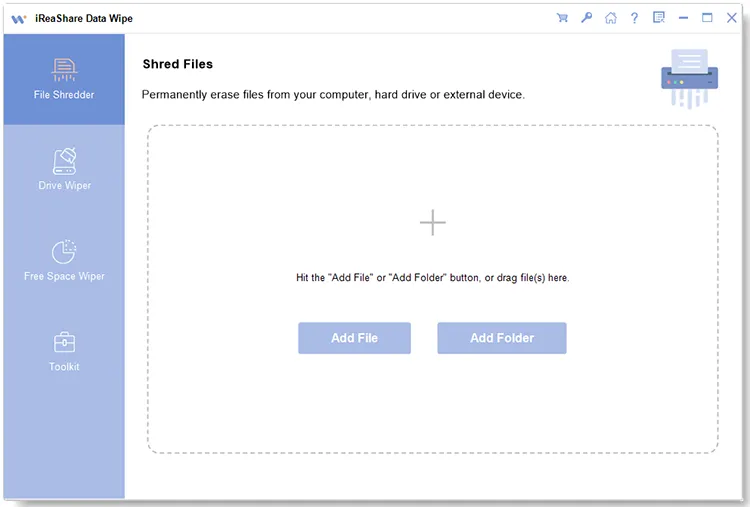
Download, install, and launch iReaShare Data Wipe on your PC. Then select the specific wiping mode you need, such as "File Shredder".
-
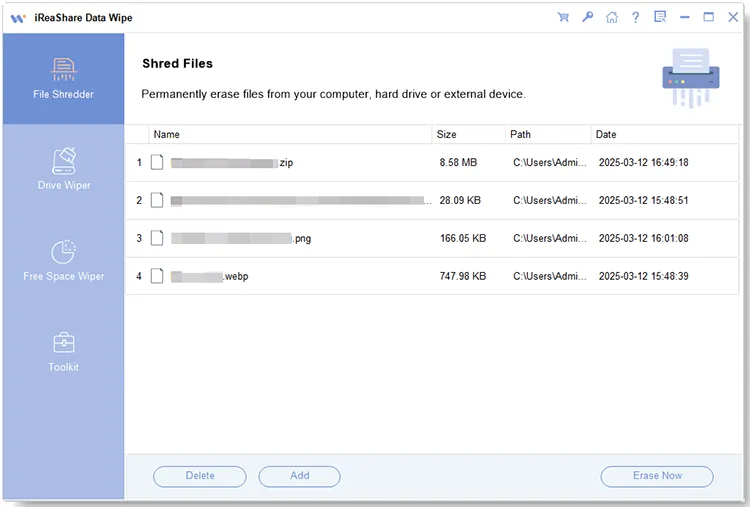
Drag and drop the files or folders that you want to delete, or click "Add File" or "Add Folder".
-
After adding, click "Erase Now" > "OK" to confirm the operation. The software will overwrite the data blocks, rendering recovery impossible.
Part 2: How to Make Sure File Cannot be Retrieved on Computer via SDelete
SDelete (Secure Delete) is an official Microsoft Sysinternals command-line utility. Unlike standard deletion, SDelete overwrites file data in free space, making recovery extremely difficult or impossible. Because it has no graphical interface, it is highly efficient and favored by tech-savvy users.
Here's how to prevent the recovery of deleted files with SDelete:
-
Download SDelete from the Microsoft Sysinternals website and extract the sdelete.exe file.
-
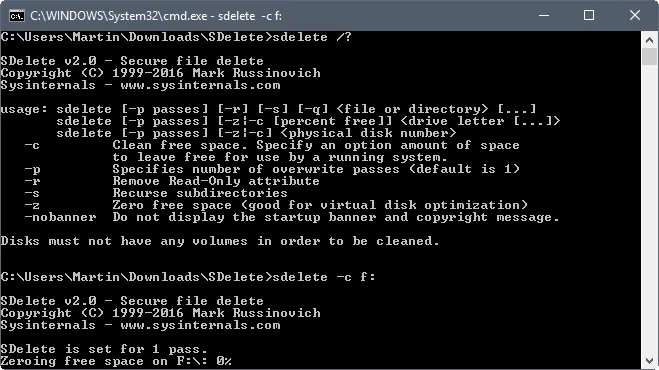
Open Command Prompt as an Administrator. Then navigate to the folder containing SDelete using the cd command (e.g., cd C:\Tools).
-
To permanently delete a specific file, type the following command and press "Enter": sdelete64.exe -p 3 "C:\path\to\your\secretfile.txt".
-
To clean the free space on a drive (wiping files you already deleted normally), use the "-z" switch: sdelete64.exe -z C:.
Part 3: How to Permanently Delete Files on PC Without Recovery via Eraser
Eraser is an advanced, open-source security tool for Windows that integrates directly into your Windows Explorer context menu, making daily shredding incredibly easy. It allows users to schedule secure deletions and apply advanced overwriting standards.
Here's the guide:
-
Once installed, simply navigate to the file or folder you want to destroy using Windows File Explorer.
-
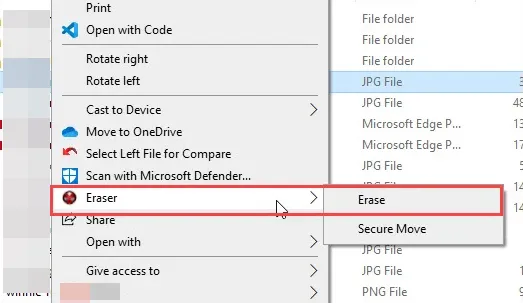
Right-click the target file, hover over "Eraser" in the context menu, and click "Erase".
-
Finally, click "Yes" on the confirmation prompt.
Advanced Scheduling: Alternatively, you can open the Eraser desktop application, click "Erase Schedule", and set up a recurring task to automatically wipe your Recycle Bin or specific temporary folders every night using protocols like the Gutmann method.
Part 4: How to Prevent Recovery of Deleted Files with BleachBit
BleachBit is a powerful, open-source system cleaner available for both Windows and Linux. While often used for cleaning cache and system junk, it also helps eliminate recoverable traces of deleted files.
To permanently delete files on a PC with BleachBit:
-
Open BleachBit, and click the "File" menu in the top-left corner.
-
Select "Shred Files" to select individual files, or "Shred Folders" for entire directories.
-
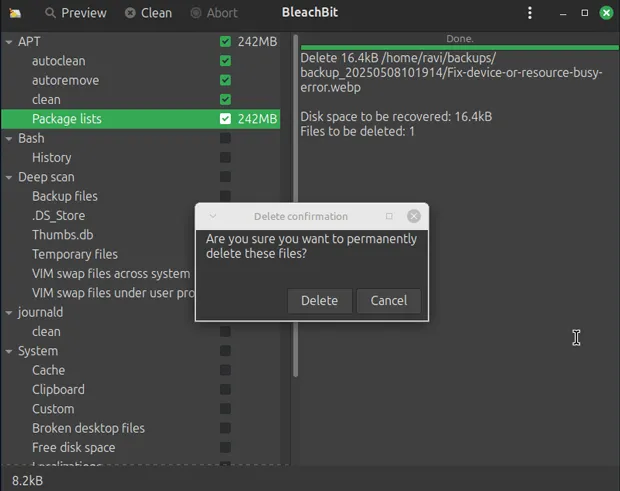
Browse and select the data you want to destroy, then click "Open". A warning box will appear asking if you are sure you want to permanently delete the items. Click "Delete".
-
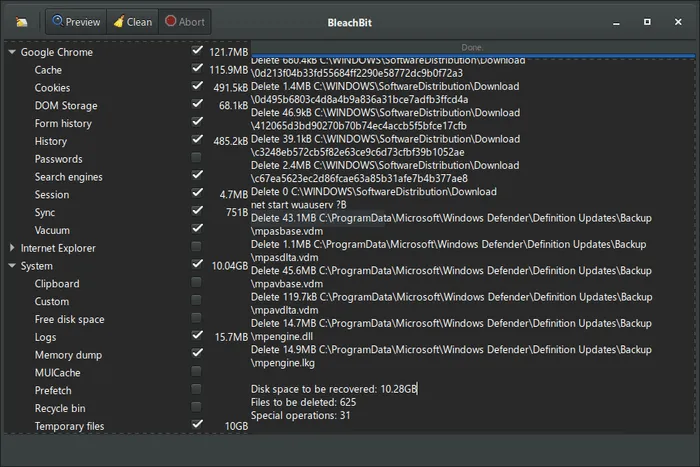
To ensure previously deleted files are gone, select the System checkbox in the left sidebar, check "Free disk space", and tap "Clean".
Part 5: How to Prevent Deleted Data Recovery with File Shredder
File Shredder is a lightweight, straightforward Windows application designed with a singular focus: making data destruction fast and simple. It replaces file data with random patterns before deletion, ensuring that recovery software cannot reconstruct the original content.
Here's how:
-
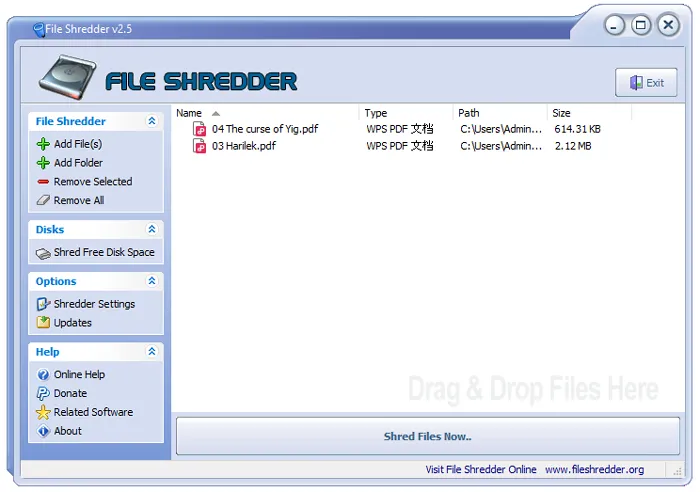
Launch File Shredder, and click the "Add File(s)" or "Add Folder" button on the left panel to queue up items.
-
In the left menu, click "Shredder Settings" if you wish to change the algorithms.
-
Click "Shred Files Now" on the main interface. Confirm the action. A progress bar will show the files being systematically overwritten and destroyed.
Part 6: Q&A About Preventing Deleted File Recovery
Q1: Why are deleted files still recoverable?
When you delete a file normally, the operating system doesn't erase the data from the physical storage sectors. Instead, it deletes the "pointer" to that file and marks the space as empty. Until your computer happens to write new data over those exact coordinates, the original file remains fully intact and can be easily retrieved using basic data recovery software.
Q2: Is overwriting files multiple times still necessary?
For older magnetic Hard Disk Drives (HDDs), multiple passes (like 3-pass or 7-pass methods) were used to counter advanced laboratory recovery techniques. However, for modern Solid-State Drives (SSDs) and mechanical drives, a single pass of overwriting with zeroes or random data is completely sufficient to make data unrecoverable.
Q3: Are factory resets enough to prevent recovery on my computer?
Not always. A standard factory reset often just reinstalls the operating system without deeply overwriting the user data sectors. If you are selling or giving away your computer, you should choose the "Fully Clean the Drive" option during the Windows reset process, or use a tool to wipe the free space beforehand to guarantee your old files cannot be unearthed.
Conclusion
Digital privacy protection requires moving past the standard "Recycle Bin" mindset. If you prefer the simplicity of file erasure, you can choose File Shredder or iReaShare Data Wipe. The latter is more intuitive, and it has been continuously maintained and updated. Any of these tools will guarantee your private files stay permanently private.
Related Articles
How to Permanently Erase Data After Reinstalling Windows OS (Resolved)
Best Data Wipe Software: Top 9 Tools to Securely Erase Your Data
How to Force Delete a File on a Computer Without Effort
Diskpart Clean Command Guide: Help You Use It Effortlessly

