

TL;DR:
You can change your location on Facebook Marketplace in three ways, depending on what you want to achieve. Facebook's built-in location settings let you browse listings in another city without installing anything. A VPN can change your IP address to make your network appear to be in another region, while Location Changer can change your phone's GPS location without physically traveling. The built-in option is the easiest choice for browsing local listings, but the other two methods offer additional location-related controls.
Facebook Marketplace makes it easy to buy and sell products locally, but sometimes you may want to explore listings in another city or region. For example, you might be planning a move, looking for better deals outside your current area, or trying to see products available in a different location. However, Marketplace may continue showing listings near your current location even when you want to browse elsewhere.
Fortunately, there are several ways of how to change your location on Facebook Marketplace, whether you use an iPhone, Android phone, or computer. In this article, we'll explain three practical methods, including Facebook's built-in settings, a VPN, and a GPS location changer, so you can choose the one that best suits your needs.
Comparison of 3 Ways to Change Location on Facebook Marketplace
Here is a quick comparison of the three methods to help you choose the most suitable way to change your Facebook Marketplace location.
| Method | Need a Computer? | Need Extra Software? | Main Advantage | Best For |
|---|---|---|---|---|
| Facebook Marketplace Settings | No | No | Simple and free | Browsing listings in another city |
| VPN | No | Yes | Changes your apparent IP location | Changing your network location |
| Location Changer | Yes | Yes | Simulates a different GPS location | Changing your phone's GPS location |
Part 1. How to Change Location on Facebook Marketplace Directly
The easiest way to change your Facebook Marketplace location is to use its built-in location settings. You can enter a different city, ZIP code, or area and adjust the search radius to find listings nearby. This method doesn't require a VPN or third-party location-changing software.
Here are two ways to do it.
Option 1. Facebook Mobile App
Whether you're using an iPhone or Android phone, you can change your Marketplace location directly in the Facebook app. Follow these steps:
Step 1. Open the Facebook app on your phone and tap "Marketplace". If you can't find it, tap "Menu" and select "Marketplace".
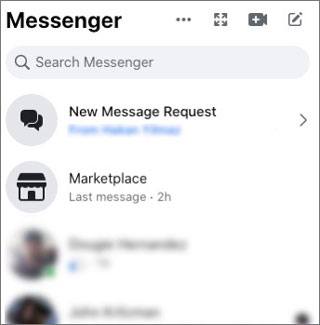
Step 2. Tap the profile or location icon in the upper-right corner of the Marketplace screen.
Step 3. Select "Location" to open the location settings.
Step 4. Enter the city, neighborhood, or ZIP code where you want to browse listings. You can also select a location on the map.
Step 5. Adjust the search radius to include more or fewer nearby listings.
Step 6. Tap "Apply" to save your changes. Once completed, Facebook Marketplace will refresh its listings based on your selected location and search radius.
Option 2. Facebook.com
If you prefer using a computer, you can also change your Facebook Marketplace location through the website. The process is straightforward:
Step 1. Open a browser and visit Facebook.com. Log in to your account.
Step 2. Click "Marketplace" in the left-hand menu. If it isn't visible, click "See more" to find it.
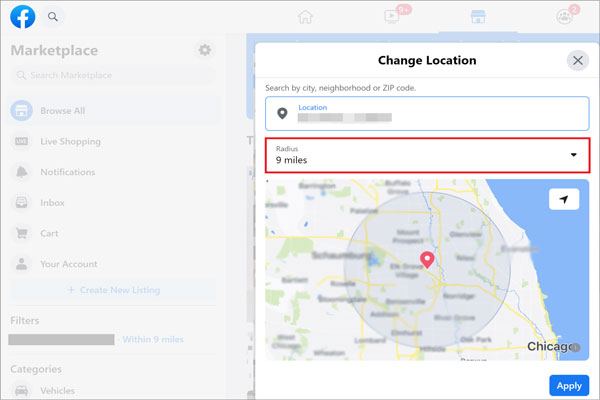
Step 3. Find your current location on the Marketplace page and click it to open the location settings.
Step 4. Enter your desired city, state, or ZIP code in the search field. Alternatively, select a location directly on the map.
Step 5. Adjust the search radius according to your preferences.
Step 6. Click "Apply" to confirm the new location. Facebook will then display Marketplace listings around the location you selected.
Limitations:
This method is convenient for browsing listings in another area, but it only changes your Marketplace search location. It doesn't change your phone's actual GPS coordinates or IP address. Also, the available location options and interface may vary depending on your Facebook version and region.
Part 2. How to Change Location on FB Marketplace Through VPN
Another way to change your apparent online location is to use a Virtual Private Network (VPN). A VPN routes your internet traffic through a server in another location, making websites see the server's IP address instead of your original public IP address.
This method may help when Facebook's location estimates are influenced by your network location, such as when you're traveling or using a different internet connection. However, a VPN doesn't change your phone's GPS coordinates, and it cannot guarantee that Facebook Marketplace will display listings from the VPN server's location.
Here's how to try it:
Step 1. Choose and install a reliable VPN service on your phone or computer.
Step 2. Open the VPN application and sign in to your account.
Step 3. Browse the available server locations and select a server in your desired city or region, if available.
Step 4. Tap "Connect" to establish the VPN connection.
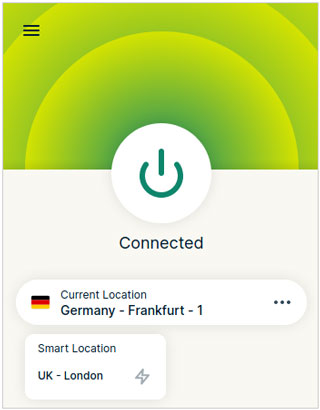
Step 5. Once connected, open Facebook or refresh Facebook.com and navigate to Marketplace. Check whether the displayed location or listings have changed. If necessary, manually update your Marketplace location using the settings in Part 1.
Limitations:
A VPN only changes your apparent IP location, not your GPS location. Facebook may use other location signals, including device permissions and your manually selected Marketplace area. Therefore, a VPN alone may not achieve the result you want. Most reliable VPN services also require a paid subscription for their full server network and features.
Part 3. How to Change Location on Facebook Marketplace with Location Changer
If you want to change your phone's GPS location rather than just its IP address, you can try a dedicated GPS location changer such as Location Changer.
Unlike a VPN, which changes your apparent network location, Location Changer allows you to set a virtual GPS location on a compatible device. It supports location-based applications, including Facebook, and lets you select a destination on a map without physically traveling there.
This can be useful if you want to test how location-based apps respond to a different GPS position. However, keep in mind that changing GPS coordinates does not automatically override Facebook Marketplace's manually selected search area or guarantee that its listings will change.
Key Features of Location Changer
- Set your phone's virtual GPS location to a different city, address, or destination.
- Choose suitable modes to change your location or simulate movement based on your needs.
- Work with various location-based applications, including Facebook and other social apps.
- Support both iPhone and Android devices, including iOS 27 and Android 17.
Follow these steps to change your phone's GPS location with Location Changer:
-
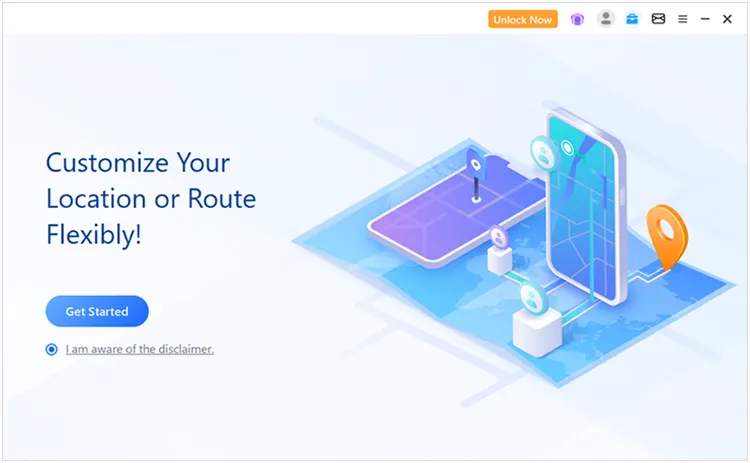
Launch Location Changer on your Windows PC or Mac. On the welcome screen, click "Get Started" to access the main interface.
-
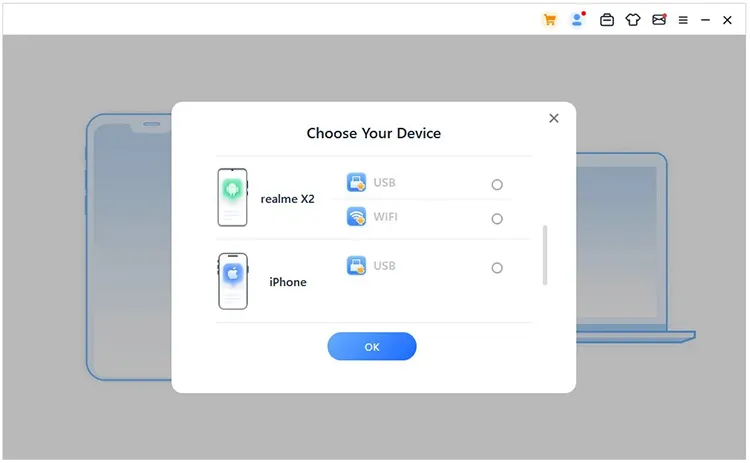
Connect your iPhone or Android device to the computer using a USB cable, then follow the prompts displayed by the program to complete the connection. Wait until your phone is successfully detected.
-
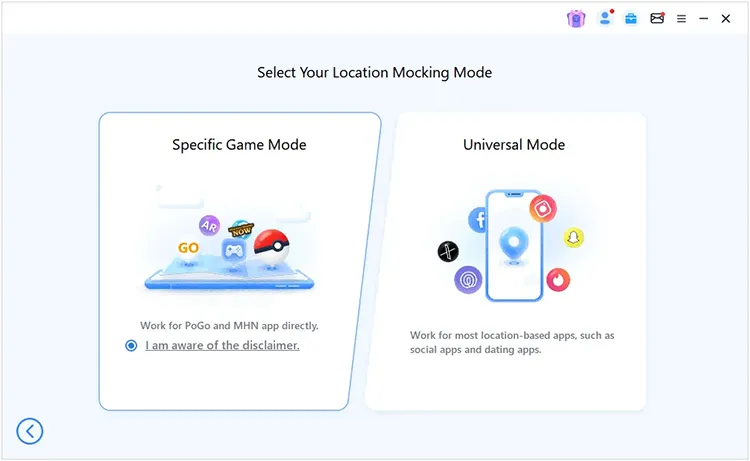
When the device connection is ready, choose "Universal Mode" from the available options. This mode lets you change your phone's GPS location for Facebook and other location-based applications.
-
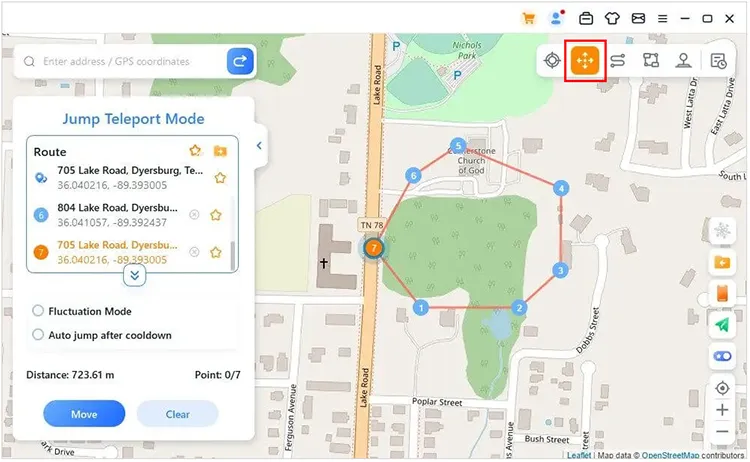
Once the map loads, choose a location-changing mode based on your needs. Teleport Mode lets you jump directly to a selected destination, while Two-Spot Mode simulates movement between two points. If you prefer to control your virtual movement manually, choose Joystick Mode. You can also use Multi-Spot Mode to create a route with multiple stops. Select your desired destination or route, then apply the changes to update your phone's virtual GPS location.
Limitations:
AnyTo requires compatible device and software configurations, and some setup steps differ between iOS and Android. Some advanced features may also require a paid license.
FAQs of Changing Location on Facebook Marketplace
1. Why is my Facebook Marketplace showing the wrong location?
Facebook Marketplace may show the wrong location for several reasons:
- Incorrect Marketplace settings: Your selected Marketplace location may be outdated or incorrect.
- Location permissions: Facebook may use your device's location services to estimate where you are.
- IP address: Your internet connection may indicate a different region, especially when using a VPN or traveling.
- Temporary app issues: An outdated Facebook app, cached information, or a temporary glitch may prevent the correct location from appearing.
To fix this issue, first check your Marketplace location and search radius. Then verify Facebook's location permissions on your phone. You can also restart the app, update it, or try accessing Marketplace through a desktop browser.
2. Why won't it let me change my location on Facebook Marketplace?
If Facebook Marketplace won't let you change your location, several factors may be responsible:
- App version issues: Your Facebook app may be outdated or experiencing a temporary bug.
- Location input problems: Facebook may not recognize the city, ZIP code, or address you entered.
- Account restrictions: Certain account or regional restrictions may affect Marketplace features.
- Network problems: An unstable internet connection may prevent your location settings from updating.
Try updating Facebook, restarting your device, and entering a more specific location, such as a city and state or ZIP code. If the problem persists, log in to Facebook.com and try changing the location there.
3. Can I change my Facebook Marketplace location to another country?
Facebook Marketplace location settings are primarily designed for browsing listings in a selected local area. The available locations may be restricted by your account's country and Marketplace availability. Simply entering a city in another country or connecting to a VPN server there does not guarantee access to that country's Marketplace listings.
If you want to browse products in another city within your supported region, use Facebook's built-in location settings first. For GPS-related testing, you can also consider a location changer such as Location Changer.
Conclusion
That's all about how to change location on Facebook Marketplace in three different ways. Whether you want to browse listings in another city or adjust your device's apparent location, you can choose Facebook's built-in settings, a VPN, or a GPS location changer according to your needs.
If you simply want to explore listings in another area, Facebook's built-in location settings are usually sufficient. However, if you also need to change your device's GPS coordinates without physically moving, Location Changer is worth trying. Choose the method that works best for your situation and enjoy a more flexible Facebook Marketplace browsing experience.
Related Articles
How to Change Location on TikTok: 7 Ways to Switch Your Region
How to Hide Location on iPhone with 6 Effective Ways
How to Pause Snapchat Location? 4 Methods You Need
How to Fake GPS on Android Without Mock Location (Proven Guide)