TL;DR:
Need to restore LINE chat history on iPhone or Android? This guide covers 3 easy ways to recover deleted LINE chats with or without a backup, using iCloud, Google Drive, or LINE Chat Recovery. Follow the step-by-step instructions to restore your conversations, preview recoverable messages, and learn how to back up LINE chats to prevent future data loss.

LINE Chat Recovery Recover LINE chat with/without a backup


Ever opened LINE only to find that an important chat has mysteriously disappeared? Maybe you accidentally deleted a conversation, switched to a new phone, or reinstalled the app and lost messages you thought were safe. Whatever happened, don't panic just yet! There are several ways to restore LINE chat history.
In this guide, we'll walk you through the available options for iPhone and Android, explain their limitations, and help you choose the best way to get your conversations back.

Part 1. Can I Restore LINE Chat History?
Yes, you may be able to recover deleted LINE chat history on both iPhone and Android. If you created a backup before losing your messages, you can restore your conversations more easily. LINE supports different backup options depending on your device, including iCloud for iPhone and Google Drive for Android. If you don't have a backup, you can still explore alternative recovery methods, although success is not guaranteed.
Part 2. How to Recover Deleted LINE Chat History Without Backup
If you are searching for how to recover deleted LINE chat without backup on Android or iPhone, a specialized LINE data recovery tool may be worth considering. LINE Chat Recovery is one such a tool. It can scan your device's storage for recoverable LINE data, let you preview the scan results, and selectively restore or export the conversations you need.
However, successful recovery isn't guaranteed, especially if the data has been overwritten or is no longer accessible. It's best to scan your device as soon as possible after losing your chats.
Key Features of LINE Chat Recovery:
- Recover deleted LINE chats and attachments from iPhone or Android devices, as well as supported iTunes, iCloud, and Google Drive backups.
- Preview recoverable LINE data before choosing what to restore.
- Restore recovered LINE data to a compatible iPhone, iPad, iPod touch, or Android device.
- Export LINE chat history to a computer in HTML, PDF, Excel, or CSV format.
How to Recover Deleted LINE Chat Without Backup on Android/iPhone:
-
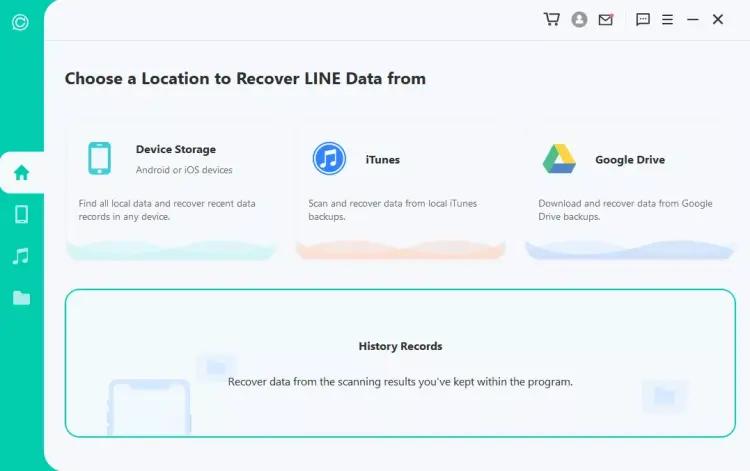
Download and launch LINE Chat Recovery on your computer. Select "Recover LINE Data from Device Storage" to scan your connected device for recoverable LINE data.
-
Connect your iPhone or Android phone to the computer, choose a location to save the device data if prompted, and click "Start" to continue. Next, the scanning process begins. The steps vary depending on your device type (iOS or Android).
-
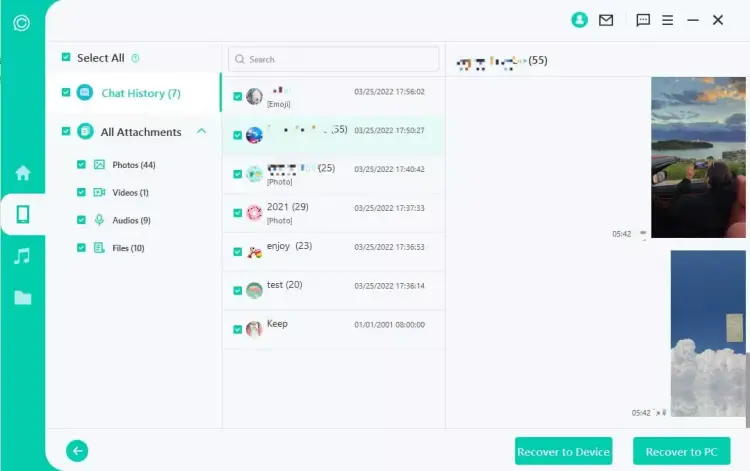
Once the scan is complete, all recoverable data will be displayed as shown in the images below. You can choose to restore the data to your phone or export it to your computer.
- Support scanning iOS and Android devices for recoverable LINE data without an existing backup.
- Provide a preview of recoverable conversations before users decide what to restore.
- Allow selective recovery of specific messages and attachments.
- Offer multiple recovery options for device storage, Google Drive, iTunes, and saved scan records.
- Can export recovered LINE conversations to a computer in several file formats.
- Provide a guided interface for users who aren't familiar with data recovery tools.
- Successful recovery isn't guaranteed, particularly if deleted data has been overwritten or is no longer accessible.
- Full recovery and data export require a paid license; the free version primarily supports scanning and previewing.
- The Android recovery process may require additional permissions, phone-number verification, or installation of an older LINE version.
- Restoring data directly to a target device may erase existing LINE data on that device, so a separate backup is essential before proceeding.
- The recovery process may involve several steps and additional device authorization, depending on the phone and recovery mode.
When Will ChatsBack Not Work?
- This is the most important consideration before paying for recovery software.
- The deleted chat data has been permanently erased or overwritten.
- The software cannot access the required data because of device restrictions or incompatibility.
- The scan does not identify the missing conversations.
- The available backup does not contain the messages you need.
- A recovery procedure requires a device or LINE version that your current setup cannot support.
If any of these situations apply, do not assume that purchasing the full version will solve the problem. Run the available free scan or preview first, verify that the target conversations appear, and check the vendor's current refund policy before paying.
Part 3. How to Restore LINE Chat History from Chat Backup
If you have an existing backup, using LINE's built-in recovery options is usually the best place to start.
3.1 How to Retrieve LINE Chat History from Google Drive on Android
If you previously backed up LINE chats to Google Drive, you can use that backup when restoring your account on a compatible Android device.
Here is how to restore LINE chat history from Google Drive on Android:
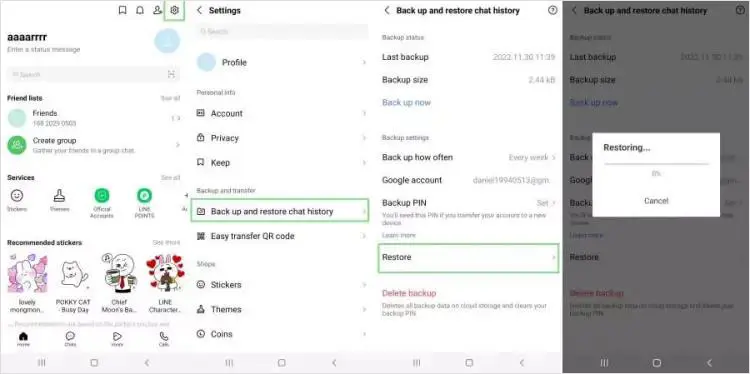
Step 1. Reinstall LINE on your Android device and sign in with the same account.
Step 2. Go to the "Home" tab and tap the "Settings" icon in the upper-right corner.
Step 3. Select "Back up and restore chat history", then tap "Restore" to restore your backed-up LINE chat history from Google Drive to your Android device.
What If LINE Cannot Restore the Google Drive Backup?
If you cannot restore LINE chat history from Google Drive, check the following:
- Make sure you are using the same Google account associated with the backup.
- Check that Google Drive and your device have sufficient available storage.
- Connect to a stable Wi-Fi network and try again.
- Update LINE and Android, then restart your phone.
- Confirm that the backup completed successfully before you lost the chats.
3.2 How to Restore LINE Chat History from iCloud on iPhone
For iPhone users, LINE's standard backup feature uses iCloud Drive. If you backed up your chats before losing them, you may be able to restore LINE chat history on your iPhone using that backup.
Here is how to restore LINE chat history from iCloud Drive on iPhone:
Step 1. Open the "Settings" app on your iPhone, tap your name, select "iCloud", and turn on "iCloud Drive". Make sure LINE is also enabled in your iCloud settings.
Step 2. Reinstall LINE and sign in with the same account you used to create the backup.
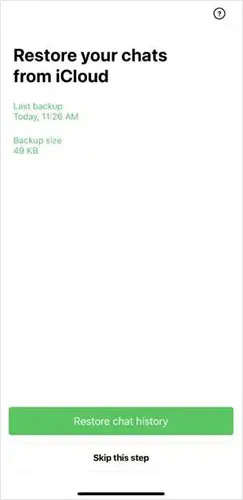
Step 3. When prompted, select "Restore Chat History" to restore your chats from iCloud.
Step 4. Wait for the restoration process to finish, then open LINE and check your chat history.
What If You Cannot Restore LINE Chat History from iCloud?
If you can't recover LINE chat history from iCloud, try these checks:
- Verify that you are signed in with the correct Apple Account.
- Make sure iCloud Drive is enabled and LINE has permission to use it.
- Check your internet connection and available iCloud storage.
- Confirm that the backup actually completed and contains the period of chat history you need.
- Restart your iPhone and update LINE to the latest compatible version.
Bonus: How to Back Up LINE Chat History on iPhone/Android?
Regularly backing up your LINE chats is the best way to protect your conversations and attachments from being lost. Follow the steps below to learn how to back up LINE chat history on your iPhone or Android device and keep your messages safe.
Back Up LINE Chat History on iPhone
Step 1. Open LINE on your iPhone.
Step 2. Tap "Home" and open "Settings".
Step 3. Select "Chat history backup" under the "Backup and transfer" settings.
Step 4. Tap "Back up now". Check that the backup completes successfully.
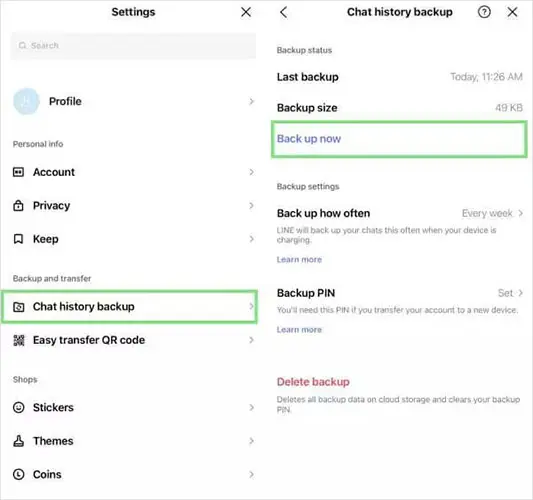
Make sure iCloud Drive is enabled, LINE has the necessary iCloud access, and sufficient storage is available.
Back Up LINE Chat History on Android
Step 1. Open LINE on your Android phone.
Step 2. Tap "Home" and open "Settings".
Step 3. Select "Back up and restore chat history".
Step 4. Tap "Back up now" and follow the on-screen instructions.
Confirm that your Google account is correct and that Google Drive has sufficient storage.
In a Nutshell
Losing important LINE messages doesn't mean they're gone forever. If you have a backup, Android users can restore their chat history from Google Drive, while iPhone users can use iCloud. If you don't have a backup, don't give up just yet! You can try a data recovery tool like LINE Chat Recovery to scan your device for recoverable messages, preview the results, and select the conversations you want to recover.
Once you've recovered your chat history, don't forget to enable regular backups to avoid the same hassle in the future!
Related Articles
iMyFone D-Back Data Recovery Review: Is It a Comprehensive Recovery Tool
How to Perform SSD Data Recovery with/without Backup