

TL;DR:
Want to restore your Dell laptop to its original state, fix stubborn Windows problems, or prepare it for resale? This guide shows you how to factory reset Dell laptop in 5 practical ways, even if you can't sign in or access Windows normally.
- Windows Settings: Quickly reset Windows 11 or 10 while choosing whether to keep or remove personal files.
- Windows Recovery Environment (WinRE): Reset your Dell laptop without signing in when Windows won't boot.
- Dell SupportAssist OS Recovery: Restore the original Dell factory image on supported models.
- Dell OS Recovery USB: Reinstall the Dell factory operating system when the built-in recovery environment is unavailable.
- iReaShare Data Wipe: Deeply erase personal data from a selected drive before selling, donating, or recycling your Dell laptop.
Over time, a Dell laptop may become slow, experience system lag, display frequent error messages, or encounter software issues. A factory reset can help resolve some system problems by removing personal files, uninstalling installed programs, and restoring Windows to its initial state. If you plan to sell or give away your Dell laptop, or simply want to start fresh, a factory reset can also help remove your personal data from the device.
So, how to factory reset a Dell laptop? In this guide, we will introduce several practical methods and explain when to use each one, along with the step-by-step instructions and important precautions.
- Part 1. How to Factory Reset Dell Laptop in Windows Settings
- Part 2. How to Factory Reset Dell Laptop from WinRE
- Part 3. How to Factory Reset Dell Laptop with Dell SupportAssist OS Recovery
- Part 4. How to Factory Reset Dell Laptop Using Dell OS Recovery USB
- Part 5. How to Factory Reset Dell Laptop via iReaShare Data Wipe
- Part 6. FAQs on How to Factory Reset Dell Laptop
Comparison of 5 Ways to Factory Reset a Dell Laptop
| Method | Supported Systems | Requires Windows Sign-In? | Main Function | Best For |
|---|---|---|---|---|
| Windows Settings | Windows 11/10 | Yes | Reinstalls Windows and lets you keep or remove personal files | Resetting a working Dell laptop |
| Windows Recovery Environment (WinRE) | Windows 11/10 | No | Resets Windows through the recovery environment | Resetting a locked laptop or one that won't boot normally |
| Dell SupportAssist OS Recovery | Supported Dell models with Windows 10/11 | No | Restores the original Dell factory image when available | Returning a supported Dell laptop to its factory configuration |
| Dell OS Recovery USB | Depends on Dell model and available recovery image | No | Reinstalls the Dell operating system using bootable USB media | Recovering a laptop with a missing or damaged recovery partition |
| iReaShare Data Wipe | Windows 11/10/8/7 | Requires access to the program on Windows | Erases selected drives using Quick Erase or Deep Erase | Wiping personal data before selling or disposing of a laptop |
Part 1. How to Factory Reset Dell Laptop in Windows Settings
If your Dell laptop can boot into Windows and you can sign in, using Windows Settings is the easiest way to reset it. This method works on most Dell laptops running Windows 11 or Windows 10.
You can choose to keep your personal files or remove everything. If you want to reset your Dell laptop to factory settings before selling it, choose the option that removes your files.
How to Factory Reset Dell Laptop Windows 11
Step 1. Press "Windows" + "I" to open Settings.
Step 2. Select "System" > "Recovery".
Step 3. Under Recovery options, find "Reset this PC".
Step 4. Click "Reset PC".
Step 5. Choose "Remove everything" to delete your personal files, applications, and settings.
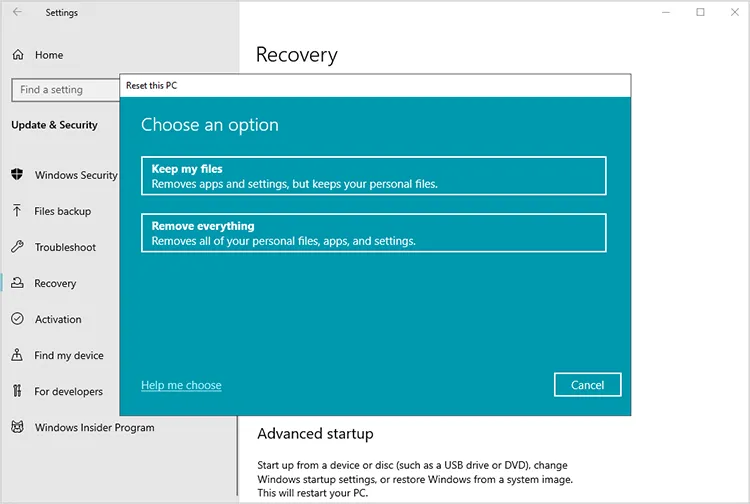
Step 6. Select "Cloud download" or "Local reinstall".
Step 7. Review the reset options and click "Next".
Step 8. Click "Reset" to begin.
How to Factory Reset Dell Laptop Windows 10
Step 1. Click "Start" > "Settings".
Step 2. Select "Update & Security" > "Recovery".
Step 3. Under "Reset this PC", click "Get started".
Step 4. Choose "Remove everything".
Step 5. Select whether to reinstall Windows locally or download it from the cloud, if available.
Step 6. Review the options and click "Reset".
Which Reset Option Should You Choose?
| Option | What It Does | Best For |
|---|---|---|
| Keep my files | Reinstalls Windows while keeping personal files; removes apps and settings | Fixing Windows problems without deleting documents |
| Remove everything | Removes personal files, apps, and settings | Preparing a laptop for resale or starting fresh |
| Cloud download | Downloads a fresh Windows image | When local recovery files may be damaged |
| Local reinstall | Uses existing Windows files | When you want a faster reset without downloading Windows |
Part 2. How to Factory Reset Dell Laptop from WinRE
If you cannot sign in to your Dell laptop but can still reach the Windows sign-in screen, you can launch recovery without entering your password. This is useful when you want to know how to factory reset a Dell laptop without a password or how to reset a locked Dell laptop.
Here is how to factory reset Dell laptop without admin password:
Step 1. Open the sign-in screen on your Dell laptop.
Step 2. Hold down the "Shift" key on your keyboard, click the "Power" icon, and then select "Restart".
Step 3. Wait for your computer to enter the Windows Recovery Environment.
Step 4. On the Choose an option screen, click "Troubleshoot".
Step 5. Select "Reset this PC".
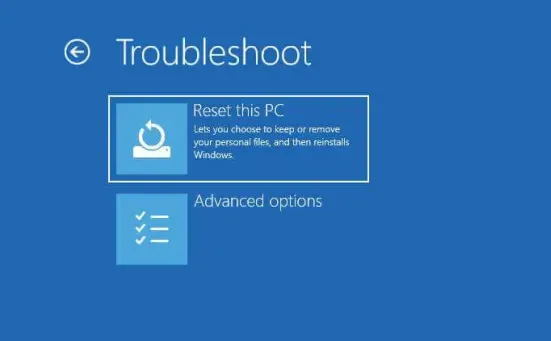
Step 6. Choose "Keep my files" or "Remove everything", depending on your needs.
Step 7. Select "Cloud download" or "Local reinstall".
Step 8. Follow the on-screen instructions to confirm the operation, and wait for the system to complete the reset.
What If You Cannot Access the Sign-In Screen?
You can try entering the recovery environment through Windows Automatic Repair:
- Turn on your Dell laptop.
- When Windows begins loading, press and hold the "power" button to shut it down.
- Repeat this interruption a few times until Windows displays "Preparing Automatic Repair" or enters the recovery environment.
- Select "Advanced options" if prompted.
- Go to "Troubleshoot" > "Reset this PC".
- Choose "Remove everything" and follow the reset wizard.
Part 3. How to Factory Reset Dell Laptop with Dell SupportAssist OS Recovery
Dell SupportAssist OS Recovery is a recovery environment available on certain Dell laptops. It can help diagnose hardware issues, repair Windows, back up files, or restore the computer to its factory state.
It is often a suitable choice if you want to restore your Dell laptop to the original factory configuration rather than simply reinstall Windows.
Here is how to reset Dell laptop to factory settings using Dell SupportAssist OS Recovery:
Step 1. Turn off your Dell laptop.
Step 2. Turn it on and repeatedly press "F12" at the Dell logo.
Step 3. In the One-Time Boot Menu, look for "SupportAssist OS Recovery".
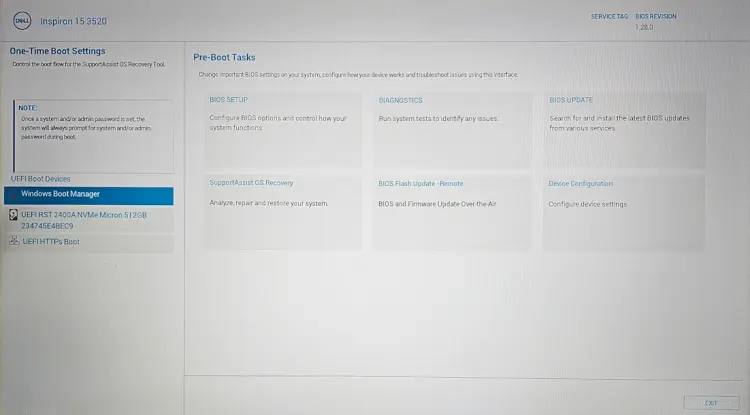
Step 4. Select it and press "Enter".
Step 5. Wait for the recovery environment to load.
Step 6. Choose "Start Reset" or the available recovery option.
Step 7. Select "Reset to factory settings" if your model supports it.
Step 8. Back up files if the option is available and you still need them.
Step 9. Confirm the reset and wait for the process to finish.
1. SupportAssist OS Recovery Availability: SupportAssist OS Recovery is available only on certain Dell computers that came with Windows 10 or Windows 11 preinstalled. Not all models support this feature.
2. Data Loss: Reset to factory settings will delete personal files, installed applications, and drivers from the hard drive.
3. Recovery Time: The recovery process may take 45 minutes or longer, depending on the device and recovery environment.
4. Reset Options: If the system cannot detect the original factory-installed operating system, it may only display the Reset and update option.
Part 4. How to Factory Reset Dell Laptop Using Dell OS Recovery USB
If your Dell laptop does not have a working recovery partition or SupportAssist OS Recovery is unavailable, you can create a Dell OS Recovery USB on another working Windows computer.
Here is how to factory reset Dell laptop:
Step 1. On a working Windows computer, visit the official Dell OS Recovery Tool page to download and install the recovery tool.
Step 2. Open Dell OS Recovery Tool and enter the Service Tag of the Dell computer you want to restore.
Step 3. Insert a USB flash drive and select the corresponding USB device in the tool.
Step 4. Confirm that the existing data on the USB drive will be erased, then click "Download".
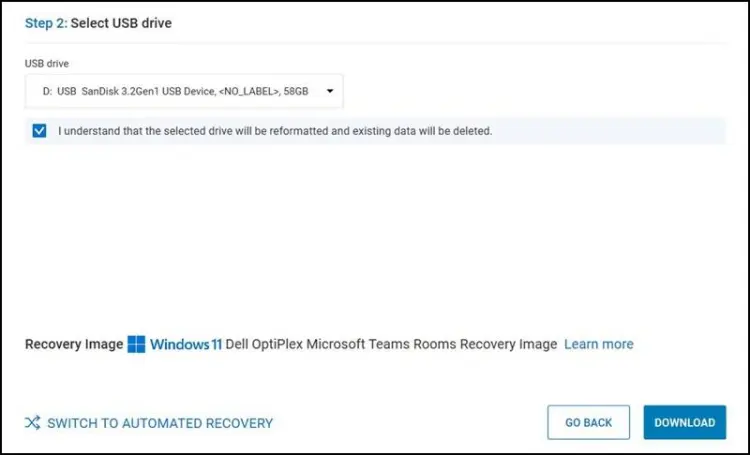
Step 5. Wait for the tool to download the appropriate Dell operating system recovery image and automatically create a bootable USB recovery drive.
Step 6. Connect the USB recovery drive to the Dell laptop you want to reset.
Step 7. Restart the laptop and repeatedly press "F12" when the Dell logo appears.
Step 8. Select the USB storage device from the "One Time Boot Menu".
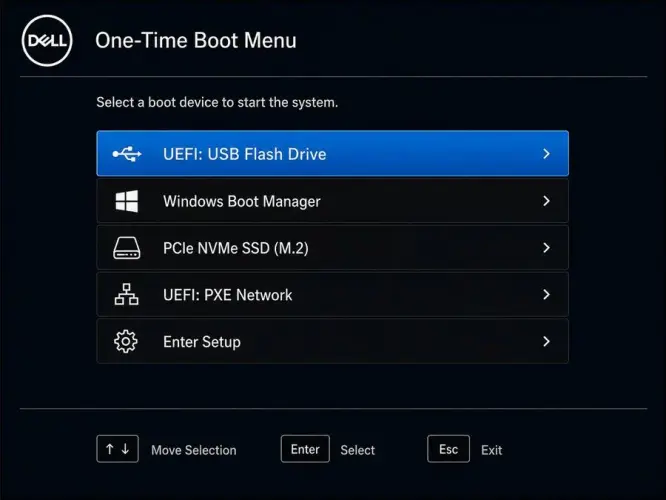
Step 9. Follow the on-screen recovery or installation wizard to complete the Windows reinstallation.
Part 5. How to Factory Reset Dell Laptop via iReaShare Data Wipe
If you are preparing to sell, donate, or recycle your Dell laptop, simply reinstalling Windows may not be enough for your data-protection needs. A reset removes files from normal access, but it is not necessarily a secure data-wiping process.
If your goal is to erase personal information more thoroughly before handing over the computer, a dedicated data-wiping tool may be useful. iReaShare Data Wipe is a Windows utility designed for wiping drives, shredding files, and cleaning free space.
Key features of iReaShare Data Wipe:
* Securely shred files and folders to prevent data recovery.
* Wipe entire internal and external drives, making stored data unrecoverable.
* Erase free space to permanently remove traces of previously deleted files.
* Offer two wiping modes: Quick Erase and Deep Erase.
* Compatible with Windows 11, 10, 8, and 7.
Here is how to factory reset Dell laptop without recovery key:
-
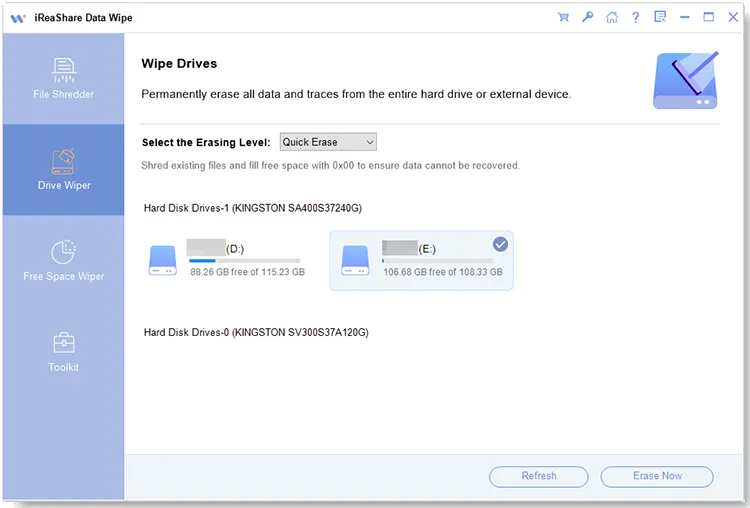
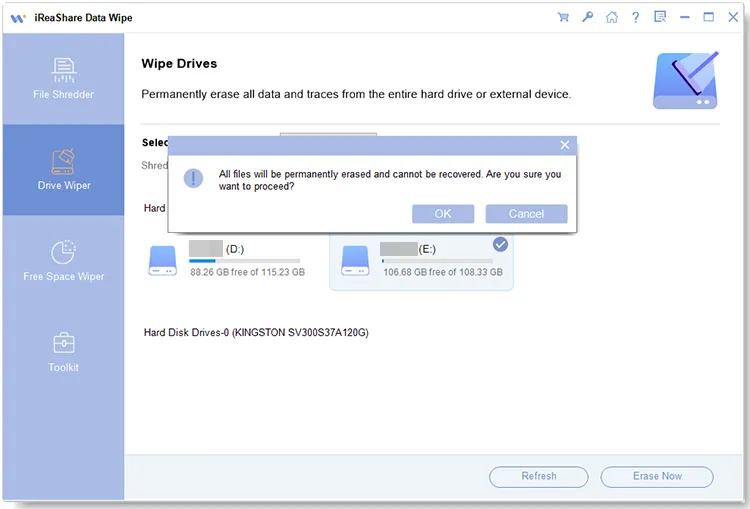
After downloading and installing iReaShare Data Wipe, launch the program on your Windows 10 or 11 Dell laptop and open the "Drive Wiper" tab.
-
Choose an erase method and target drive. Select "Deep Erase" if you want to overwrite the data three times. Then carefully select the hard drive you want to wipe.
-
Start the erasing process. Click "Erase Now" > "OK" to confirm. The software will permanently erase the data on the selected drive. Once the process is complete, the drive will be wiped.
Here is a video guide:
When Should You Use iReaShare Data Wipe?
- You want to erase personal data before selling or giving away your Dell laptop.
- You need to wipe a supported internal or external drive.
- You want to erase data rather than simply reinstall Windows.
- You plan to reinstall Windows separately after the drive has been wiped.
Part 6. FAQs on How to Factory Reset Dell Laptop
Q1. How do I factory reset my Dell laptop using F12?
Restart your Dell laptop and press F12 repeatedly when the Dell logo appears. The One-Time Boot Menu may provide access to SupportAssist OS Recovery or a USB recovery drive. Select the available recovery option and follow its instructions.
F12 opens the boot menu; it does not automatically factory reset your laptop.
Q2. How do I factory reset my Dell laptop without an admin password?
You generally do not need to sign in to an administrator account to use Windows Recovery Environment or supported Dell recovery tools. However, a BitLocker-encrypted device may require its recovery key before you can proceed.
A reset also does not remove every type of account or firmware security restriction.
Q3. How do I factory reset my Dell laptop from BIOS?
You cannot directly factory reset Windows from BIOS or UEFI. BIOS controls firmware and hardware settings, such as boot order and Secure Boot.
You can restore BIOS settings to their defaults, but this does not erase Windows or restore the Dell factory image.
To reset Windows from outside the operating system, use WinRE, SupportAssist OS Recovery, or a recovery USB.
Q4. How do I factory reset my Dell laptop without signing in?
You can often reset a Dell laptop without signing in by using one of these methods:
- Windows Recovery Environment from the sign-in screen
- SupportAssist OS Recovery from the F12 boot menu
- Dell OS Recovery USB
The available method depends on your laptop model, recovery configuration, and encryption status.
Q5. Will factory resetting my Dell laptop remove all viruses?
A reset or clean Windows installation can remove many software-based infections, but it is not a guarantee against every threat. Malware stored in other drives, compromised firmware, or reinfection from restored files may remain possible.
For a serious infection, consider a clean installation using trusted recovery media and scan your backup files before restoring them.
Q6. What is the difference between a factory reset and a drive wipe?
A factory reset reinstalls Windows and may restore the manufacturer's default configuration. A drive wipe focuses on erasing data from a storage device.
If you want to make your Dell laptop usable again, choose a reset or recovery installation. If your priority is to remove personal data before disposal, a drive-wiping tool may be more appropriate.
Q7. How long does it take to factory reset a Dell laptop?
The recovery time depends on the computer model, drive speed, system file condition, and the selected recovery method. A simple Windows reset may take several dozen minutes, while using a Dell recovery image or USB installation media may take longer. Keep your laptop connected to a power source and avoid forcing it to shut down during the recovery process.
Summary
There are several ways to how to factory reset Dell laptop, and the best option depends on whether Windows is working, whether you can sign in, and whether the original Dell recovery environment is available.
- Use Windows Settings for a straightforward reset on a working Windows 11 or Windows 10 laptop.
- Use WinRE if Windows cannot start or you are locked out.
- Use Dell SupportAssist OS Recovery to restore the factory image on supported models.
- Use a Dell OS Recovery USB when the built-in recovery environment is missing or damaged.
- Use iReaShare Data Wipe when you need to erase a drive before reinstalling Windows or disposing of the laptop.
Before proceeding, back up important data and verify the recovery option you choose. A reset, factory restoration, or drive wipe can permanently remove files, so make sure you understand the consequences before confirming.
Related Articles
How to Wipe a PC With or Without Windows OS (Hard Drive & SSD Included)
How to Factory Reset Windows XP Computer Step by Step (Full Tutorial)
How to Factory Reset PC Windows 10 or 11 Easily (3 Ways)
Solved: How to Factory Reset Windows 7 Safely with 4 Methods