TL;DR:
There are four practical ways to perform a Windows 11 backup to external drive, depending on whether you want to protect personal files or preserve your entire system:
- File History: Automatically backs up supported personal files and keeps previous versions.
- System Image Backup: Creates an image of Windows and the included system volumes for recovery.
- Command Prompt: Uses wbAdmin commands to configure and run supported backup tasks.
- Windows Backup: Provides system, disk, partition, and file backup options, along with scheduled and incremental backups.

Windows Backup Back up & restore PC data

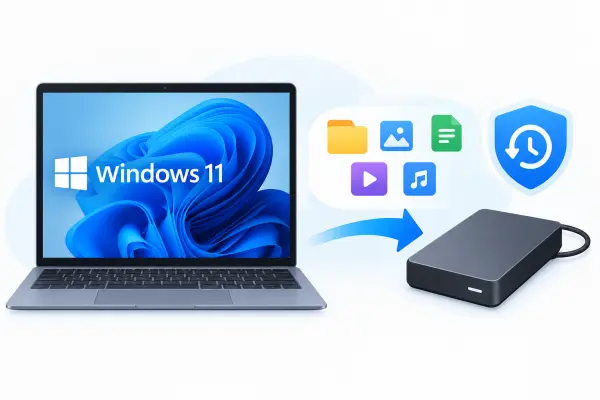
A Windows 11 backup to external drive provides an extra layer of protection against accidental deletion, system crashes, malware, and storage failures. Instead of keeping all your important data on your computer, you can store a separate copy on an external hard drive and use it when you need to restore your files or recover your system.
The right backup method depends on what you want to protect and how much control you need over the process. Windows offers built-in options for personal files and system images, while Command Prompt provides more control over supported backup operations. If you prefer a more flexible backup solution, Windows Backup is another option. Below are four methods to help you choose the most suitable approach.
- Part 1. Windows 11 Backup to External Drive with File History (Personal Files)
- Part 2. Back Up Windows 11 to External Drive Through System Image Backup
- Part 3. Windows 11 Backup to External Drive via Command Prompt (wbAdmin)
- Part 4. Back Up Windows 11 to External Drive by a Professional Tool (For Advanced Needs)
- Part 5. Which Is the Best Way for Windows 11 Backup to External Drive?
- FAQs About Windows 11 Backup to External Drive
Part 1. Windows 11 Backup to External Drive with File History (Personal Files)
File History is a built-in Windows feature designed to back up personal files, including documents, pictures, videos, music, and other supported folders. After you connect an external drive and enable File History, Windows can periodically save copies of your files, allowing you to restore earlier versions if they are accidentally deleted or modified.
This method is suitable if your main goal is to protect personal data rather than create a complete copy of your Windows installation.
How to Back Up Windows 11 with File History?
Step 1. Connect your external hard drive.
Connect the external hard drive to your Windows 11 PC. Open File Explorer and confirm that Windows recognizes the drive and that it has enough free space for your files.
Step 2. Open File History.
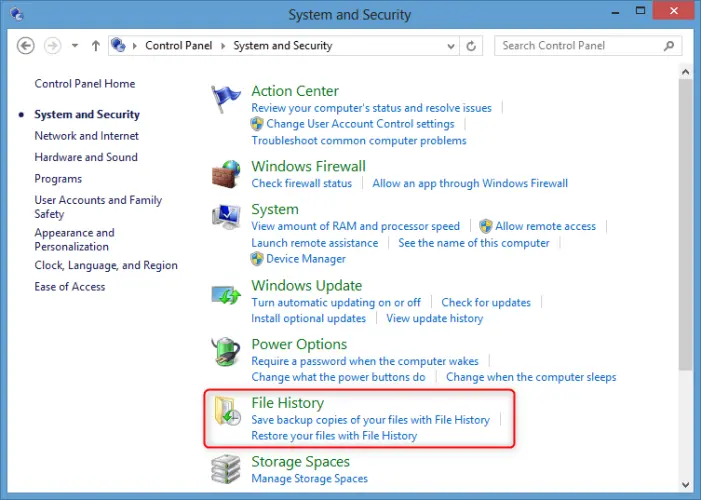
Press "Win" + "S", type "Control Panel", and open it. Navigate to "System and Security" > "File History".
Step 3. Select your external drive.
Click "Select drive" if a backup destination has not already been selected. Choose your external hard drive from the available drives and click "OK".
Step 4. Turn on File History.
Click "Turn on" to enable File History. Windows will begin backing up supported personal files and periodically save new versions when the external drive is available.
Step 5. Check the backed-up folders.
File History commonly backs up files in Documents, Pictures, Videos, Music, Desktop, and other supported locations. Check which folders are included and add any additional folders to a supported library when necessary.
To restore an earlier version later, open File History from Control Panel and select "Restore personal files" if that option is available. Browse the saved versions, select the files or folders you need, and click the restore button.
Part 2. Back Up Windows 11 to External Drive Through System Image Backup
If you want more than a copy of your personal files, consider creating a system image. A system image can include Windows, installed programs, system settings, and the volumes required for the selected backup. It is useful when you need to restore a computer to a previously backed-up state after a serious system problem.
Windows includes the legacy Backup and Restore (Windows 7) interface, which may still be available on Windows 11. The following steps apply when the system-image option is available on your PC.
How to Create a System Image on an External Drive?
Step 1. Connect your external hard drive.
Plug your external hard drive into your computer. Check its available storage space, as a system image may require considerably more room than a personal-file backup.
Step 2. Open Backup and Restore.
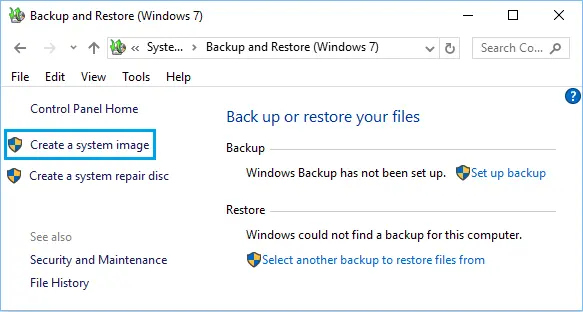
Press "Win" + "S", search for "Control Panel", and open it. Go to "System and Security" > "Backup and Restore (Windows 7)". The legacy interface may still be available on your Windows 11 PC.
Step 3. Start creating a system image.
In the left pane, click "Create a system image". Wait for Windows to detect the available backup destinations.
Step 4. Choose the external hard drive.
Select "On a hard disk" and choose your external drive from the destination list. Click "Next" to continue.
Step 5. Confirm the backup settings.
Review the drives that Windows has selected for the system image. Windows will include the required system volumes and may include additional volumes depending on your configuration. Confirm the selection before proceeding.
Step 6. Create the system image.
Click "Start backup" and wait for Windows to finish creating the image. Keep the external hard drive connected throughout the process.
Once the backup is complete, consider creating Windows recovery media. This can help you access the recovery environment if your computer cannot boot normally and you need to restore the system image.
Part 3. Windows 11 Backup to External Drive via Command Prompt (wbAdmin)
For advanced users who prefer command-line operations, wbAdmin provides another way to create backups in Windows 11. It supports options for specifying the backup destination, including selected volumes, and including critical volumes needed for system recovery.
Unlike File History, this method requires you to enter the appropriate command and run Command Prompt with administrative privileges.
How to Back Up Windows 11 to External Drive with wbAdmin?
Step 1. Connect your external hard drive.
Connect the drive to your PC and open File Explorer to identify its drive letter. For example, the external drive might appear as E:. Replace this example with your actual drive letter.
Step 2. Run Command Prompt as an administrator.
Press "Win" + "S", search for "Command Prompt", right-click it, and select "Run as administrator".
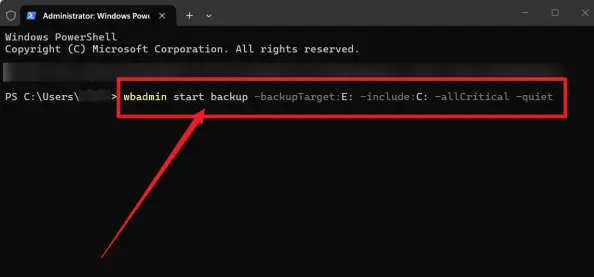
Step 3. Enter the backup command.
Type the following command to back up the C: volume and include critical system volumes:
wbadmin start backup -backupTarget:E: -include:C: -allCritical -quiet
Replace E: with the correct drive letter for your external hard drive. This command requests a backup of the C: volume and critical volumes needed for the selected recovery scenario. Make sure the backup destination is not one of the volumes being backed up.
Step 4. Start the backup.
Press "Enter" to execute the command. Wait for the backup operation to complete, and do not disconnect the external drive while the process is running.
Step 5. Check the backup status.
To check the status of the current backup operation, run:
wbadmin get status
Review the output to determine whether the operation is still running or has finished. Confirm that the backup completed successfully before disconnecting the drive.
Part 4. Back Up Windows 11 to External Drive by a Professional Tool (For Advanced Needs)
The built-in Windows options are useful for protecting personal files or creating a system image, but they may not provide all the backup features you need in one place. Command-line backups also require you to enter the correct parameters and manage the process manually. If you want a more flexible way to protect your Windows system and personal data, a dedicated backup program is worth considering.
Windows Backup is one option for backing up Windows 11 to an external drive. It lets you select the operating system, individual files, folders, or other supported data for backup through a graphical interface. You can also use it to manage backup images, clone disks, and synchronize files.
Key Features of Windows Backup
- Back up individual files, folders, and entire Windows operating systems.
- Clone a complete disk or selected partitions when transferring data to another drive.
- Restore a system or recover files from available backups.
- Synchronize files between different locations on a Windows PC.
- Support Windows 11, 10, 8, 7, Vista, and XP.
How to Back Up Windows 11 to an External Drive with Windows Backup?
-
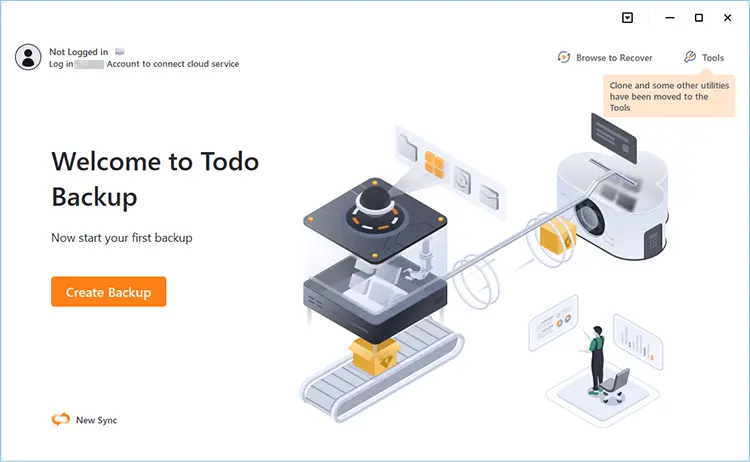
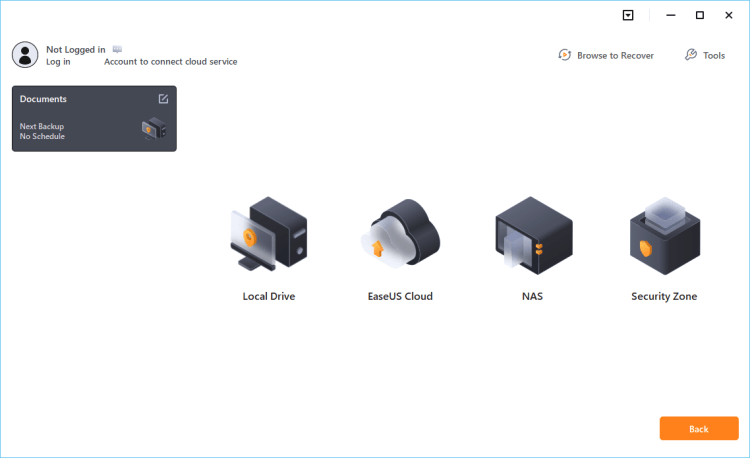
Launch Windows Backup and choose "Create Backup" on the home page. Then click "Select backup contents".
-
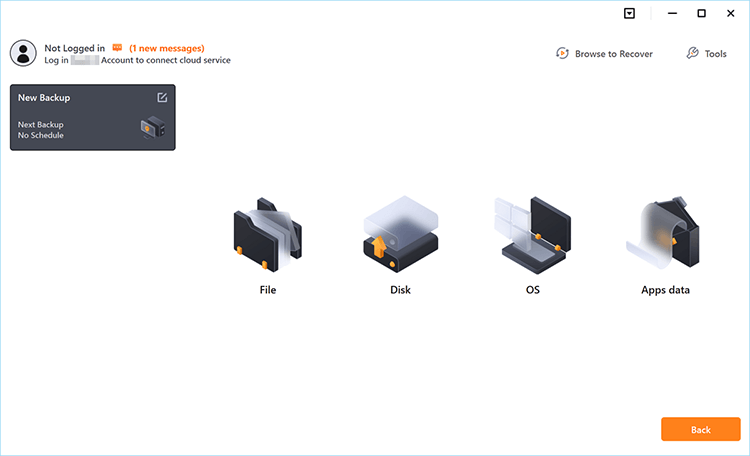
Among the four available backup categories, click "OS" to begin backing up your Windows operating system.
-
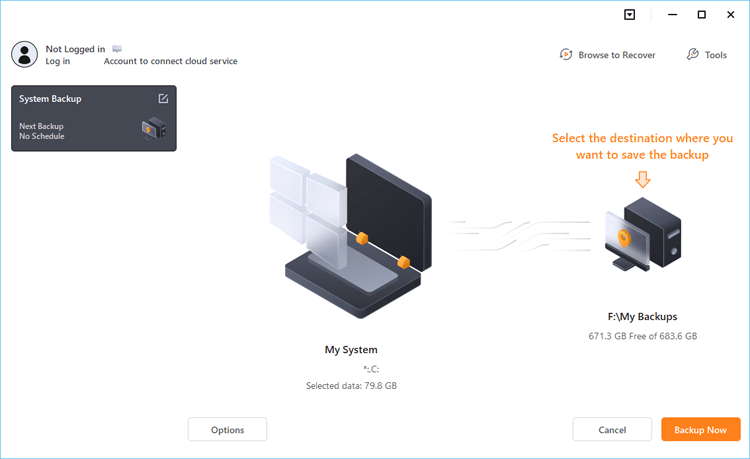
The system partition will be selected automatically. Choose the destination where you want to save the backup.
-
Select your connected external hard drive as the backup destination to save the Windows 11 system backup locally. Make sure the drive has enough free space to store the backup image.
-
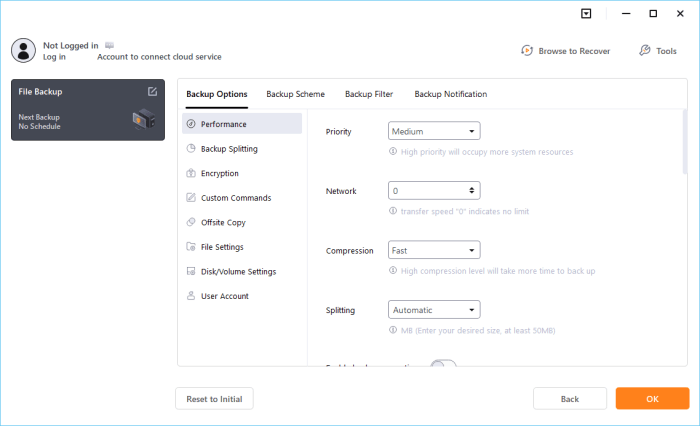
If you want to customize the backup settings, click "Options" in the bottom-left corner. After configuring the available options, click "Backup Now" to start the backup process. Keep the external drive connected until the task finishes, then check the backup status to confirm that the operation completed successfully.
Part 5. Which Is the Best Way for Windows 11 Backup to External Drive?
The best method for backing up Windows 11 to an external drive depends on whether you want to protect personal files, create a system image, or manage different backup tasks in one place.
Compare the four methods below to find the one that best fits your needs.
| Method | Best For | Advantages | Limitations |
|---|---|---|---|
| File History | Backing up personal files and preserving previous versions | Built into Windows; supports automatic backups and file-version recovery | Does not create a complete system image; only supported folders and locations are included |
| System Image Backup | Creating a system image for recovery | Can preserve Windows and the included system volumes in a single image | Requires substantial storage; system restoration can be more complex |
| Command Prompt (wbAdmin) | Advanced users who prefer command-line backups | Provides control over backup parameters and supports critical-volume backups | Requires administrator privileges and command-line knowledge; availability depends on the Windows configuration |
| Windows Backup | Users who need flexible backup and recovery options | Supports OS, file, and folder backups; also offers disk cloning, file synchronization, and other backup features | Some features may require a paid edition; the available options depend on the software version |
FAQs About Windows 11 Backup to External Drive
1. Can I schedule automatic backups to an external hard drive?
Yes. File History can periodically back up supported personal files when the external drive is available. You can also use compatible backup software to schedule file, disk, or system backups. With wbAdmin, you can configure a daily backup schedule using its supported scheduling commands, but this requires administrative privileges and correct configuration.
2. How much space do I need to back up Windows 11 to an external drive?
The required space depends on the backup type and the amount of data you select. A personal-file backup may need only enough space for your documents, photos, and other files, while a system image can require considerably more. Check the size of the selected data and leave additional room for future backups and file versions.
3. Can I back up Windows 11 to an external hard drive and restore it on another PC?
You can use an external drive to transfer backed-up files to another PC. However, restoring a complete system image to different hardware may cause compatibility or boot issues. If you plan to move Windows to another computer, check the backup software's recovery and hardware compatibility requirements before proceeding.
Conclusion
Backing up Windows 11 to an external drive helps protect your data from unexpected loss. You can use File History, System Image Backup, Command Prompt, or Windows Backup, depending on your needs. Choose the method that works best for you and verify your backups regularly.
Related Articles
How to Wipe an External Hard Drive on Windows 11/10 PC (Solved)
Completely Overwrite Hard Drive on Windows 11/10 PC (Proven)
How to Easily Reset a Hard Drive in Windows 11/10 [Step by Step]