TL;DR:
The Pokémon GO GPS signal not found error can prevent the game from detecting your location properly. Common ways to fix it include:
- Checking Location Services and Pokémon GO permissions.
- Enabling High Accuracy or Precise Location settings.
- Improving your internet connection and restarting Pokémon GO or your phone.
- Updating Pokémon GO and your device's system.
- Disabling VPN or mock location settings and resetting location-related settings.
- Using Location Changer to change your GPS location more smoothly when playing location-based games.
"Does anyone know how to fix the GPS signal not found error? I have restarted my phone, uninstalled and reinstalled the app, checked my settings...nothing has worked UPDATE I UPGRADED MY PHONE!"
- From Facebook
Pokémon GO uses GPS technology and location services to determine your position, track movement, and provide location-based gameplay features. However, you may sometimes encounter the Pokémon GO GPS signal not found error, which stops the game from obtaining your location correctly.
When this problem appears, you may be unable to load nearby Pokémon, move on the map, or use certain location-based features. In this guide, you will learn what the Pokémon GO GPS signal not found error means, how to fix it on Android and iPhone, and how to avoid this problem when changing your GPS location.
Part 1. What Does No GPS Signal Mean in Pokémon GO?
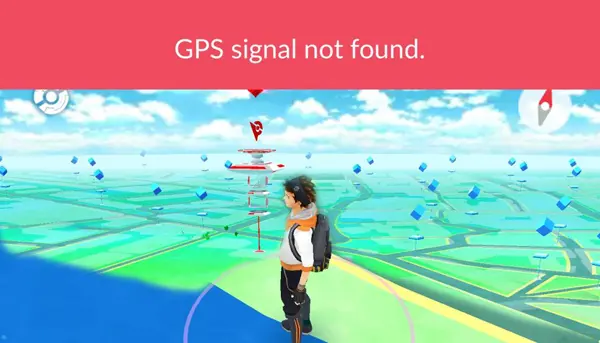
When Pokémon GO shows the "GPS Signal Not Found" message, it means the game cannot receive accurate location information from your device. Since Pokémon GO relies on GPS data to determine your position, any issue with location detection may prevent the game from updating your position correctly.
This error can appear with different error codes, including Error 11 and Error 12. Although both are related to GPS detection issues, they may occur in different situations.
GPS Signal Not Found Error 11 vs. Error 12
| Error | Description | Possible Causes |
|---|---|---|
| Error 11 | Pokémon GO cannot detect a stable GPS signal from the device. | Location services disabled, inaccurate GPS settings, or weak GPS reception. |
| Error 12 | Pokémon GO cannot correctly verify location information. | Location conflicts, mock location settings, VPN, or other location-related interference. |
Although Error 11 and Error 12 may have different triggers, many troubleshooting methods overlap. The common causes of Pokémon GO GPS Signal Not Found include:
- Location Services are disabled: Pokémon GO cannot access your device location.
- Incorrect location permissions: The game does not have enough permission to use GPS data.
- Low GPS accuracy: Precise Location or High Accuracy settings are turned off.
- Poor network connection: Unstable Wi-Fi or mobile data affects location updates.
- Outdated app or system software: Older versions may cause compatibility issues.
- VPN or mock location interference: Other tools may affect how Pokémon GO detects your position.
- Temporary app or system errors: Background issues may interrupt GPS detection.
Part 2. How to Fix Pokémon GO GPS Signal Not Found
Method 1. Check Location Services and Permissions
Pokémon GO needs both system-level location services and app-level location permission to access your GPS information. If either setting is disabled, the game may fail to detect your location and show the "GPS Signal Not Found" error.
Check Location Services
First, make sure your device's location service is enabled.
On Android:
- Open "Settings".
- Tap "Location".
- Turn on "Use Location".
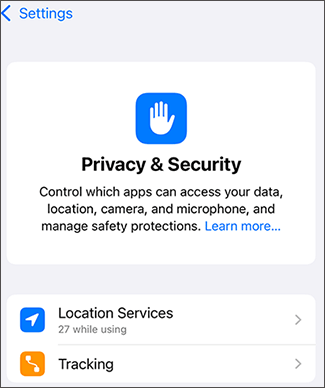
On iPhone:
- Open "Settings".
- Tap "Privacy & Security" > "Location Services".
- Turn on "Location Services".
Check Pokémon GO Location Permissions
After enabling location services, make sure Pokémon GO has permission to use your location.
On Android:
- Open "Settings".
- Go to "Apps" > "Pokémon GO" > "Permissions".
- Tap "Location".
- Select "Allow only while using the app".
On iPhone:
- Open "Settings".
- Tap "Privacy & Security" > "Location Services".
- Select "Pokémon GO".
- Choose "While Using the App".
Method 2. Enable High Accuracy or Precise Location
Even when location services are enabled, Pokémon GO may still fail to detect your position accurately if your device uses a less precise location mode.
Enabling High Accuracy on Android or Precise Location on iPhone allows Pokémon GO to receive more accurate location information.
On Android:
- Open "Settings".
- Tap "Location".
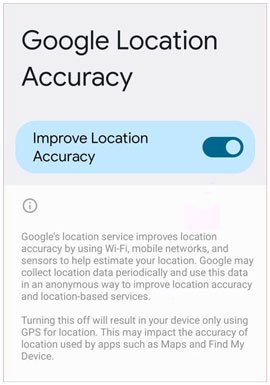
- Enable "Google Location Accuracy".
- Make sure your device can use GPS, Wi-Fi, and mobile networks to improve location accuracy.
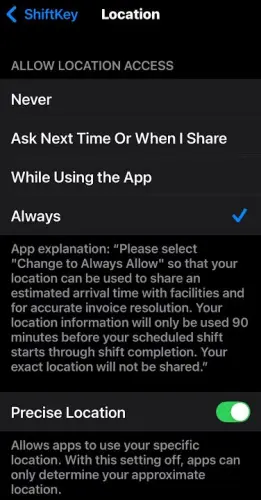
On iPhone:
- Open "Settings".
- Tap "Privacy & Security" > "Location Services".
- Select Pokémon GO.
- Turn on "Precise Location".
Method 3. Check Internet Connection
Although GPS provides location information, Pokémon GO also requires an internet connection to communicate with the game servers and update your position.
A weak or unstable connection may make it appear that your GPS signal is unavailable. You can try the following:
- Switch between Wi-Fi and mobile data.
- Move to an area with stronger network coverage.
- Turn Airplane Mode on and off.
- Restart your router if you use Wi-Fi.
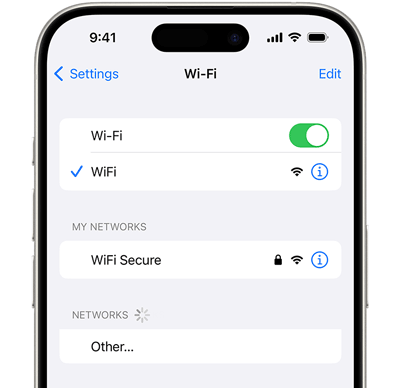
After reconnecting to the internet, launch Pokémon GO again and check the map.
Method 4. Restart Pokémon GO and Phone
Temporary app or system problems can interrupt GPS detection. Restarting Pokémon GO refreshes the connection between the game and your device's location services.
Restart Pokémon GO:
Android:
- Open the recent apps screen.
- Find Pokémon GO.
- Swipe it away to close the app.
- Open Pokémon GO again.
iPhone:
- Swipe up from the bottom of the screen and pause.
- Find Pokémon GO.
- Swipe up on the app preview to close it.
- Relaunch Pokémon GO.
Restart Your Phone:
If restarting the app does not solve the problem, restart your device.
Android:
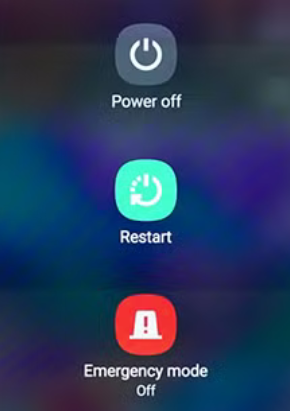
- Press and hold the "Power" button.
- Tap "Restart".
iPhone:
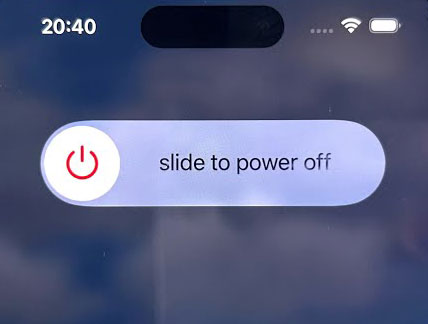
- Press and hold the "Side" button and "Volume" button.
- Drag the power-off slider.
- Turn your iPhone back on.
Method 5. Update Pokémon GO and Phone
Outdated versions of Pokémon GO or your operating system may cause compatibility problems with location services. Keeping both the game and your phone updated can improve stability and fix known bugs.
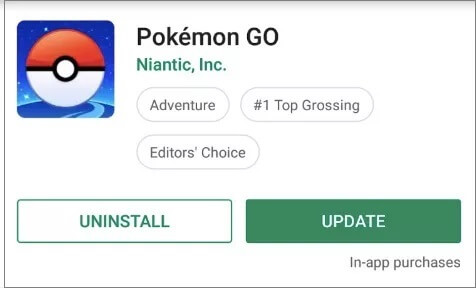
Update Pokémon GO:
Android:
- Open Google Play Store.
- Tap your profile icon.
- Select "Manage apps & device".
- Find Pokémon GO.
- Tap "Update".
iPhone:
- Open the App Store.
- Tap your profile icon.
- Scroll to available updates.
- Tap "Update" next to Pokémon GO.
Update Your Phone:
Android:
- Open "Settings".
- Go to "System" > "System Update".
- Check for available updates.
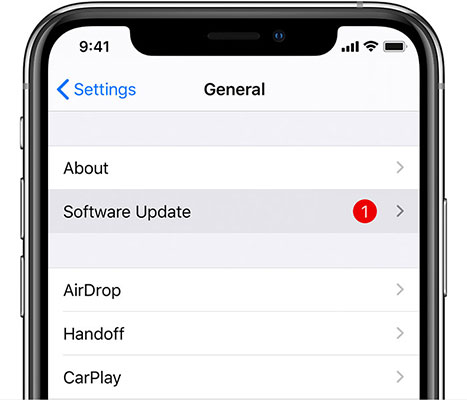
iPhone:
- Open "Settings".
- Tap "General" > "Software Update".
- Install the latest iOS version if available.
Method 6. Turn Off VPN and Mock Location
Pokémon GO checks location information to provide accurate gameplay. VPNs, mock location settings, or other location-changing tools may interfere with this process and trigger GPS-related errors.
Try disabling these features temporarily to see whether the GPS signal returns.
On Android:
- Open "Developer Options".
- Check whether a mock location app is enabled.
- Disable mock location settings.
- Turn off any active VPN.
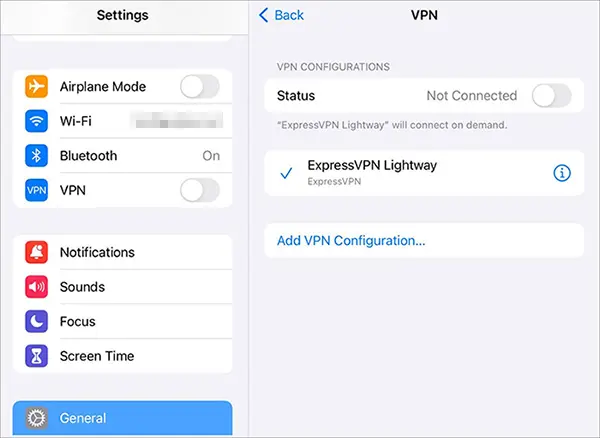
On iPhone:
- Open "Settings".
- Tap "VPN".
- Disable VPN connections.
- Restart Pokémon GO.
Method 7. Reset Location or Network Settings
If the above methods do not work, resetting location or network-related settings can help remove incorrect configurations that prevent Pokémon GO from accessing GPS properly.
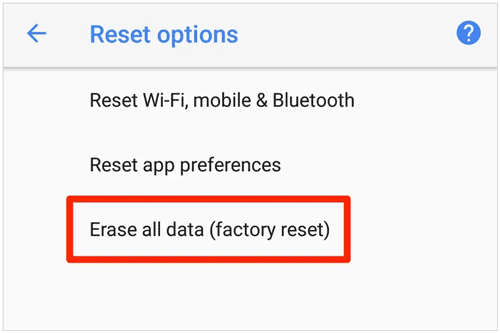
On Android:
The steps may vary depending on your device model.
- Open "Settings".
- Go to "System".
- Select "Reset options".
- Reset network-related settings.
On iPhone:
- Open "Settings".
- Tap "General".
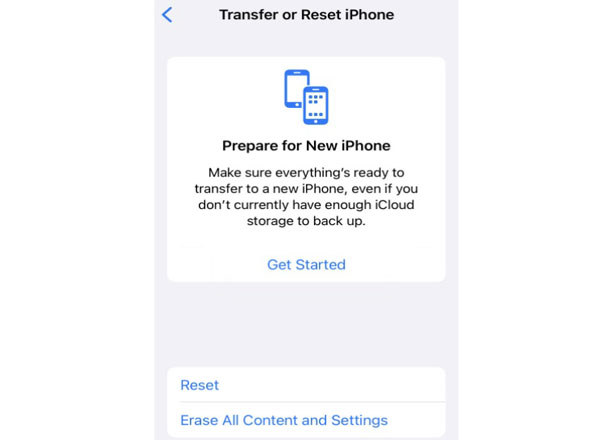
- Select "Transfer or Reset iPhone".
- Tap "Reset".
- Choose "Reset Location & Privacy" or "Reset Network Settings".
Part 3. How to Avoid Pokémon GO GPS Signal Not Found When Changing Location
Changing your GPS location in Pokémon GO requires stable location data. If the location changes too quickly or the device provides inconsistent GPS information, the game may fail to recognize the new position and show GPS-related errors.
To reduce these issues, you can use a professional location-changing tool such as Location Changer. It allows you to adjust GPS locations on Android and iPhone devices while supporting location-based apps and games like Pokémon GO.
Key features of Location Changer
- Change GPS locations on Android and iOS mobile devices.
- Support GPS-based apps and games, including Pokémon GO.
- Allow you to change your location with a joystick.
- Create routes and simulate movement.
- Support multiple movement modes.
- Compatible with the latest Android and iOS versions, including iOS 27 and Android 17.
Tips: For mobile users, please register an account first, then download or purchase from your member center to enjoy exclusive discounts.
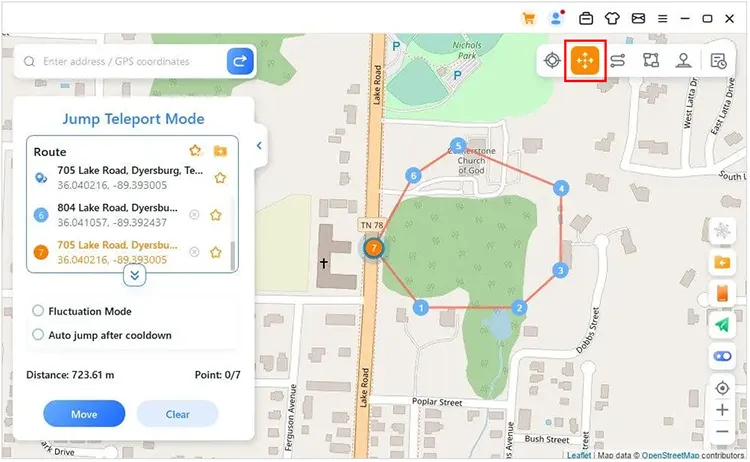
If GPS detection issues occur when changing your location in Pokémon GO, Location Changer provides a simple way to manage your virtual location. Follow the steps below to set up a new GPS position.
-
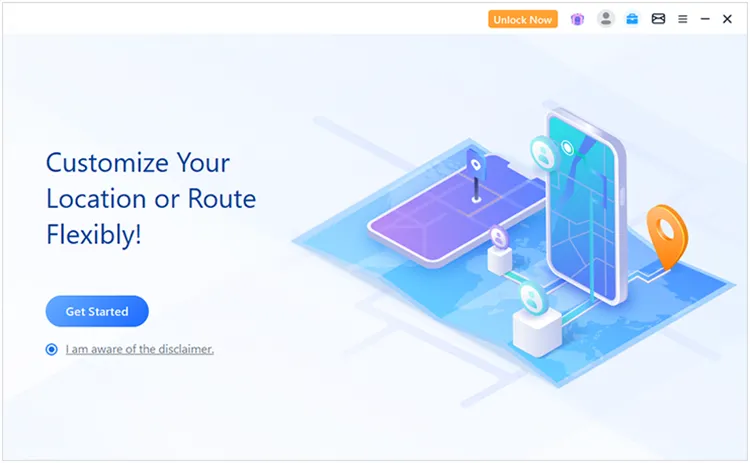
Open Location Changer on your Windows or Mac computer, then click "Get Started" to begin setting up the location change.
-
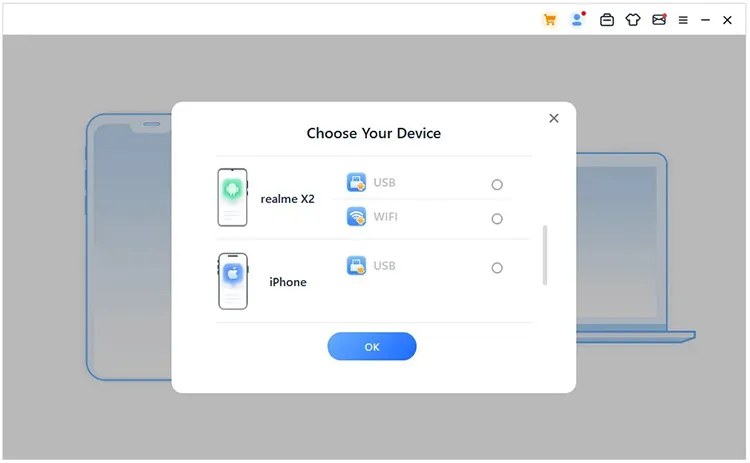
Connect your Android phone or iPhone to the computer by following the instructions displayed in the program. Make sure the device is recognized before continuing.
-
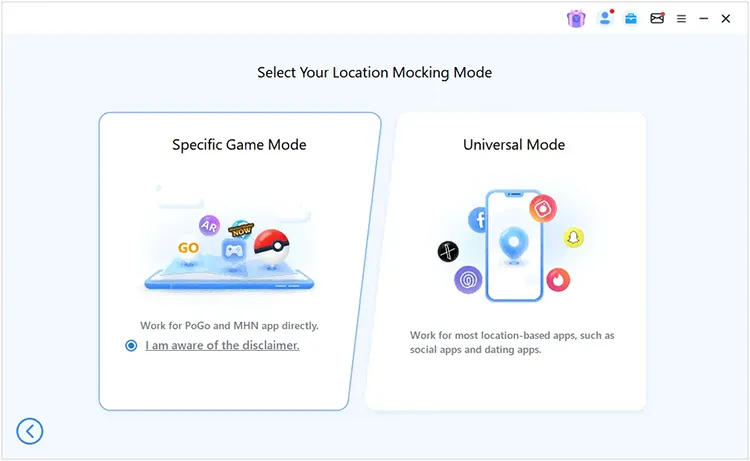
After the connection is established, go to the mode selection screen and choose "Specific Game Mode" to access location features designed for games like Pokémon GO.
-
Once the map interface is loaded, select a suitable mode to change your virtual location. Then, choose a destination on the map and apply the new GPS position for Pokémon GO.
Conclusion
The Pokémon GO GPS Signal Not Found error usually occurs when the game cannot access or verify your location information correctly. Checking location permissions, improving GPS accuracy, maintaining a stable connection, restarting apps and devices, updating software, and adjusting location settings can help solve this issue.
If you experience GPS problems while changing your location in Pokémon GO, Location Changer provides a way to manage GPS locations on Android and iPhone devices and supports popular location-based applications.
Related Articles
How to Hide Location on iPhone with 6 Effective Ways
Shiny Eevee Evolutions: All Forms, Evolution Methods & Tips
How to Fake Location on Find My iPhone/Friends Without Hassle
How to Fake GPS on Android Without Mock Location (Proven Guide)