


TL;DR:
You can send and receive Android messages on Mac using Google Messages for Web, iReaShare Android Manager, Texty, or KDE Connect. Google Messages for Web is ideal for basic browser-based messaging, while Texty and KDE Connect offer dedicated desktop messaging and device synchronization features. If you also want to manage, transfer, back up, and restore Android data on your Mac, iReaShare Android Manager provides a more comprehensive solution.
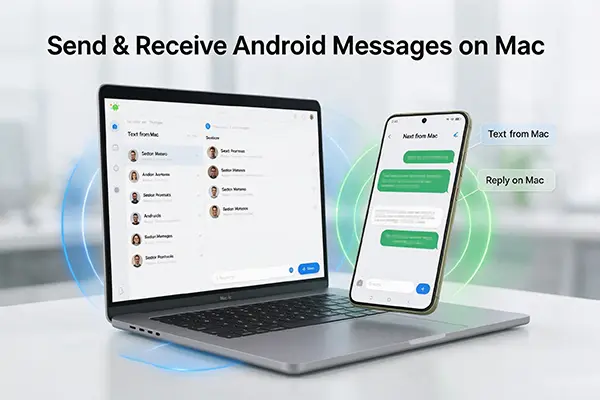
Although Android phones and Mac computers run on different operating systems, you don't have to switch between devices every time you receive a text message. With the right tools, you can access your Android messages, reply to conversations, and even start new chats directly from your Mac.
Whether you prefer a browser-based solution or a dedicated desktop application, there are several ways to send and receive Android messages on Mac. In this article, we'll introduce four practical methods, including a professional Android management tool, to help you stay connected without constantly picking up your phone.
- Part 1. How to Send and Receive Android Messages on Mac via Google Messages for Web
- Part 2. How to Send and Receive Android Messages on Mac by iReaShare Android Manager
- Part 3. How to Send and Receive Android Messages on Mac Through Texty
- Part 4. How to Send and Receive Android Messages on Mac with KDE Connect
- Part 5. What Is the Best Way to Send and Receive Android Messages on Mac?
Part 1. How to Send and Receive Android Messages on Mac via Google Messages for Web
Google Messages for Web is one of the easiest ways to access Android text messages on a Mac. It mirrors the conversations in your Google Messages mobile app in a web browser, allowing you to read incoming messages, reply to contacts, and start new conversations without installing additional Mac software. This method works with popular browsers such as Safari and Chrome. However, you need an Android phone with Google Messages installed and an active internet connection.
Steps to send and receive Android messages on Mac using Google Messages for Web:
Step 1. Open the Google Messages app on your Android phone. Make sure you are using the latest version and that it is set as your default SMS app if required.
Step 2. Tap your profile picture or account icon in the upper-right corner and select "Device pairing".
Step 3. On your Mac, open a browser and visit the Google Messages for Web website. Follow the pairing instructions displayed on the screen.
Step 4. On your Android phone, use the QR code scanner in Google Messages to scan the code displayed on your Mac.
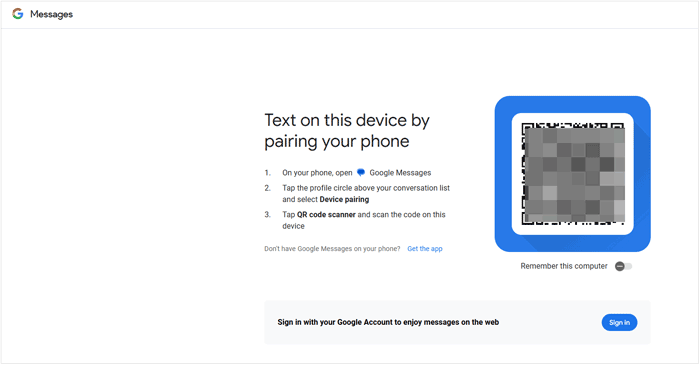
Step 5. Once the devices are paired, your conversations will appear in the browser. Select an existing conversation to reply or start a new chat to send a message.
- Free to use without installing a desktop application.
- Supports sending and receiving SMS and RCS messages through Google Messages.
- Works with Safari, Chrome, and other supported browsers.
- Requires Google Messages on your Android phone.
- Needs an internet connection on both devices.
- Only one computer can be actively paired at a time.
Part 2. How to Send and Receive Android Messages on Mac by iReaShare Android Manager
If you want more than basic message synchronization, iReaShare Android Manager is another practical option. This desktop program lets you connect your Android phone to your Mac and manage different types of Android data, including SMS, contacts, photos, videos, music, and apps.
Unlike a browser-based solution, it provides a dedicated interface for viewing existing text conversations and sending new messages. You can select contacts, enter message content, and send SMS directly from your Mac. It also supports backing up Android messages and other data to your computer.
Key features of iReaShare Android Manager:
- Send and receive Android SMS messages directly on Mac.
- Transfer contacts, photos, videos, music, and other files between Android and your computer.
- Back up Android data to a computer and restore it when needed.
- Work with most Android devices, like Samsung, OPPO, vivo, Google, Huawei, and Xiaomi.
Steps to send and receive Android messages on Mac using iReaShare Android Manager:
-
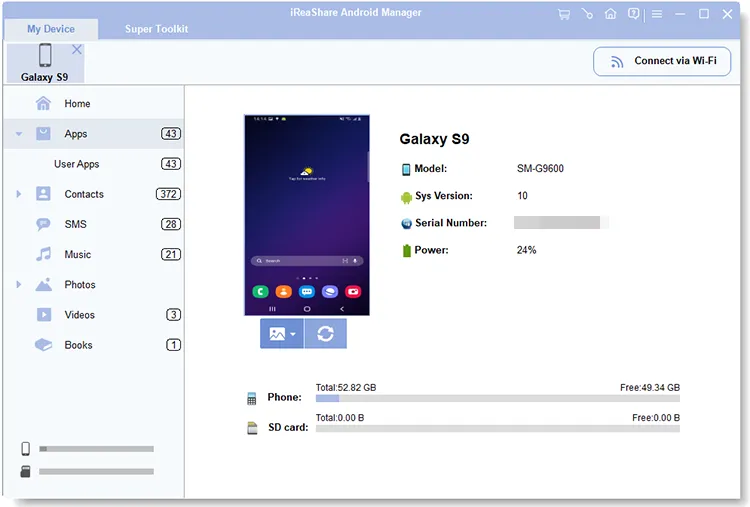
Download and install iReaShare Android Manager on your Mac. Launch the program and connect your Android phone to the Mac using a USB cable. You can also choose a Wi-Fi connection if supported by your setup.
-
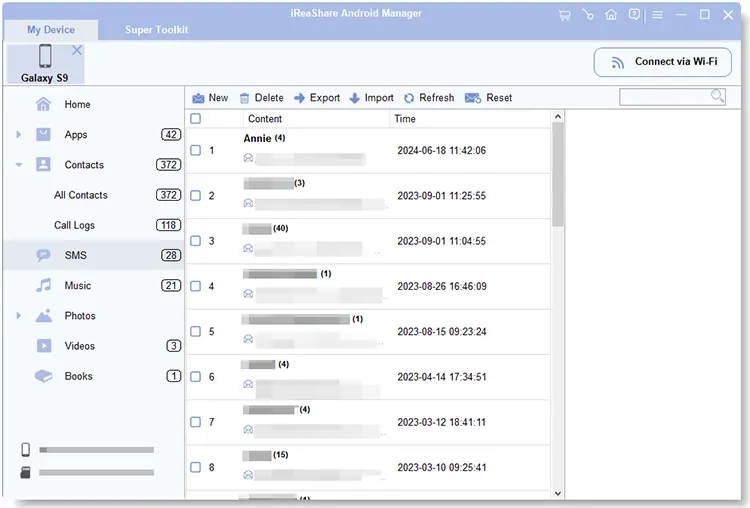
Once connected, select "SMS" from the left panel. The program will load your existing Android text messages, allowing you to browse and view your conversations.
-
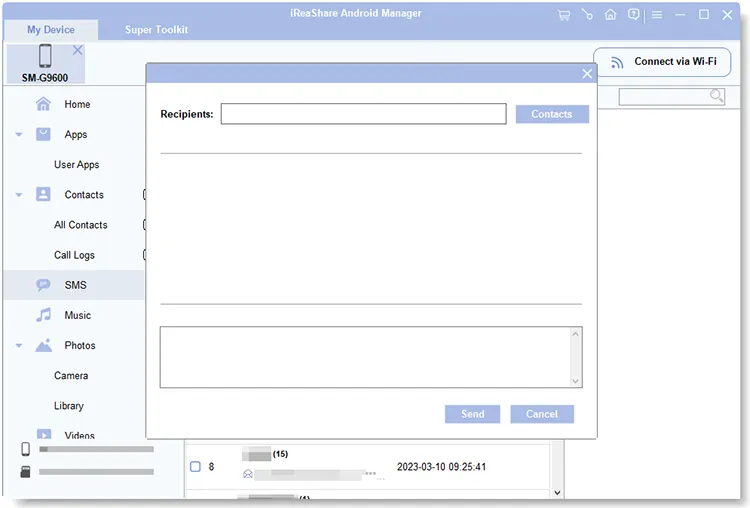
To send a new message, click "New" and select "Contacts" to choose the recipient. Enter your message in the text box and click "Send".
-
To receive messages, keep your Android phone connected to the Mac. Incoming SMS messages will be displayed in the program, so you can read and reply to them directly.
Video guide
- Supports sending and receiving SMS directly from a Mac.
- Allows you to view existing conversations and select recipients.
- Provides additional Android data management, backup, and restore features.
- Supports both USB and Wi-Fi connections.
- Requires installing desktop software and connecting your Android phone.
- Some advanced features require a paid license.
Part 3. How to Send and Receive Android Messages on Mac Through Texty
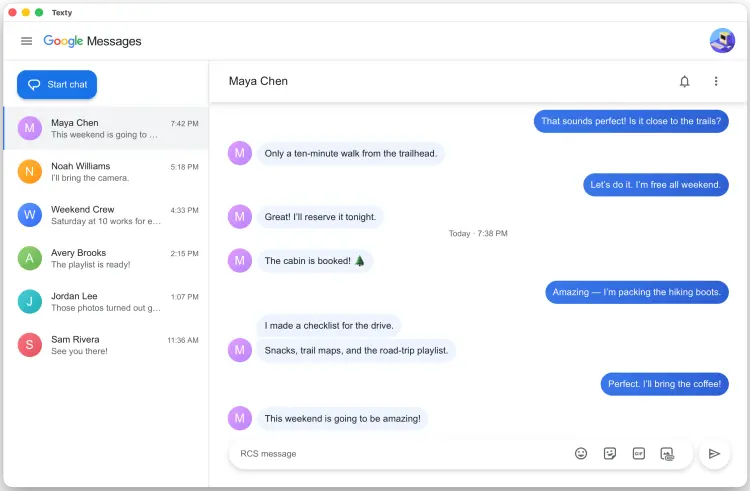
Texty is a Mac application designed to bring Google Messages to macOS. It provides a native desktop interface for Android messaging, so you can read conversations, send replies, and receive message notifications without opening a browser.
Texty keeps conversations synchronized with Google Messages on your Android phone. It also supports modern messaging features, including RCS, typing indicators, read receipts, emoji reactions, and file sharing. Its core messaging functions are free, while additional productivity features are available through Texty Pro.
Steps to send and receive Android messages on Mac using Texty:
Step 1. Install and open Google Messages on your Android phone. Make sure the app is set up and working properly.
Step 2. Download Texty from the Mac App Store and install it on your Mac.
Step 3. Launch Texty and follow the setup instructions to connect it to your Google Messages account. Make sure both devices have an internet connection.
Step 4. After the connection is established, your existing Google Messages conversations will appear in Texty. Select a conversation to read and reply to messages.
Step 5. To send a new message, start a conversation in the application, select a contact, enter your message, and send it. You can also receive incoming message notifications on your Mac.
- Provides a dedicated macOS interface for Google Messages.
- Supports SMS, MMS, and RCS messaging through Google Messages.
- Keeps conversations synchronized with your Android phone.
- Offers free core messaging and incoming message notifications.
- Requires Google Messages on your Android phone.
- Needs an internet connection on both devices.
- Some additional features require a Texty Pro subscription.
Part 4. How to Send and Receive Android Messages on Mac with KDE Connect
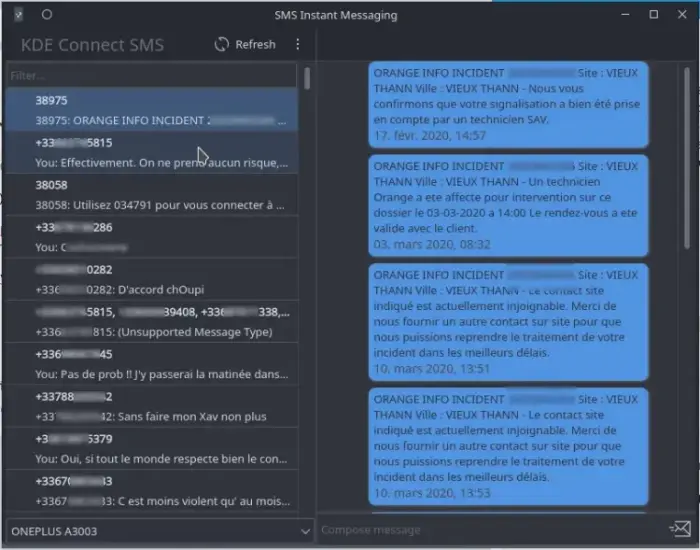
KDE Connect is a free, open-source application that connects Android phones with computers. Besides sharing files and synchronizing notifications, it provides SMS integration, allowing you to access and reply to Android text messages from a connected computer.
KDE Connect has a macOS version, so you can use it to connect your Android phone and Mac wirelessly. It is particularly useful if you want to share files, synchronize notifications, and manage other phone-to-computer interactions alongside messaging.
Steps to send and receive Android messages on Mac using KDE Connect:
Step 1. Download and install KDE Connect on your Android phone from Google Play or F-Droid. Then download the macOS version from the official KDE Connect website.
Step 2. Open KDE Connect on both devices and make sure they are connected to the same local network.
Step 3. Find your Mac in the available devices list on your Android phone and send a pairing request. Accept the request on your Mac to establish the connection.
Step 4. Grant the necessary permissions on your Android phone, including SMS and notification access. Make sure the SMS functionality is available and enabled in your desktop application.
Step 5. Open the SMS or messaging interface in KDE Connect, select an existing conversation, and enter your reply. You can also start a new conversation and send an SMS from your Mac.
- Free and open-source.
- Supports wireless connections between Android and Mac.
- Offers SMS integration and notification synchronization.
- Provides additional features such as file sharing and clipboard synchronization.
- Requires installing and pairing applications on both devices.
- Some features depend on permissions and desktop version compatibility.
- Requires both devices to be connected to the same local network for the standard wireless setup.
Part 5. What Is the Best Way to Send and Receive Android Messages on Mac?
Each method offers different messaging and device management features. The following table compares their connection requirements, SMS capabilities, additional features, and costs to help you choose the most suitable option.
Here is a quick comparison to help you choose:
| Method | Connection | Send & Receive SMS | Additional Features | Cost |
|---|---|---|---|---|
| Google Messages for Web | Internet | Yes | Browser-based messaging, RCS | Free |
| iReaShare Android Manager | USB/Wi-Fi | Yes | Comprehensive Android data management | Free trial/Paid |
| Texty | Internet | Yes | macOS notifications, RCS, file sharing | Free/Paid Pro |
| KDE Connect | Local network | Yes | File sharing, clipboard, notification sync | Free |
Conclusion
In conclusion, sending and receiving Android messages on a Mac is easier than you might think with the right tool. Whether you prefer a simple messaging solution or a more complete way to manage your Android device, you can choose the option that best fits your needs.
If you also want to manage other Android data from your Mac, give iReaShare Android Manager a try and explore its features for yourself.
Download for Mac Download for Win
Related Articles
Connect Android to Mac Seamlessly: 5 Methods with Simple Steps
View, Send, and Receive Android Text from Computer Without Effort
How to Sync Android with Mac in 5 Effective Ways (Latest)
How to Transfer Text Messages from Android to Computer | 5 Methods